
If you have ever tried uploading a MOV file only to get rejected by a website, a coworker, or that one app that behaves like it has personal issues, welcome to the club. MOV files are common, especially from Apple devices and editing workflows, but MP4 is usually the safer choice when you want better compatibility, easier sharing, and smaller file sizes.
The good news is that converting MOV to MP4 does not have to cost money, require pro-level editing skills, or involve shouting at your laptop like it just ate your homework. In many cases, you can do it in minutes with a free tool you already have, a simple desktop app, or a browser-based converter.
In this guide, you will learn three free tricks that actually work, when to use each one, what quality tradeoffs to expect, and how to avoid the most common mistakes. By the end, you will know whether your file needs a quick format fix, a full re-encode, or just a reliable online conversion.
Why Convert MOV to MP4 in the First Place?
Let’s start with the obvious question: if a video already works, why mess with it?
Because MOV and MP4 are not the same thing, even though they can sometimes hold similar video and audio data. MOV is closely tied to Apple’s QuickTime ecosystem and is often great for editing or preserving higher-quality media. MP4, on the other hand, is usually the friendlier format for websites, phones, Windows PCs, Android devices, smart TVs, social platforms, and email attachments that are already judging you for being too large.
Here is why people usually convert a MOV file to MP4:
- Better compatibility: MP4 opens more easily across devices and apps.
- Smaller files: MP4 with H.264 often gives a better balance of size and quality.
- Easier uploads: Many websites and forms prefer MP4.
- Smoother sharing: Clients, teachers, coworkers, and relatives all tend to handle MP4 with less drama.
Before You Convert: Know the Difference Between a Container and a Codec
This part sounds technical, but it matters. Think of a video file like a lunchbox. The container is the lunchbox itself, such as MOV or MP4. The codec is the actual food inside, such as H.264, HEVC, or something more exotic that makes older software panic.
Why does this matter? Because sometimes your MOV file already contains video that is perfectly fine for an MP4 container. In that lucky situation, you may not need a full conversion at all. You may only need a quick container swap. Other times, the codec inside the MOV file is not a good fit for MP4, so the file must be re-encoded. That takes longer, but it is still easy with the right tool.
That is exactly why the first trick is extremely fast, while the second and third tricks are more universal.
Trick #1: Rename the File Extension on Mac for a Super-Fast Fix
Best for: H.264 MOV files that just need to become MP4 quickly
This is the sneaky little shortcut people love because it feels almost too simple. If your MOV file uses the H.264 codec, you may be able to convert it by simply changing the file extension from .mov to .mp4. No re-encoding. No waiting. No coffee break required.
How to do it
- Find your MOV file in Finder.
- Click the filename once, then rename it.
- Change .mov to .mp4.
- Confirm that you want to use the new extension.
- Test the new MP4 file in your target app or browser.
Why this works
In some cases, the video and audio streams inside the MOV file are already compatible with MP4. You are not really “converting” the media; you are just giving it a more useful wrapper. That is why this method is so fast.
The catch
This trick does not work for every MOV file. If your video was encoded with something other than H.264, or if the target platform is picky, the renamed file may fail to play, lose audio, or refuse to upload. If that happens, do not declare war on your computer. Just move on to Trick #2.
Use this method when speed matters most and you strongly suspect the file came from a modern phone, simple export, or common screen recording workflow.
Trick #2: Use HandBrake for the Most Reliable Free Conversion
Best for: Nearly any MOV file on Windows, Mac, or Linux
If Trick #1 is the shortcut, HandBrake is the dependable grown-up in the room. It is free, open-source, cross-platform, and built specifically for video transcoding. Translation: it takes weird, bulky, or fussy video files and turns them into something useful without charging you rent.
Why HandBrake is such a good option
HandBrake can open MOV files and create widely supported MP4 output. It also gives you more control over quality, file size, dimensions, frame rate, audio tracks, and presets. So if your MOV file is too large, too awkward, or too stubborn for the rename trick, HandBrake is usually the best free answer.
How to convert MOV to MP4 with HandBrake
- Download and install HandBrake.
- Open the app and drag your MOV file into it.
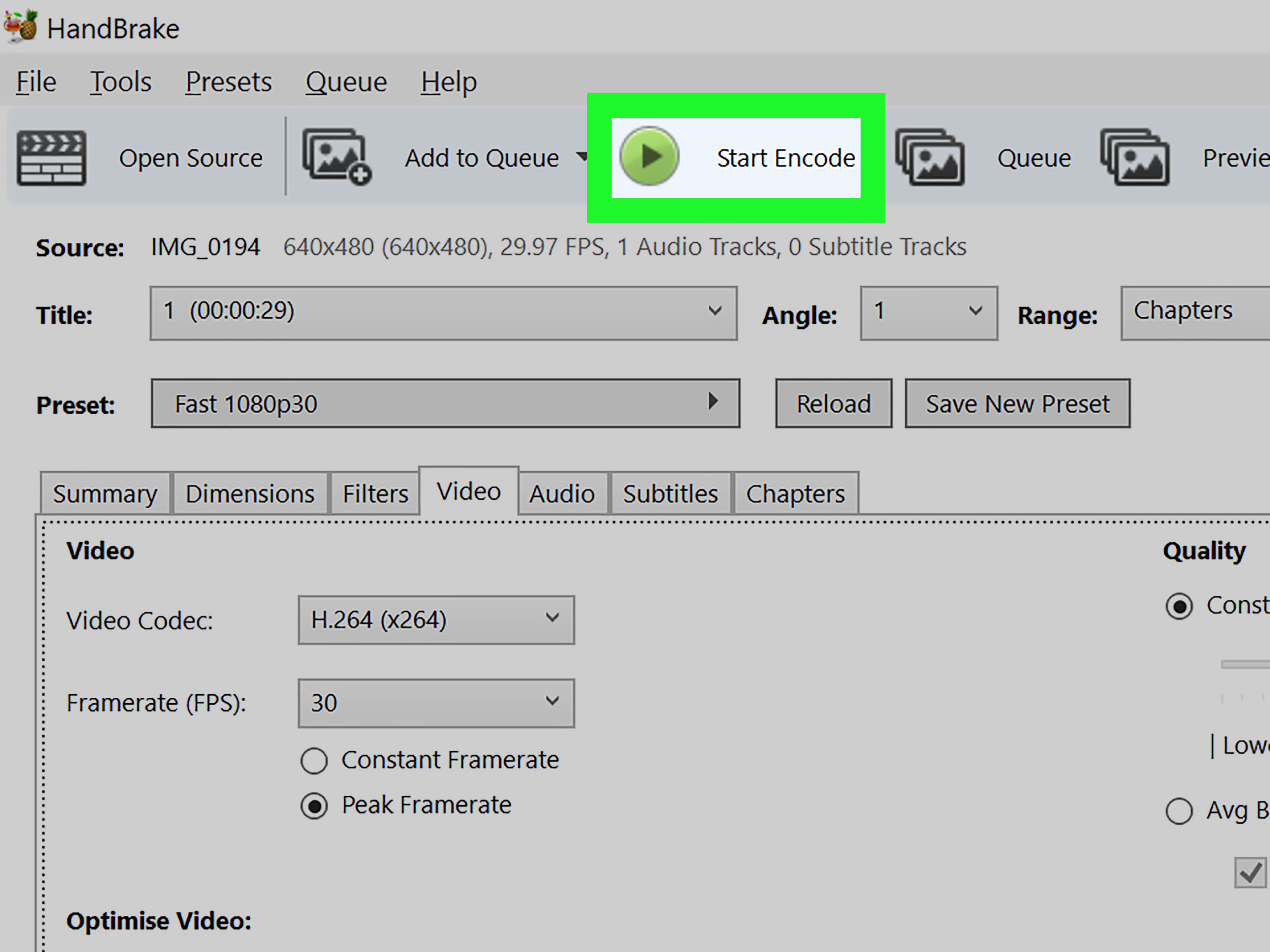
- Choose a preset such as Fast 1080p30 or another general preset that fits your video.
- Make sure the output format is set to MP4.
- Pick a save location and filename.
- Click Start Encode.
Settings that usually work well
- Format: MP4
- Video codec: H.264 for broad compatibility
- Resolution: Keep the same as the original unless you want a smaller file
- Frame rate: Same as source is usually the safest choice
- Audio: AAC works well for most situations
If you want smaller files, lower the quality slightly or reduce the resolution. If you want better quality, use a slower preset or a higher quality setting. The sweet spot for most everyday sharing is a standard H.264 MP4 with the original resolution preserved.
When HandBrake wins
HandBrake is ideal when:
- Your MOV file will not play after renaming
- You need reliable results across devices
- You want to shrink a large video file
- You are converting multiple clips and want consistency
In plain English, if you want the method most likely to work on the first real try, this is it.
Trick #3: Use a Free Online Converter When You Do Not Want to Install Anything
Best for: Quick one-off conversions and casual users
Sometimes you do not want to install software. Maybe you are on a borrowed computer. Maybe your work laptop treats downloads like they are contraband. Maybe you just want to convert one clip and move on with your life. That is where a free online MOV to MP4 converter can help.
Several browser-based tools can upload a MOV file, convert it, and let you download an MP4. Many of them also let you tweak quality, resolution, or compression settings.
How it usually works
- Open an online video converter in your browser.
- Upload the MOV file.
- Select MP4 as the output format.
- Choose optional settings like resolution or quality if needed.
- Start the conversion and download the new file.
Why people like this method
- No installation required
- Works on most operating systems
- Easy for beginners
- Good for occasional conversions
The downsides
Online conversion is convenient, but it is not always the best choice. Large files can take forever to upload. Privacy can also matter if the clip contains personal, school, work, or client material. And some free tools impose file size limits, slower queues, or fewer controls.
Use an online converter for convenience, not for sensitive or gigantic files. If the video is personal or huge, HandBrake is usually the smarter move.
Will Converting MOV to MP4 Reduce Quality?
Sometimes yes, sometimes barely, and sometimes not in any meaningful way.
If you are just changing the extension in a compatible case, quality should stay the same because the media streams are not being re-encoded. But if you use HandBrake or an online converter, the file is typically being compressed again. That can cause some quality loss, especially if you choose low bitrate settings or overly aggressive compression.
For most normal uses, though, a well-made MP4 conversion looks excellent. If your goal is uploading, emailing, posting, sharing, or playing on a mix of devices, the quality loss is often minor compared with the huge gain in compatibility.
A good rule of thumb is this: keep the original resolution, use H.264, and avoid crushing the bitrate too hard. Your file will usually look great and stay manageable in size.
Common MOV to MP4 Problems and How to Fix Them
The converted file has no sound
This usually points to an audio codec issue. Re-encode the file with AAC audio in HandBrake instead of relying on a simple rename.
The MP4 plays on one device but not another
The container may be MP4, but the codec inside may still be the problem. Again, a proper re-encode with H.264 video and AAC audio solves this in many cases.
The file got much smaller and now looks blurry
You compressed it too aggressively. Increase the quality settings, keep the original resolution, or use a better preset.
The file is still too large
Reduce the resolution from 4K to 1080p, shorten the clip, or lower the bitrate a little. Just do not go wild unless you enjoy making videos look like they were filmed through a potato.
The website still refuses the MP4
Check the upload limit, resolution rules, duration cap, and codec requirements. Sometimes the issue is not the format at all. It is the file size, length, or upload policy.
Which Free Trick Should You Use?
Here is the easy decision chart:
- Use the rename trick if you are on a Mac, the file likely uses H.264, and you want the fastest possible result.
- Use HandBrake if you want the most reliable, flexible, and cross-platform way to convert MOV to MP4 for free.
- Use an online converter if you only have one file, do not want to install software, and the video is not sensitive or enormous.
If you are unsure, start with HandBrake. It is the safest middle ground between control, quality, and convenience.
Real-World Experiences: What Actually Happens When You Convert MOV to MP4
On paper, converting a MOV file to MP4 sounds like a tiny task. In real life, it is often one of those “this should take 30 seconds” jobs that somehow ends with three test exports, two confusing error messages, and a deep personal grudge against file formats. The good news is that the process becomes much easier once you recognize the pattern behind the chaos.
A very common experience starts with an iPhone or Mac-created video. The clip looks fine on the original device, but the moment you try to upload it to a school portal, send it to a client, or open it on a Windows machine, things get weird. Sometimes the thumbnail appears but the video will not play. Sometimes only audio works. Sometimes the upload box acts like your MOV file is an alien life form. In many of those cases, converting to MP4 solves the issue almost instantly because MP4 is simply more predictable across platforms.
Another real-world scenario involves file size. A person records a short presentation, interview, or family clip and assumes that because the video is only a minute long, the file should be tiny. Then the MOV file shows up weighing as much as a small moon. After conversion to MP4, the same clip often becomes much easier to email, store, and upload. That alone is why so many people switch to MP4 before posting content online.
There is also the quality panic moment. Plenty of users worry that converting MOV to MP4 will instantly turn their crisp footage into blurry soup. In practice, that usually does not happen when the settings are reasonable. Yes, quality can drop if you compress too hard, but with a standard H.264 export and sensible resolution choices, the result is often visually very close to the original. Most people watching on phones, laptops, or web players will never notice a dramatic difference.
Then there is the “I just need this one file to work right now” experience. That is where online converters shine. They are not always the best for privacy or giant files, but for a quick one-off fix, they can feel like a lifesaver. Upload, convert, download, done. No setup, no learning curve, no wandering through menus that seem to have been designed during a thunderstorm.
The biggest lesson from real use is simple: not every MOV file needs the same treatment. Some files only need a quick extension swap. Some need a full re-encode. Some need better compression settings. Once you stop expecting one universal magic button and start choosing the right method for the situation, converting MOV to MP4 becomes much less annoying and a lot more successful.
Final Thoughts
If you need to convert a MOV file to an MP4 for free, you absolutely have good options. The fastest trick is changing the extension when the codec is already compatible. The most reliable trick is using HandBrake. And the easiest no-install trick is using a free online converter for lighter, low-risk jobs.
The best method depends on your file, your device, and your patience level. But in general, if your goal is better compatibility, smaller file size, and easier sharing, MP4 is usually the practical winner. Which is nice, because file formats are stressful enough without also being expensive.