
Your iPhone flashlight is one of those tiny features that becomes a superhero at the exact moment you drop your keys under the car seat, inspect a suspicious noise behind the couch, or try not to step on a sleeping pet at 2 a.m. But when it refuses to turn offor you accidentally switch it on in your pocket like a dramatic lighthousethe same helpful tool can become mildly embarrassing. Good news: turning off the flashlight on an iPhone is usually fast, simple, and does not require calling your tech-savvy cousin.
This quick guide explains every practical way to turn the iPhone flashlight off, including from the Lock Screen, Control Center, Siri, the Action Button, Back Tap, and newer iOS customization options. Whether you have an older iPhone with a Home button, a modern iPhone with Face ID, or a newer model with an Action Button, you will find the right method here.
Quick Answer: The Fastest Way to Turn Off the Flashlight on iPhone
The quickest method depends on where you are on your iPhone. If the screen is locked, wake your iPhone and press the flashlight icon on the Lock Screen. If your phone is unlocked, open Control Center and tap the flashlight icon. If your hands are busy, ask Siri to turn it off. Simple, elegant, and much better than waving the phone around like you are directing airport traffic.
Fastest options at a glance
- From Lock Screen: Wake your iPhone, then press or tap the flashlight button.
- From Control Center: Swipe down from the upper-right corner, then tap the flashlight icon.
- With Siri: Say, “Siri, turn off the flashlight.”
- With Action Button: Press and hold the Action Button if it is assigned to Flashlight.
- With Back Tap: Double-tap or triple-tap the back of your iPhone if you set it up for Flashlight.
Method 1: Turn Off the Flashlight from the Lock Screen
The Lock Screen is often the easiest place to switch off the flashlight, especially if it turned on accidentally while your iPhone was in your pocket, purse, or hand. On many iPhone models, the flashlight icon appears in the lower-left corner of the Lock Screen.
Steps
- Wake your iPhone by tapping the screen, pressing the Side button, or raising the phone.
- Look for the flashlight icon near the bottom-left corner of the Lock Screen.
- Press or tap the flashlight icon until the light turns off.
On some models and iOS versions, you may feel a small haptic response when the flashlight turns off. That tiny vibration is your iPhone politely saying, “Mission accomplished.”
What if the flashlight icon is missing?
If you do not see the flashlight button on the Lock Screen, your Lock Screen controls may have been customized. In newer iOS versions, users can remove or replace the default flashlight and camera buttons. If the shortcut is gone, use Control Center instead, or edit the Lock Screen controls to add it back.
Method 2: Turn Off the Flashlight Using Control Center
Control Center is the most reliable method because it works whether you are on the Home Screen, inside an app, or simply trying to stop your iPhone from glowing like a tiny stage spotlight.
For iPhones with Face ID
- Swipe down from the upper-right corner of the screen.
- Find the flashlight icon.
- Tap the flashlight icon once to turn it off.
For iPhones with a Home button
- Swipe up from the bottom edge of the screen.
- Tap the flashlight icon.
- The flashlight should turn off immediately.
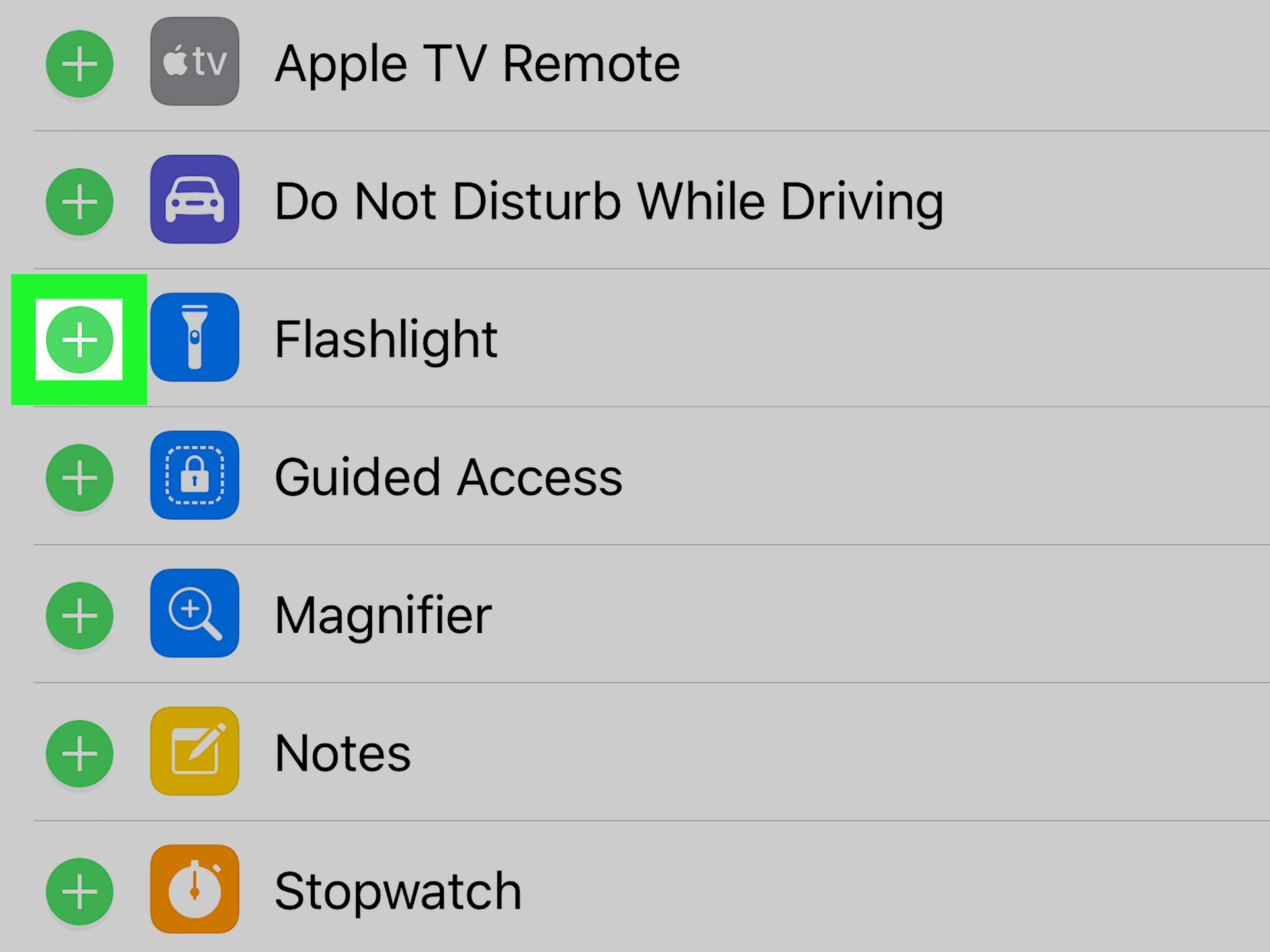
If the icon is highlighted, the flashlight is on. Tap it again and the light turns off. If the icon is not visible, you may need to add the flashlight control back to Control Center through Settings.
Method 3: Ask Siri to Turn Off the Flashlight
Siri is the hands-free option, and it is especially useful when you are carrying groceries, fixing something under a sink, or holding a cat who has suddenly decided your arm is a permanent residence.
Try these voice commands
- “Siri, turn off the flashlight.”
- “Hey Siri, turn off my flashlight.”
- “Siri, switch off the torch.”
Depending on your Siri settings and iOS version, you may need to say “Siri” or “Hey Siri.” If Siri is not responding while the phone is locked, check your Siri settings and make sure voice activation is enabled.
Method 4: Turn Off the Flashlight with the Action Button
Some newer iPhone models include an Action Button, which can be customized to control useful features, including the flashlight. If your Action Button is assigned to Flashlight, turning the light off is wonderfully quick.
Steps
- Press and hold the Action Button.
- Wait for the flashlight to turn off.
- If nothing happens, your Action Button may be assigned to a different function.
How to assign Flashlight to the Action Button
- Open the Settings app.
- Tap Action Button.
- Swipe through the available actions until you find Flashlight.
- Leave Flashlight selected.
- Press and hold the Action Button whenever you want to turn the flashlight on or off.
This is a great setup if you use the flashlight often. It is also helpful for people who prefer physical buttons over screen gestures.
Method 5: Use Back Tap to Turn the Flashlight Off
Back Tap is one of the iPhone’s sneakiest useful features. It lets you double-tap or triple-tap the back of your iPhone to trigger an action. If you set Back Tap to Flashlight, you can turn the flashlight on or off without opening Control Center.
How to set up Back Tap for Flashlight
- Open Settings.
- Tap Accessibility.
- Tap Touch.
- Scroll down and tap Back Tap.
- Choose Double Tap or Triple Tap.
- Select Flashlight from the list of actions.
Once it is set up, tap the back of your iPhone two or three times to toggle the flashlight. If Back Tap does not work consistently, try removing a thick case or tapping more firmly near the center of the phone’s back.
Method 6: Turn Off the Flashlight from the Dynamic Island
On supported iPhone models, the Dynamic Island may show a flashlight indicator when the light is active. This gives you a visual reminder that the flashlight is on, which is helpful when you did not mean to turn your iPhone into a pocket lantern.
If you see the flashlight indicator near the top of the screen, tap or interact with it to access the flashlight control, then switch it off. Availability and behavior may vary depending on your iPhone model and iOS version.
How to Lower Flashlight Brightness Instead of Turning It Off
Sometimes you do not need to turn the flashlight off completely. You just need it to stop acting like a miniature sun. The iPhone lets you adjust flashlight brightness from Control Center.
Steps to adjust brightness
- Open Control Center.
- Press and hold the flashlight icon.
- Drag the brightness slider down to reduce the light.
- Drag it all the way down or tap the flashlight icon again to turn it off.
Lower brightness is useful for reading in the dark, finding something in a bedroom without waking everyone, or navigating a hallway without creating a dramatic horror-movie entrance.
Why Does My iPhone Flashlight Turn On Accidentally?
Accidental flashlight activation is common. The most likely reason is pressure on the Lock Screen flashlight button. Your hand, pocket fabric, bag contents, or a curious toddler can activate it. The flashlight may also turn on through Back Tap if that feature is enabled and your phone gets bumped in just the right way.
Common causes
- The Lock Screen flashlight button was pressed accidentally.
- Back Tap is assigned to Flashlight and triggered by movement.
- The Action Button is assigned to Flashlight and was pressed in a pocket or bag.
- Control Center was opened unintentionally.
- A shortcut or automation is toggling the flashlight.
How to Prevent the iPhone Flashlight from Turning On by Accident
If the flashlight keeps turning on without your permission, do not worry. Your iPhone is probably not haunted. It just needs a few settings adjusted.
Remove the flashlight from the Lock Screen
In newer iOS versions, you can customize Lock Screen controls. Wake your iPhone, touch and hold the Lock Screen, tap Customize, choose Lock Screen, then remove or replace the flashlight shortcut. This is one of the best solutions if the light keeps turning on in your pocket.
Change or disable Back Tap
Go to Settings > Accessibility > Touch > Back Tap. If Double Tap or Triple Tap is assigned to Flashlight, switch it to another action or set it to None. This can stop accidental flashlight moments caused by bumps or taps.
Reassign the Action Button
If your Action Button controls the flashlight and you keep pressing it accidentally, open Settings > Action Button and assign it to another feature, such as Silent Mode, Focus, Camera, or no action.
What to Do If the Flashlight Will Not Turn Off
If the flashlight stays on even after you tap the icon, try these fixes. Most flashlight glitches are temporary and disappear faster than your motivation to organize old phone photos.
1. Lock and unlock your iPhone
Press the Side button to lock your iPhone, then wake it again and try turning the flashlight off from the Lock Screen or Control Center.
2. Close the Camera app
The flashlight uses the same rear LED as the camera flash. If the Camera app is open or stuck, close it and try again.
3. Restart your iPhone
A restart can clear small software hiccups. Turn your iPhone off, wait a few seconds, then turn it back on.
4. Check for iOS updates
Software updates often include bug fixes and performance improvements. Go to Settings > General > Software Update and install any available update.
5. Let the phone cool down
If your iPhone is too hot, some features may behave differently until the device cools. Remove it from direct sunlight, stop heavy apps, and give it a few minutes.
Best Method for Each Situation
| Situation | Best Method | Why It Works |
|---|---|---|
| Phone is locked | Lock Screen flashlight icon | Fastest without unlocking |
| Phone is unlocked | Control Center | Reliable from almost anywhere |
| Hands are busy | Siri voice command | No touching required |
| You use flashlight often | Action Button or Back Tap | Creates a shortcut |
| Flashlight turns on accidentally | Remove Lock Screen shortcut | Prevents pocket activation |
Extra Experience: Real-Life Lessons from Using the iPhone Flashlight
The iPhone flashlight feels like a small feature until you start noticing how often it saves the day. It is the unsung hero of modern life. You may not think about it when everything is bright and normal, but the moment power goes out, a screw rolls under the desk, or you hear something suspicious behind the washing machine, suddenly that little LED becomes the most important technology you own.
One common experience is the classic “accidental flashlight in public” moment. You take your phone out of your pocket and realize the flashlight has been shining for who knows how long. Maybe it lit up the inside of your jacket. Maybe it beamed dramatically through your bag. Maybe a stranger noticed before you did. This is usually caused by the Lock Screen shortcut being pressed accidentally. If it happens often, removing the flashlight from the Lock Screen can make your iPhone feel much less mischievous.
Another everyday lesson: Control Center is the method worth memorizing. Even if the Lock Screen shortcut changes, Siri is unavailable, or your Action Button is assigned to something else, Control Center remains dependable. Swipe, tap, done. It is the iPhone equivalent of knowing where the main light switch is in a room.
Back Tap is also surprisingly useful, but it takes a little practice. Some users love setting Double Tap to Flashlight because it feels like a secret button. Others find it too sensitive, especially with thinner cases or active lifestyles. If your flashlight keeps turning on when you set the phone down, Back Tap may be the sneaky culprit. Switching Flashlight to Triple Tap can reduce accidental triggers while keeping the shortcut available.
Brightness control is another underrated trick. Full brightness is great outdoors or during an emergency, but indoors it can be too intense. Lowering the flashlight brightness makes the feature more practical for checking on a sleeping child, reading a label in a dim room, or finding a charger without waking someone. Once you learn the press-and-hold brightness slider in Control Center, the flashlight becomes less of a blunt instrument and more of a proper tool.
The biggest takeaway is simple: learn more than one way to turn the flashlight off. The Lock Screen is fastest, Control Center is most reliable, Siri is best when hands are busy, and Action Button or Back Tap is perfect for shortcut lovers. Once you know these options, the iPhone flashlight stops being a random glowing surprise and becomes exactly what it should be: a helpful light that turns off when you tell it to.
Conclusion
Turning off the flashlight on your iPhone is easy once you know where to look. Use the Lock Screen button for the fastest access, Control Center for the most dependable method, Siri when you need hands-free help, and Action Button or Back Tap if you enjoy shortcuts. If the flashlight keeps turning on by accident, customize your Lock Screen controls, disable Back Tap, or reassign the Action Button. Your iPhone flashlight should be useful, not a surprise spotlight at the worst possible moment.
The next time your iPhone lights up unexpectedly, do not panic. Tap the flashlight icon, swipe into Control Center, ask Siri, or use your shortcut. The tiny sun in your pocket is fully under control.
Note: Menu names and available controls may vary slightly depending on iPhone model, iOS version, region, and personal settings.