
Few things are more annoying than tapping a perfectly normal website and getting blocked by Web Guard. One second you are trying to open a homework page, a forum, or a recipe site. The next second, your phone acts like you just tried to break into a top-secret vault. Dramatic? Yes. Relatable? Also yes.
Web Guard is designed to filter web content on mobile networks and help block categories of sites that may be unsafe, inappropriate, or restricted on a family or managed account. That can be helpful, especially for shared devices and teen accounts. But it can also be frustrating when a harmless site gets caught in the net.
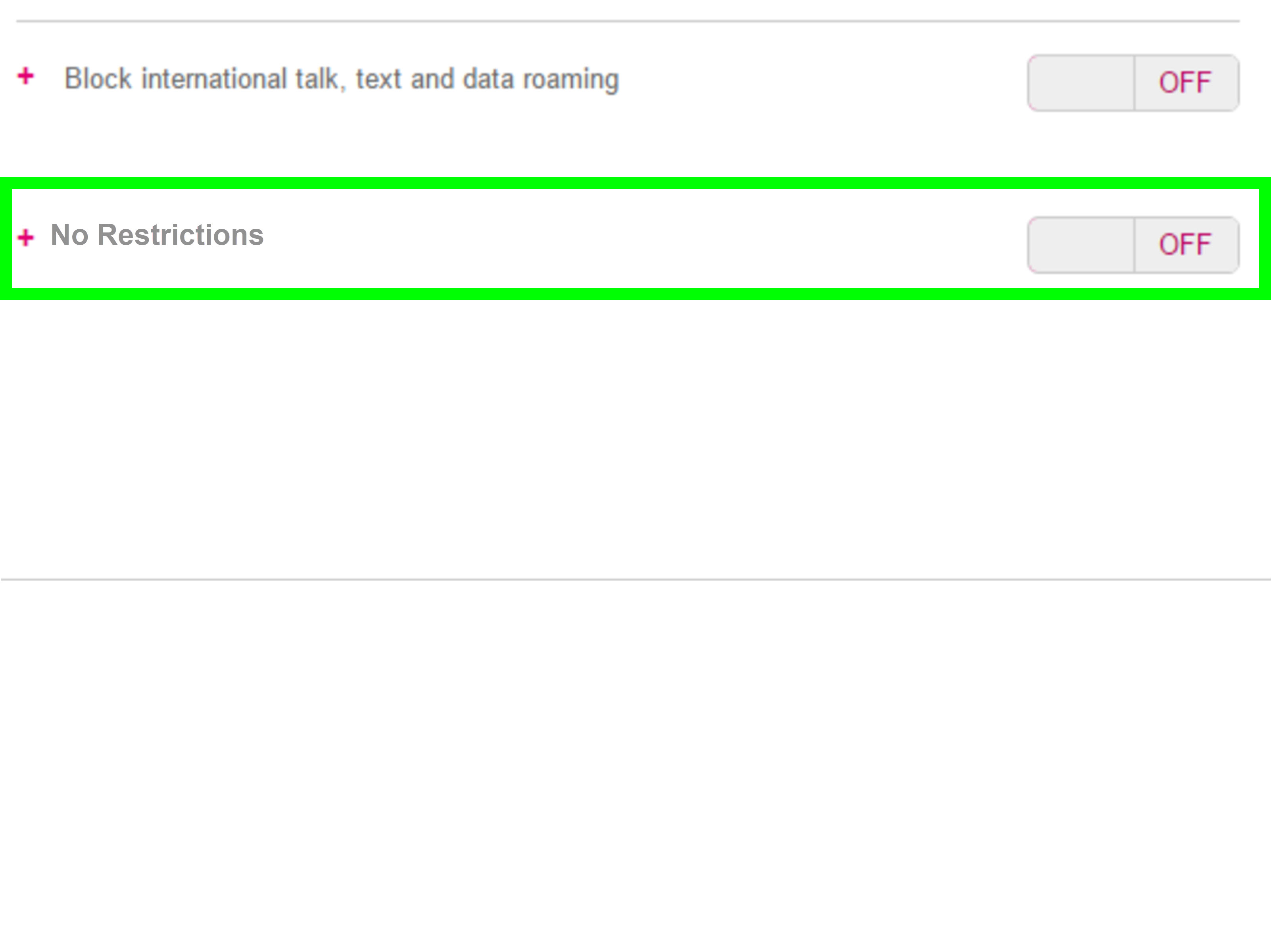
This guide explains what Web Guard is, why it may be active on your line, and the safe ways to resolve blocked-site issues without trying to bypass protections. If your goal is simply to access legitimate content for school, work, reading, or everyday life, there are better options than trying to disable safety tools entirely.
What Is Web Guard?
Web Guard is a content-filtering feature used by some mobile carriers and managed accounts. Its job is to limit access to certain categories of websites when browsing through the carrier’s mobile data network. In many cases, it is tied to account settings, family plans, age-based restrictions, or parental controls.
Think of it like a cautious digital chaperone. Sometimes that chaperone is helpful. Sometimes it mistakes a health article for something suspicious and slams the door shut. The key point is that Web Guard is usually controlled at the account level, not just by one app on one phone.
Why Web Guard Might Be Turned On
1. The account owner enabled it
On family plans, the primary account holder may have turned on filtering for one or more lines. This is common when children or teens use the device.
2. The line is classified as a minor account
Some carriers apply stronger filtering to lines associated with younger users. Even when a user is old enough to access regular content, the account settings may not have been updated yet.
3. A family safety or parental-control service is connected
Web filtering may come from a broader family safety package, not just the network itself. In that case, the restriction may be managed through a family app or account dashboard.
4. A site was miscategorized
This happens more often than people think. A harmless website can be flagged incorrectly because of keywords, ads, user-generated content, or an outdated content label.
5. You are browsing on mobile data
Some filtering features affect traffic over the carrier’s network but not necessarily traffic on a different approved Wi-Fi network. That does not mean you should bypass anything. It simply means the filtering system may work differently depending on where the connection comes from.
Safe Ways to Fix a Web Guard Block
1. Confirm the site is legitimate
Before doing anything else, make sure the site is trustworthy. If it is full of pop-ups, shady download buttons, or strange redirects, the block may be doing you a favor. Not every “I swear this is a normal website” website is actually normal.
2. Ask the account owner to review the settings
If you are on a family plan or someone else manages the line, the cleanest solution is to ask the account owner to check the content-filter settings. They may be able to adjust the restriction level or confirm whether the site should be available.
3. Review family-safety tools connected to the line
Sometimes the restriction is not coming from the carrier alone. It may come from a family-management app, a parent-control dashboard, or a device-level restriction. The account manager can review those tools and decide whether the site should be allowed.
4. Verify the age or profile information on the account
If a line is still set up under a child or teen profile by mistake, the filtering may be stricter than intended. The account owner can review the account details and correct them if needed.
5. Contact customer support about a possible false block
If the website is legitimate and still blocked, customer support may be able to explain why. In some cases, they can help determine whether the block is tied to account settings, network policy, or a miscategorized site.
6. Request a site review or recategorization
When a site is being incorrectly flagged, the best fix is to have it reviewed. That approach is far better than trying to work around the filter. It solves the real problem and helps prevent the same issue from happening again.
7. Check device-level content restrictions
Phones, tablets, and browsers may also have SafeSearch, screen-time controls, restricted DNS settings, or content filters enabled. If you are the device owner or administrator, review those settings carefully. A network block and a device block can look similar even though they come from different places.
8. Try a different approved browser
Sometimes a browser has stronger built-in restrictions, aggressive safe-browsing settings, or extensions that affect access. Using another trusted browser may help identify whether the issue is with the browser or the network filter. This is troubleshooting, not bypassing.
9. Update the phone and browser
Old software can cause weird browsing behavior. Keeping your operating system and browser current can reduce false warnings, certificate issues, and loading errors that may look like content filtering.
10. Keep a list of blocked sites that seem harmless
If multiple normal sites are getting blocked, write them down. That gives the account owner or support team a clearer picture and makes it easier to spot a pattern. Maybe all health forums are being flagged. Maybe educational video pages are being misread. A pattern helps.
11. Use the account the right way
If a device or line belongs to a family plan, school plan, or managed account, the safest path is to follow the account rules. That may not be the most exciting answer in human history, but it is the one least likely to create bigger issues later.
What Not to Do
When a website is blocked, people often rush to random videos, forum posts, or “secret tricks” that promise instant access. That is where things go sideways. The internet has no shortage of questionable advice served with a side of overconfidence.
Avoid using unknown apps, suspicious configuration profiles, sketchy VPN tools, or unofficial workarounds from strangers. Those can create privacy problems, malware risks, billing issues, or account trouble. If the site matters, solve the issue through the account owner, support team, or a proper review request.
When It Makes Sense to Keep Web Guard On
Not every blocked page is a mistake. For shared devices, teen users, and family plans, web filtering can reduce exposure to scams, explicit material, and unsafe downloads. Even adults sometimes benefit from a little friction between themselves and obviously bad links. The internet can be a wonderful place, but it also contains enough garbage to fill a digital landfill.
If the restriction only blocks a few questionable sites and does not interfere with normal use, keeping it active may be the best option. The goal is not to remove every barrier. The goal is to make sure the barrier is doing the right job.
Real-World Experiences With Web Guard Problems
People usually discover Web Guard in the least glamorous way possible: by trying to open something boring. A student taps an article for class and gets blocked. A parent tries to view a coupon page and gets a warning screen instead. Someone searches for medical information and suddenly feels like they have been accused of planning cybercrime from their sofa.
One common experience is the “why does this only happen on mobile data?” mystery. A site loads at home on Wi-Fi, but on cellular data it gets blocked. That can be confusing until the user realizes the carrier network and the local Wi-Fi network may handle filtering differently. The problem feels random, but it often comes down to where the traffic is being filtered.
Another common situation happens on family plans. A teen borrows a line that was originally set up with stricter restrictions, then months later nobody remembers that the setting exists. Suddenly harmless websites will not load, and everyone blames the phone, the browser, the moon phase, and modern technology in general. Eventually, the account owner checks the settings and discovers the restriction was never updated.
False positives are another big frustration. Health websites, discussion forums, and educational pages can sometimes get flagged because of words on the page, advertising content, or user comments. The site itself may be legitimate, but the filtering system sees enough signals to treat it cautiously. That is irritating, but it is also a reminder that automated filters are not perfect. They are tools, not mind readers.
Customer support can sometimes be more useful than people expect. Users who calmly explain that a legitimate site is being blocked often get better results than users who go straight into battle mode. A clear example, the exact page that is blocked, and a polite explanation usually go farther than a dramatic speech about digital oppression.
Parents also have mixed experiences. Some love Web Guard because it adds an extra layer of protection without requiring them to inspect every device manually. Others discover that the filter is too broad and blocks harmless resources their kids genuinely need. The best outcomes usually happen when families treat web filtering as something to fine-tune, not something to forget after one setup screen.
For adults on managed or shared plans, the biggest lesson is simple: access problems are often administrative, not technical. The issue may not require a hack, a reset, or a magical hidden button. It may just require the account owner to review settings, update a profile, or ask for a site recategorization. Less Hollywood, more housekeeping.
In the end, most people do not actually want to “beat” Web Guard. They just want normal websites to work normally. That is why the smartest approach is to fix the classification, verify the account settings, and use the official channels available. It is slower than clicking on some random “one weird trick” video, but it is far more likely to solve the problem without creating five new ones.
Conclusion
If Web Guard is blocking a site, the safest answer is not to bypass the filter. It is to figure out why the block is happening and fix it the right way. In many cases, that means checking whether the line is on a family plan, reviewing device restrictions, asking the account owner to update settings, or contacting support about a false positive.
That approach protects your privacy, respects the account setup, and reduces the chance of downloading something sketchy in the name of “freedom.” Web Guard may be overprotective sometimes, but solving the issue through proper settings and support is still the smartest route.