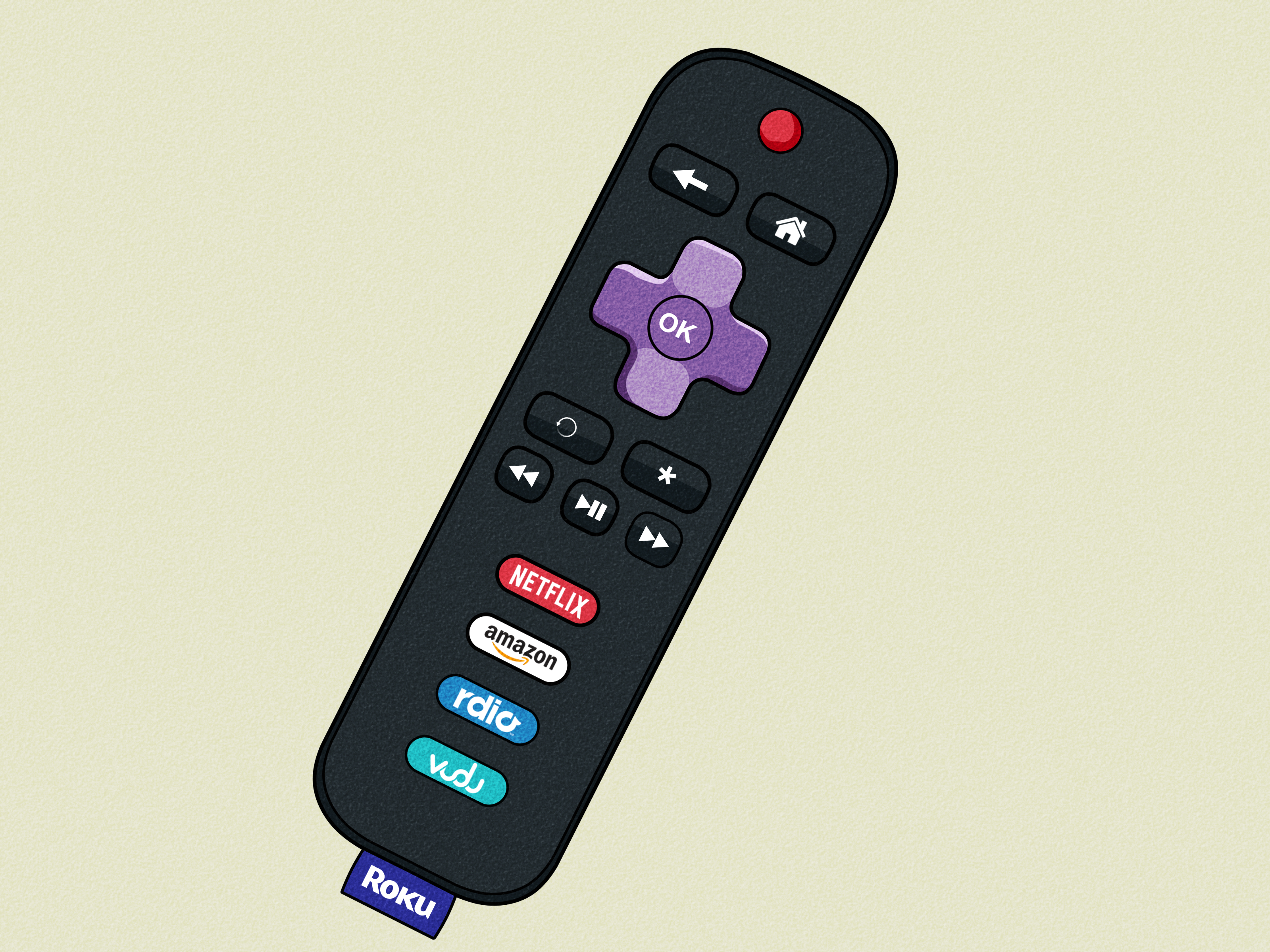

If your Roku remote keeps blinking green, congratulations: your living room has chosen chaos. One minute you are ready to watch a comfort show, and the next minute your remote is flashing like it is trying to send distress signals to a satellite. The good news is that a blinking green light usually points to a fixable problem, not a full-blown electronics tragedy.
In most cases, a Roku remote blinking green means the remote is trying to pair with your Roku device and failing to finish the handshake. On some rechargeable Roku voice remotes, a slow green blink can also mean the remote is charging. That difference matters, because one situation calls for patience, while the other calls for troubleshooting with just enough determination to make you feel like the manager of your own home theater support desk.
This guide walks through what the blinking green light means, how to fix it step by step, when to stop troubleshooting, and how to keep the problem from coming back. Whether you have a Roku streaming player or a Roku TV, the goal is the same: get your remote back to acting like a remote and not a confused firefly.
What does a Roku remote blinking green usually mean?
The short version is simple: your Roku remote is usually stuck in pairing mode, trying to reconnect to your Roku device. Wireless Roku voice remotes and enhanced remotes need to pair correctly before they can control the device. If that connection drops, the light can keep flashing green while the remote keeps trying and failing to complete the process.
There is one important exception. If you own a rechargeable Roku Voice Remote Pro or similar rechargeable model, a slow blinking green light can simply mean the remote is charging. In that case, the light is not a warning. It is just the remote quietly asking for a little juice before movie night resumes.
How to tell which situation you are dealing with
Start with the obvious question: did you recently plug the remote in to charge it? If yes, and the remote is otherwise behaving normally, the blinking may be harmless. Let it charge fully and see whether the light turns solid or disappears.
If you did not plug it in, or the remote is not controlling your Roku at all, then the blinking green light is much more likely to mean a pairing or connection problem. That is when the real troubleshooting begins.
Why this happens
A Roku remote can lose its connection for several reasons. Weak batteries are the classic troublemaker. A low charge on a rechargeable remote can create the same problem with slightly more attitude. Power interruptions, TV restarts, HDMI interference, distance from the Roku device, and even buying the wrong replacement remote can also cause the remote to keep blinking green without actually working.
In plain English: the remote is trying. It just is not succeeding.
Step 1: Replace the batteries or recharge the remote
This is the least glamorous fix and the one people skip because it feels too easy. Then it turns out to be the answer, which is humbling for everyone involved.
If your Roku remote uses disposable batteries, remove them and install a fresh set. Do not swap in the “probably okay” batteries from a drawer full of mystery cells. Use new batteries, installed correctly, and make sure the plus and minus ends match the markings inside the compartment.
If you have a rechargeable Roku voice remote, plug it in and let it charge for a while. A remote with an almost-empty battery can blink green, refuse to pair, and generally behave like it is going through a difficult phase. Give it time to recover before moving on.
If the blinking stops and the remote starts working, you can celebrate your victory and pretend you always knew it was the batteries.
Step 2: Move closer to the Roku device and reduce interference
If the batteries are not the issue, get physically closer to the Roku device or Roku TV before trying to pair again. Wireless remotes need a stable connection during pairing. Across-the-room heroics are not helpful here.
Also check for interference. If you use a Roku Streaming Stick plugged directly into the TV, the HDMI port area can sometimes interfere with the wireless signal. This is especially annoying because everything looks physically connected, yet the remote still acts like it has never met your Roku before. If your model supports it, using an HDMI extender can help reduce interference and improve the remote connection.
For basic infrared remotes, line of sight matters even more. If your remote only works when pointed directly at the device or TV, make sure nothing is blocking the IR sensor. Soundbars, decorations, and that one overly ambitious houseplant can all become accidental villains.
Step 3: Restart both the Roku and the remote
This is the classic “turn it off and on again” step, and yes, it exists because it works more often than anyone wants to admit.
For a Roku streaming player
- Remove the batteries from the remote, or unplug the rechargeable remote if it is charging.
- Unplug the Roku device from power.
- Wait about 5 to 10 seconds.
- Plug the Roku device back in and let it load to the Home screen.
- Put the batteries back in the remote or reconnect it.
Sometimes that simple reboot is enough to restore the connection. The blinking green light stops, the remote pairs, and everyone moves on with their lives.
For a Roku TV
If you are dealing with a Roku TV, a deeper power reset can help. Unplug the TV from the wall, press and hold the physical power button on the TV for around 15 seconds, then plug it back in. That power drain can clear connection issues that a normal restart does not fix.
Think of it as giving your TV and remote a relationship reset.
Step 4: Re-pair the remote properly
If the green light keeps blinking, it is time to pair the remote again on purpose instead of letting it wander around pairing mode like a lost tourist.
If your remote has a pairing button
Open the battery compartment or check the back of the remote, depending on the model. Press and hold the pairing button for about 3 to 5 seconds, or until the status light starts flashing green. Then wait while the Roku device attempts to reconnect.
You may see a pairing message appear on the TV screen. If you do, follow the prompts and let the process finish. Do not mash random buttons during the pairing process. That rarely helps and often creates a brand-new problem for future you.
If your remote does not have a pairing button
Some Roku voice remotes can enter pairing mode by pressing and holding the Back and Home buttons together for about 5 seconds until the light flashes. If your remote supports that method, it can be the easiest way to force a fresh connection.
After that, give the Roku device around 30 seconds to pair. If the blinking stops and the remote starts working, you are back in business.
Step 5: Check whether you actually have the right remote
This step is more important than it sounds. Not every Roku remote works with every Roku device. Some remotes are designed for Roku TVs, while others are designed for Roku streaming players. A remote can look right, feel right, and still be completely wrong for your setup.
If you recently bought a replacement remote and it has been blinking green ever since, compatibility is worth checking before you spend another hour in troubleshooting purgatory. Roku makes several remote types, and a remote only pairs with one Roku device at a time.
That means your remote may not be broken at all. It may simply be trying to connect to something it was never meant to control, which is honestly relatable.
Step 6: Use the Roku mobile app as a backup remote
When your physical remote decides to become decorative, the Roku mobile app can save the day. If your phone and Roku device are on the same Wi-Fi network, you can use the app as a full remote control.
This is especially useful when you need to get into settings, restart the Roku, check for software updates, or finish setup while the physical remote is refusing to cooperate. The app is not just a temporary bandage. It is a genuinely handy backup that every Roku owner should know about.
It is also a nice reminder that the tiny blinking plastic rectangle in your hand is not the only path to streaming happiness.
Step 7: Know when the blinking green light is normal
Not every green blink is a sign of doom. On rechargeable Roku voice remotes, a slow blinking green light can mean the remote is charging. If the remote is plugged in and still works normally, the best fix may be to leave it alone and let it finish charging.
Likewise, when you intentionally trigger pairing mode, a flashing green light is expected for a short time. The real problem is not the light itself. The real problem is when it keeps blinking and the remote never reconnects.
That is the difference between a temporary status light and a cry for help.
When should you replace the remote?
If you have tried fresh batteries, recharging, restarting, re-pairing, moving closer, reducing interference, and checking compatibility, the remote may simply be defective. That becomes more likely if the light never stops blinking, the remote overheats, the buttons feel inconsistent, or the battery compartment has corrosion or damage.
If the remote gets hot to the touch, stop using it immediately. Let it cool on a non-flammable surface, remove the batteries if possible, and do not keep trying to force it back into action. At that point, replacement is the smart move.
A new remote is also worth considering if your current one has become unreliable over time. Sometimes repeated disconnects are not a “settings problem.” Sometimes the remote is just done with its career.
How to keep the problem from happening again
- Use fresh, high-quality batteries and replace them before they are completely drained.
- Keep rechargeable remotes topped up instead of waiting until they are nearly empty.
- Do not bury your Roku Streaming Stick behind crowded cables and metal accessories.
- Use an HDMI extender if interference keeps showing up.
- Store the remote where it will not be dropped, crushed, or turned into a chew toy.
- Keep the Roku mobile app installed so you always have a backup plan.
- Confirm compatibility before buying a replacement remote.
In other words, treat the remote like the tiny command center it is. Not like a coaster. Not like a stress toy. Not like something that belongs between couch cushions for three weeks.
Final thoughts
If your Roku remote keeps blinking green, the issue is usually fixable without replacing your entire streaming setup or questioning your life choices. Start with the simple stuff: batteries, charging, distance, and a restart. Then move on to re-pairing the remote and checking for interference or compatibility problems.
Most blinking green Roku remote problems come down to one thing: the remote is stuck trying to reconnect. Once you help it complete that connection, the flashing usually stops and normal service resumes. And by normal service, I mean the deeply important task of helping you decide what to watch for 25 minutes before choosing the same show you always choose.
That is progress.
Real-world experiences with a Roku remote blinking green
One of the most common experiences people have with a Roku remote blinking green starts with pure confusion. The TV is on, the Roku home screen may even be visible, but the remote suddenly stops doing anything useful. You press Home. Nothing. You press volume. Nothing. Then you flip the remote over and notice the green light blinking like it is trying to win a tiny emergency beacon contest. At first, many people assume the remote is broken for good. In reality, it is often just stuck trying to re-pair after the batteries weakened, the Roku rebooted, or the connection dropped without warning.
Another common experience happens after someone changes batteries and expects instant success. The new batteries go in, hope rises, and then the green light keeps blinking anyway. That moment feels deeply unfair. But it often means the remote still needs a fresh pairing cycle, not just fresh power. People are usually surprised by how often the fix is to remove the batteries again, restart the Roku device, wait for the Home screen, and then start the pairing process properly. It feels overly dramatic for such a small gadget, but Roku remotes can be picky about timing.
Owners of rechargeable voice remotes often run into a different kind of confusion. They plug the remote in, see the green light blinking, and assume something is wrong when the remote may simply be charging. The problem is that the same color can mean very different things depending on the model and situation. So the experience becomes less “My remote is broken” and more “My remote is sending mixed messages.” Once people realize a slow blink during charging can be normal, the panic level drops fast.
Streaming Stick users also report a very specific frustration: the remote works badly in one room or one TV setup, but fine somewhere else. That usually points to interference around the HDMI port or behind the TV. It can feel bizarre because everything looks properly installed, yet the remote acts unreliable until the stick is repositioned or an HDMI extender is added. This is one of those fixes that feels suspiciously simple right up until it works.
Then there is the emotional roller coaster of using the Roku mobile app as a temporary remote. At first, people download it reluctantly, as if admitting defeat. Then five minutes later they are navigating menus, restarting the Roku, and wondering why they did not install the app sooner. It often turns a very annoying blinking-green problem into a manageable troubleshooting session instead of a full evening meltdown.
The overall experience is usually the same: mild panic, several button presses fueled by optimism, one practical fix, and then relief. The blinking green light looks dramatic, but in most homes it ends up being a connection issue, not a disaster.