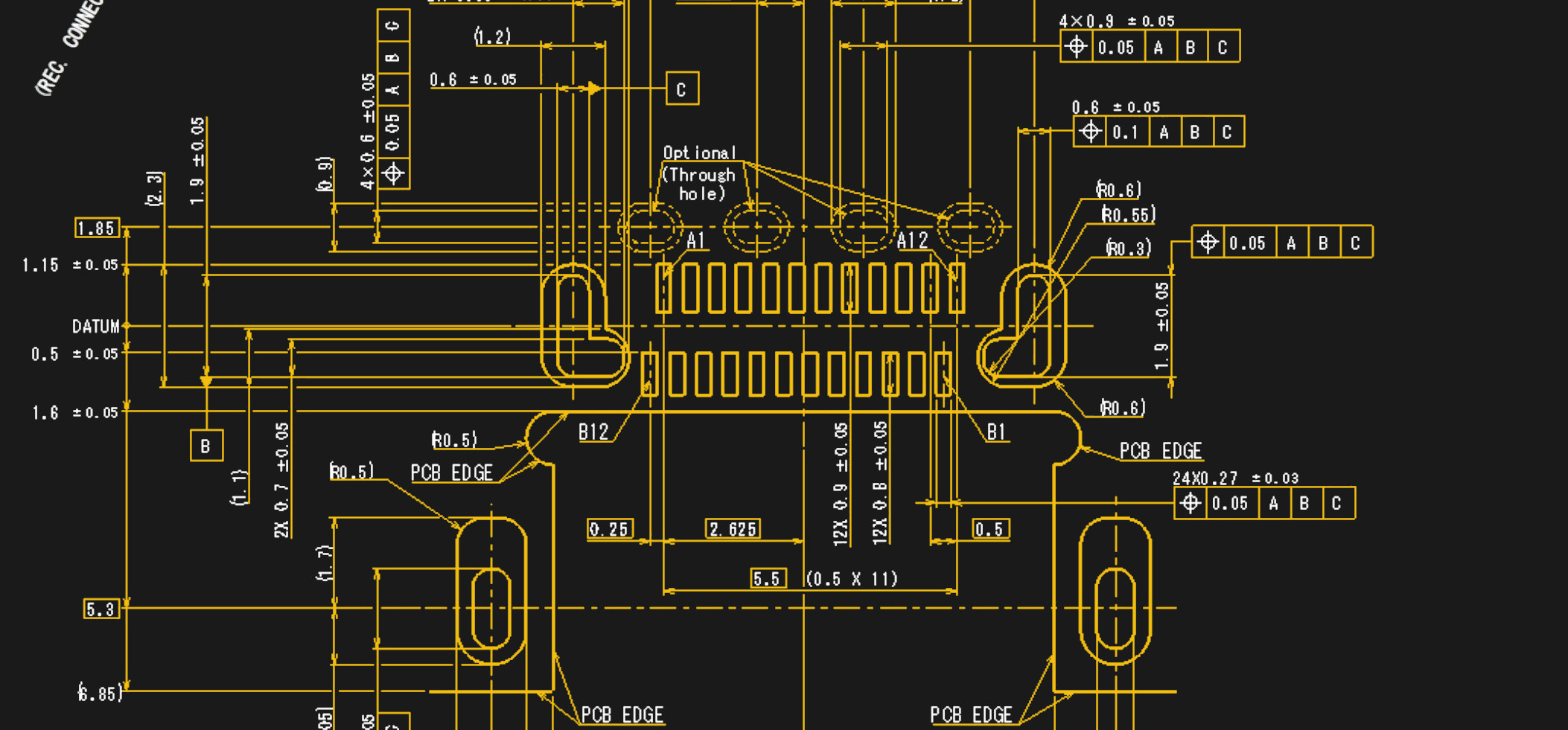

USB Type-C is the tiny oval port that somehow became the peace treaty of modern electronics. It charges phones, powers laptops, connects monitors, transfers giant video files, runs docks, handles audio, and occasionally makes people stare at a cable like it just asked a trick question. Is it USB-C? USB4? Thunderbolt? Power Delivery? A charging cable? A display cable? Yes, sometimes. Also no, sometimes. Welcome to the glamorous cable jungle.
The good news is that USB Type-C is not magic, even though it sometimes behaves like a very small wizard. Once you understand the difference between the connector, the speed standard, the charging protocol, and the cable rating, everything gets much easier. This guide explains what USB-C really is, why it became so popular, how to choose the right USB-C cable, and how to avoid the classic “why is my monitor not working?” meltdown.
What Is USB Type-C?
USB Type-C, usually called USB-C, is a connector shape. That is the first and most important thing to know. USB-C is not automatically fast, not automatically powerful, and not automatically able to connect to a display. It is the physical port and plug: small, rounded, reversible, and blessedly free from the old “flip it three times before it fits” ritual of USB-A.
The USB-C connector was designed to be more flexible than older USB ports. It can support charging, data transfer, display output, audio, networking, and docking, depending on how the device manufacturer built the port. A laptop may have two identical-looking USB-C ports, but one might support charging and video while the other only handles basic data. This is why USB-C is wonderful, powerful, and occasionally responsible for a deeply suspicious look at your laptop’s spec sheet.
In everyday terms, USB-C is the doorway. What happens through that doorway depends on the technology behind it. A door to a closet and a door to a spaceship may look similar from the hallway. USB-C works the same way.
Why USB-C Became the Universal Port
The rise of USB-C happened because people were tired of carrying a cable museum. Phones had one charger, laptops had another, headphones had their own situation, tablets were picky, and every drawer in America had at least one mysterious black cable that belonged to either a camera, a printer, or a forgotten gadget from 2011.
USB-C promised a cleaner future. One compact connector could replace many older ports, especially Micro-USB, Mini-USB, barrel laptop chargers, and even some display connectors. It also made devices thinner, because manufacturers no longer needed large ports for every function. A modern ultrabook can use a couple of USB-C ports for power, external monitors, storage, Ethernet, and accessories through a dock.
The biggest everyday advantage is convenience. You can plug in a USB-C cable either way. No more squinting at the connector. No more turning it over, then over again, then somehow still being wrong. That alone deserves a small parade.
USB-C Charging: From Phones to Power-Hungry Laptops
Charging is where USB-C really flexes. With USB Power Delivery, often shortened to USB PD, compatible chargers and devices can negotiate how much power should flow. That negotiation matters because a phone, wireless earbuds, tablet, and workstation laptop do not need the same amount of power. A good USB-C system does not just blast electricity like a garden hose. It talks first, agrees on voltage and current, and then charges safely.
Modern USB Power Delivery can support much higher wattage than early USB charging. Common chargers include 20W phone chargers, 30W tablet chargers, 45W and 65W laptop chargers, 100W chargers for larger notebooks, and newer 140W to 240W options for more demanding hardware. The important detail is that the charger, cable, and device must all support the needed power level. A 240W charger with a weak cable is like buying a sports car and filling it with maple syrup.
This is why cable labeling matters. Certified USB-C cables may show power ratings such as 60W or 240W, and some also show data speed ratings. If you are charging a laptop, do not grab the cheapest mystery cable from the drawer unless you enjoy troubleshooting as a hobby. Look for a cable that clearly states its wattage, especially for high-power laptops and docks.
Data Speeds: USB-C Is Not Always Fast
Here comes the plot twist: a USB-C cable can be slow. Painfully slow. Some USB-C cables are built mainly for charging and may only support USB 2.0 data speeds. That is fine for charging a phone overnight, but not ideal for moving a 200GB video project while your coffee gets cold and your patience leaves the building.
USB data standards have evolved through many names, including USB 2.0, USB 3.x, USB 5Gbps, USB 10Gbps, USB 20Gbps, USB4, and USB4 v2.0. The current trend is toward simpler speed-based branding, which is merciful, because older USB naming could make even seasoned tech fans reach for a whiteboard.
For most people, the practical rule is simple: read the speed rating. If a cable or port says 480Mbps, it is basic USB 2.0 speed. If it says 5Gbps, 10Gbps, 20Gbps, 40Gbps, or 80Gbps, it supports higher-performance data transfer. External SSD users, photographers, video editors, musicians, and gamers should care deeply about this. A fast external drive connected with the wrong cable can perform like it is jogging through peanut butter.
USB-C and Displays: One Cable, Big Screen Energy
One of the best USB-C tricks is video output. Many laptops, tablets, and some phones can send video through USB-C to a monitor, TV, or projector. This may happen through DisplayPort Alternate Mode, Thunderbolt, or USB4, depending on the device.
Alternate Mode lets the USB-C connector carry non-USB signals, such as DisplayPort video. That is how one USB-C port can become an HDMI connection, a DisplayPort connection, or part of a docking station setup. It is also why not every USB-C-to-HDMI adapter works with every device. If the device’s USB-C port does not support video output, an adapter cannot magically create it. An adapter is a translator, not a wizard with a tiny engineering degree.
For a clean desk setup, USB-C displays are fantastic. A compatible monitor can connect to your laptop with one cable, show video, pass USB data for keyboard and mouse, and charge the laptop at the same time. This is the dream: arrive at your desk, plug in one cable, and suddenly your laptop becomes a full workstation. No cable spaghetti. No crawling under the desk. No dramatic sighing.
USB-C vs Thunderbolt vs USB4
This is where many shoppers get confused, so let’s untangle the knot. USB-C is the connector. USB4 is a USB data standard that uses USB-C. Thunderbolt is a high-performance connection technology that also uses USB-C. They can share the same port shape, but they are not the same thing.
Thunderbolt ports are usually designed for demanding setups: fast external drives, multiple monitors, professional docks, audio interfaces, and expansion accessories. Thunderbolt 4 commonly supports up to 40Gbps, while Thunderbolt 5 raises the ceiling for newer high-end systems. USB4 can also offer excellent performance, but device features vary, so the logo and specifications matter.
Think of USB-C as the road, USB4 as a fast vehicle, and Thunderbolt as a performance vehicle with stricter feature requirements. They may all use the same lane, but they do not all carry the same cargo at the same speed.
How to Choose the Right USB-C Cable
Buying a USB-C cable should not feel like decoding ancient runes, but here we are. The easiest way to choose is to start with the job you need the cable to do.
For Phone Charging
A good-quality USB-C cable rated for 60W is usually more than enough for phones, earbuds, power banks, and many tablets. If you use fast charging, make sure the charger and cable support the phone’s charging standard.
For Laptop Charging
Check your laptop’s required wattage. Many thin laptops charge well with 45W or 65W. Larger laptops may need 100W, 140W, or more. For high-power laptops, choose a cable clearly rated for the needed wattage, such as 100W or 240W where supported.
For External SSDs
Look for data speed. A cable rated for 10Gbps, 20Gbps, or 40Gbps is a better match for fast storage. A charge-only cable may connect the drive but deliver disappointing transfer speeds, which is the technological equivalent of bringing a spoon to a snow shovel contest.
For Monitors and Docks
Choose a cable that supports video, data, and power. Thunderbolt or USB4 cables are often best for high-performance docking stations. For basic USB-C monitors, check the monitor and laptop specifications for DisplayPort Alt Mode and power delivery.
Common USB-C Problems and How to Avoid Them
The most common USB-C problem is assuming every USB-C port does everything. It does not. A port may support charging but not video. It may support data but not high-speed data. It may support video but only at certain resolutions. It may charge a phone but not a laptop. USB-C is versatile, but versatility is not the same as uniformity.
Another common issue is using the wrong charger. A small phone charger may technically connect to a laptop, but it may charge slowly or not at all while the laptop is in use. A laptop charger can often charge a phone safely if both devices follow USB Power Delivery rules, because the devices negotiate power. Still, quality matters. Buy chargers from reputable brands and avoid suspicious products that seem to have been assembled during a lightning storm.
Display issues often come from missing Alt Mode support. If your USB-C-to-HDMI adapter does nothing, check whether your device supports video output through USB-C. If it does not, you may need a different port, a dock with DisplayLink technology, or a device that actually supports display output.
USB-C Audio, Accessories, and Everyday Devices
USB-C is not just for charging and data. It can also handle audio accessories, microphones, headphones, webcams, card readers, Ethernet adapters, MIDI controllers, game controllers, and more. Many phones without headphone jacks rely on USB-C for wired audio. Some headphones include their own digital-to-analog converter, while others require the device to support specific audio behavior.
For creators, USB-C is a blessing. A camera can connect to a tablet. A microphone can connect to a laptop. A portable monitor can connect to a handheld gaming PC. A dock can turn a slim notebook into a desktop editing station. The same general connector supports a huge ecosystem of work, play, travel, and creative tools.
The downside is compatibility. Before buying accessories, check whether your device supports the function you want. “USB-C” on the box is a beginning, not the whole story.
Why USB-C Matters for the Future
USB-C matters because technology is moving toward fewer chargers, fewer proprietary ports, and more universal accessories. It supports the idea that one cable should do more things across more devices. That is good for convenience, travel, and electronic waste reduction.
It also makes device design more flexible. A phone can become a video source. A tablet can become a laptop-like workstation. A laptop can connect to a monitor, keyboard, mouse, Ethernet, storage, and power through a single dock. The port may be tiny, but the workflow impact is huge.
Still, USB-C’s future depends on clear labeling. Consumers should not need a detective hat to buy a cable. Better logos, clearer wattage ratings, and speed markings help people choose correctly. The wonderful world of USB Type-C becomes even more wonderful when the box tells the truth in plain English.
Real-World USB-C Experiences: Lessons From the Cable Drawer
My first lesson with USB-C was humbling. I had a sleek laptop, a modern monitor, and the confidence of someone who had not yet been personally defeated by a cable. I connected a USB-C cable between the two and expected instant desktop glory. Nothing happened. The monitor remained dark, the laptop remained smug, and I briefly considered blaming solar flares. The problem was simple: the cable charged devices but did not support video. It looked right. It clicked in perfectly. It was also the wrong tool for the job.
That experience changed how I treat cables. I no longer toss every USB-C cable into one drawer like they are identical noodles. I separate them by purpose. Charging cables go in one spot. High-speed data cables go in another. Thunderbolt or USB4 cables get treated like the VIP guests they are. This sounds overly organized until the day you need to transfer a large folder quickly and do not want to test five cables while muttering at your desk.
Another memorable USB-C moment happened while traveling. One compact GaN charger with multiple USB-C ports replaced three separate chargers in my bag. It charged a phone, tablet, earbuds, and laptop with fewer bricks and less cable clutter. That was the moment USB-C felt less like a specification and more like a lifestyle upgrade. Airport outlets are already a competitive sport; carrying less gear feels like winning a quiet little championship.
USB-C has also made desk setups dramatically cleaner. A single USB-C monitor can power a laptop, carry the video signal, and connect peripherals through built-in USB ports. For people who move between home, office, school, and coffee shops, that single-cable docking experience is genuinely delightful. You sit down, plug in one cable, and everything wakes up like a tiny productivity orchestra.
Of course, USB-C still has comedy built in. There is always one cable that charges a phone but refuses to move data. There is always one dock that works beautifully with one laptop and acts personally offended by another. There is always one adapter that disappears exactly when a presentation starts. The technology is powerful, but the human experience still involves labels, patience, and occasionally crawling behind furniture.
The best advice from real life is simple: buy fewer, better cables. Label them if you share a workspace. Keep one reliable high-speed cable in your bag. Use certified or clearly rated chargers for expensive devices. Read the port symbols on your laptop. And when something does not work, do not panic. With USB-C, the issue is often not the device, but the feature mismatch between port, cable, charger, and accessory.
USB Type-C is wonderful because it can simplify our tech lives. It is not perfect, but it is the closest thing we have to a universal connector that can handle modern charging, data, displays, and accessories. Treat it with a little knowledge, and it rewards you with cleaner desks, lighter bags, faster transfers, and fewer moments spent trying to plug a cable in upside down.
Conclusion
The wonderful world of USB Type-C is really a story about possibility. One small reversible connector can charge a phone, power a laptop, drive a monitor, connect an external SSD, run a dock, support audio, and reduce the number of cables we carry every day. But the secret to enjoying USB-C is understanding that the connector is only the beginning.
Before buying a cable, charger, adapter, or dock, check four things: power rating, data speed, video support, and device compatibility. Once you know those basics, USB-C stops feeling confusing and starts feeling like what it was meant to be: a smarter, cleaner, more flexible way to connect the devices that run our lives.
In other words, USB-C is not just another port. It is the tiny oval gateway to fewer chargers, better desks, faster workflows, and a future where the cable drawer finally becomes a little less terrifying.