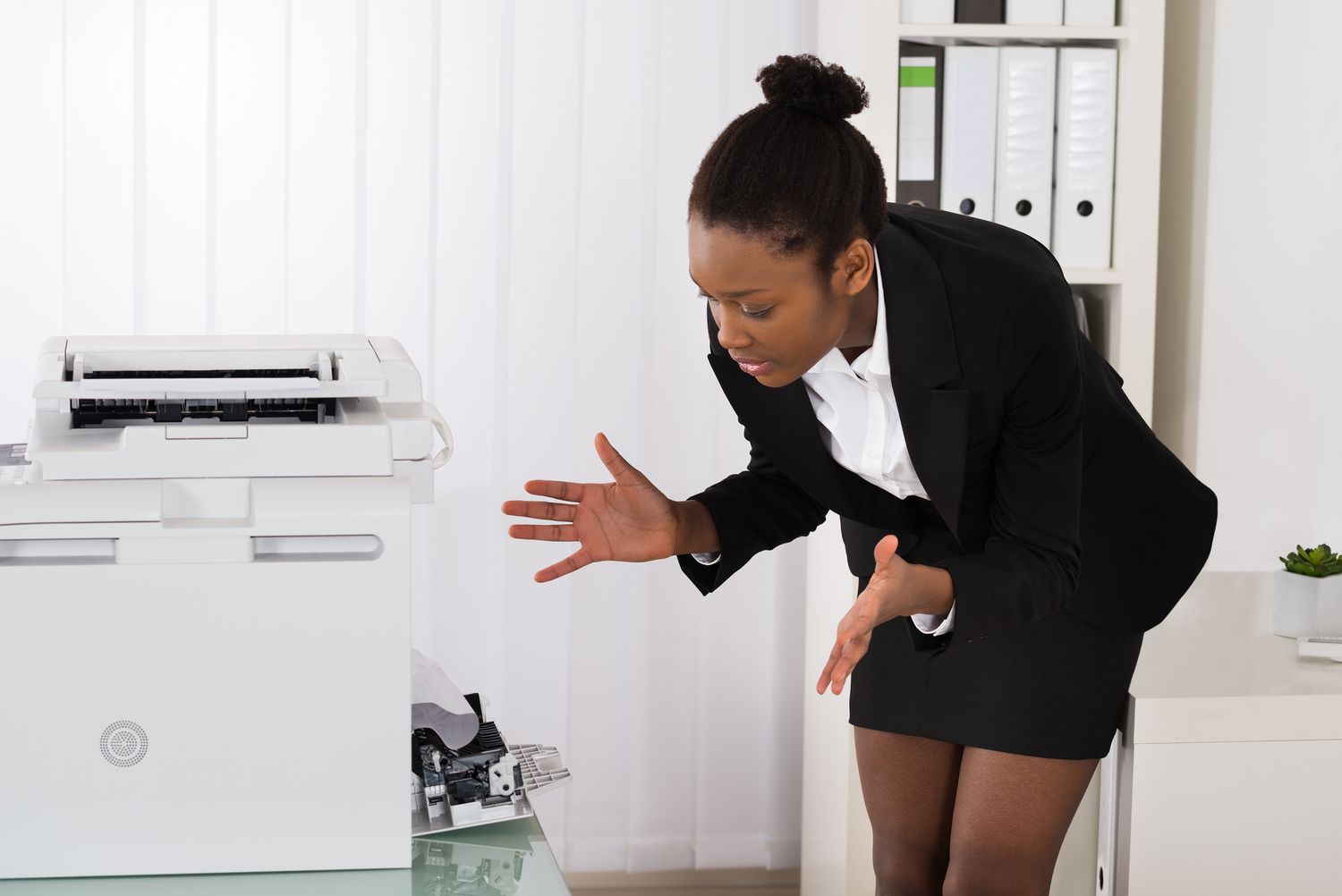

Few things in modern life are more dramatic than a printer that decides it has “received” your document, “processed” your document, and now refuses to actually print your document. The spinning wheel spins. The print queue fills up. Windows looks innocent. The printer looks innocent. Meanwhile, your report, shipping label, homework, or tax form is trapped in digital limbo like it missed its connecting flight.
If that sounds familiar, you are probably dealing with a printer spooler error in Windows 10. The good news: this problem is common, annoying, and usually fixable without sacrificing your weekend or speaking to your printer in a tone that alarms the neighbors.
In this guide, you will learn what the print spooler actually does, why it breaks, and how to fix printer spooler errors in Windows 10 step by step. We will cover quick resets, stuck print queues, corrupted drivers, reinstall methods, and the sneaky situations where the problem is not the printer at all.
What Is the Print Spooler, Exactly?
The Print Spooler is a Windows service that manages print jobs. Think of it as the traffic controller for your printer. When you click Print, Windows does not usually send the file straight to the printer in one heroic leap. Instead, it places the job into a queue, organizes the order, and hands it off to the printer driver and hardware.
When the spooler works, nobody notices it. When it crashes, freezes, or gets jammed by a corrupted job, everything stops. You may see messages like:
- Print Spooler service is not running
- The local print spooler service is not running
- Printer error
- User intervention required
- Sent to printer forever, with nothing actually printing
- A queue that will not clear, cancel, or disappear
In plain English, Windows is trying to do its printer job, but something in the pipeline is stuck, corrupted, outdated, duplicated, or just being difficult for sport.
Common Causes of Printer Spooler Errors in Windows 10
Before jumping into the fixes, it helps to know what usually causes spooler trouble. The most common culprits include:
- Corrupted or stalled print jobs sitting in the queue
- Outdated, duplicate, or conflicting printer drivers
- A printer that went offline or lost its network connection
- Windows updates or driver changes that broke an older setup
- Printer software that did not install correctly
- Spooler service crashes triggered by a bad third-party driver
- A printer that exists in Windows three times because someone clicked “Add device” with optimism instead of strategy
The fix depends on which of these is causing the jam, but in many cases, one of the first three methods below solves the problem fast.
The Fastest Fix: Restart the Print Spooler Service
If your printer suddenly stops responding, the quickest move is to restart the Print Spooler service. This is the Windows version of telling the print system to take a deep breath and try again.
Method 1: Restart the service through Services
- Press
Windows + R. - Type
services.mscand pressEnter. - Scroll down to Print Spooler.
- Right-click it and choose Restart.
Now try printing again. If the spooler immediately crashes or the job still sticks, do not worry. That usually means the queue itself needs to be cleared.
Method 2: Restart the service with Command Prompt
If you like fixes that feel slightly more cinematic, open Command Prompt as Administrator and run:
This does the same thing as the Services app, but with more keyboard confidence.
Clear the Print Queue Manually
A single damaged print job can gum up the entire system. When that happens, restarting the service alone may not be enough. You need to empty the spool folder so Windows can stop babysitting a broken job.
How to clear stuck print jobs
- Press
Windows + R, typeservices.msc, and pressEnter. - Right-click Print Spooler and select Stop.
- Open File Explorer.
- Go to
C:\Windows\System32\spool\PRINTERS. - Delete all files in that folder.
- Go back to Services.
- Right-click Print Spooler and select Start.
Then print a simple test page. If the printer starts working, congratulations: the queue was the villain all along.
Important: You are deleting temporary print job files, not your documents. Still, make sure the spooler service is stopped before clearing the folder, or Windows may refuse to let go of the files like a toddler gripping a cookie.
Check the Printer Queue Before You Go Nuclear
Sometimes the issue is smaller than a full spooler meltdown. Maybe one print job is paused, waiting for paper, or trying to print to a printer that no longer exists on your network.
Open the queue in Windows 10
- Open Control Panel.
- Select Hardware and Sound then Devices and Printers.
- Right-click your printer.
- Choose See what’s printing.
Look for jobs that say Error, Deleting, Sent to printer, or appear frozen. Cancel those jobs first. Also check that Pause Printing and Use Printer Offline are not enabled by mistake. Those two settings have ended many innocent print jobs before they even had a chance.
Remove Duplicate, Old, or Corrupted Printer Drivers
If the spooler keeps crashing, bad drivers are a prime suspect. This is especially common after changing printers, switching from USB to Wi-Fi, or reinstalling a device several times. Windows may end up juggling multiple versions of the same printer driver, and the spooler does not enjoy that.
How to clean up drivers in Windows 10
- Right-click Start and open Device Manager.
- Expand Print queues or Printers.
- Look for duplicate printers, old printer entries, or devices with warning icons.
- Uninstall unnecessary or suspicious entries.
After that, download the latest driver for your exact printer model from the manufacturer’s software or support page. This matters more than many people realize. A generic driver can sometimes print, but a proper model-specific driver is much less likely to fight with the spooler.
If your printer worked before a recent update or change, reinstalling the latest driver often brings peace back to the household.
Remove and Reinstall the Printer
When the queue is clear and the spooler service runs, but your printer still refuses to cooperate, remove the printer from Windows and add it again. This resets the printer’s relationship with the operating system, which is sometimes healthier than trying to talk through old issues.
How to reinstall a printer in Windows 10
- Go to Settings > Devices > Printers & scanners.
- Select the problem printer.
- Click Remove device.
- Restart your PC.
- Turn the printer off and back on.
- Go back to Printers & scanners.
- Click Add a printer or scanner.
This step is especially helpful for network printers and wireless printers that look connected but never actually respond. Windows may remember an older port, IP address, or stale device entry. A reinstall gives it a fresh start.
Check Basic Connection Problems That Look Like Spooler Problems
Sometimes the print spooler gets blamed for a problem that is really about connectivity. If you are using a USB printer, test another cable or another USB port. If you are using Wi-Fi, confirm the printer is on the same network as your Windows 10 computer.
Also check these basics:
- Is the printer powered on and not showing a hardware error?
- Is there paper, toner, or ink?
- Is there a paper jam or “user intervention required” message?
- Is the correct printer set as the default printer?
- Can the printer print a built-in test page from its own control panel?
If the printer can print its own test page but Windows cannot send jobs to it, the issue is more likely software, driver, or spooler related. If it cannot print anything at all, the hardware or connection may be the real problem.
Run the Windows Printer Troubleshooter
Yes, the Windows troubleshooter has a mixed reputation. Sometimes it behaves like a helpful technician. Sometimes it behaves like a motivational poster. Still, it is worth trying because it can detect configuration issues, offline status, and common service problems.
- Open the Get Help app or search for printer troubleshooting in Windows.
- Launch the Printer troubleshooter.
- Follow the prompts and apply any suggested fixes.
Do not expect miracles, but do expect a quick check for common errors that may save you time.
What If the Spooler Keeps Stopping?
If the Print Spooler service starts, then immediately stops again, that usually points to a deeper conflict. In many real-world cases, the cause is a corrupted or incompatible third-party printer driver. This is common in offices with older printers, shared printers, or machines that have lived through years of upgrades like a veteran laptop with emotional damage.
Try this sequence
- Stop the spooler service.
- Clear the
PRINTERSfolder. - Remove the printer from Windows.
- Uninstall old or duplicate printer drivers.
- Restart the computer.
- Install the latest driver from the printer manufacturer.
- Add the printer again.
This is the most reliable full reset for persistent Windows 10 printer spooler errors. It sounds like a lot, but it works because it removes all the stale baggage instead of treating only the symptom.
Check Windows Update and Recent Changes
If your printer failed right after a Windows update, driver update, or new printer installation, do not ignore the timing. That detail matters. Print spooler problems often show up after changes to drivers, ports, or security settings.
Make sure Windows is fully updated, then check for the latest printer driver through Windows Update or the printer manufacturer’s support software. In some cases, the newest manufacturer driver fixes a problem introduced by an older driver. In other cases, Windows had the better driver all along. Printers love suspense.
Also remember that if printing works from one app but not another, the spooler may be innocent. A damaged PDF, broken Office file, or app-specific setting can mimic a spooler issue. Try printing a basic Notepad page or Windows test page to isolate the problem.
When to Suspect the Problem Is Not the Printer
Here is a quick rule of thumb:
- If nothing prints from any app, the spooler, driver, connection, or printer setup is the likely issue.
- If only one app fails to print, investigate the app, file, or document instead.
- If the printer appears offline or missing, check network or USB connectivity first.
- If jobs disappear but never print, check the queue, driver, and wrong-printer selection problem.
This saves a lot of wasted effort. Not every print failure is a spooler disaster. Sometimes it is just Excel being moody.
How to Prevent Future Printer Spooler Errors
Once your printer is finally behaving, you probably want to keep it that way. A few habits can reduce repeat spooler crashes:
- Remove printers you no longer use
- Delete duplicate devices from Windows
- Keep your printer driver current
- Avoid installing multiple utility suites for the same printer
- Use one clean connection method when possible, such as Wi-Fi or USB, instead of constantly switching
- Cancel stuck jobs early instead of letting the queue pile up
- Restart the spooler before panic reaches the “buy a new printer” phase
Experiences From the Real World: Why Printer Spooler Problems Feel So Personal
Printer spooler errors are not just technical problems. They are timing problems. They always seem to appear when somebody needs something urgently: a permission slip at 10:47 p.m., a return label five minutes before the post office closes, or a meeting packet right before the boss asks, “Did those copies come out?” Nobody ever says, “Take your time, printer. Heal at your own pace.”
One of the most common experiences is the “ghost queue” problem. A user clicks Print three times because nothing seems to happen. Then the printer wakes up later and tries to print all three jobs in a row, including the version with the typo they had already fixed. What happened? Usually the spooler was frozen, the jobs stacked silently, and the queue finally resumed once the service restarted.
Another classic scenario happens in homes with wireless printers. The printer looks online. The laptop looks online. The router is blinking like it has important opinions. But Windows still reports an error. In many of these cases, the printer changed IP addresses on the network, or Windows kept an outdated device entry. The user thinks the spooler is broken, when really Windows is trying to hand a job to the digital equivalent of an old apartment address.
Office users run into a slightly different flavor of misery. Shared printers accumulate history. Over time, old drivers, renamed printers, and duplicate queue objects build up like layers of archaeological sediment. Then one bad driver update or one stuck job crashes the spooler, and suddenly the whole team is emailing PDFs to each other because the printer has become a philosophical concept rather than a functioning machine.
There is also the emotional roller coaster of the temporary fix. You restart the spooler. It works once. You celebrate too early. Then the next print job stalls, and now the printer feels smug. That pattern usually means the quick restart helped, but the deeper issue, often a corrupted driver or lingering queue file, still needs to be cleaned up properly.
What makes spooler issues so frustrating is that they sit right in the middle of software and hardware. The printer seems guilty. Windows seems guilty. The document seems suspicious. Everyone has an alibi. That is why the best troubleshooting approach is systematic: restart the service, clear the queue, inspect the printer status, remove bad drivers, reinstall the device, and test with a simple file. It is less dramatic than random clicking, but far more effective.
The encouraging part is that most people do solve it. Once you understand that the spooler is just a queue manager, the mystery fades. You stop treating the printer like a cursed object and start treating it like a fussy workflow with a few predictable failure points. That shift makes all the difference.
Final Thoughts
If your printer is stuck again, do not assume the machine is doomed. Most printer spooler errors in Windows 10 come down to a stuck queue, a stalled service, a bad driver, or a confused printer setup. Start with the fastest fixes: restart the Print Spooler, clear the queue, and check the printer status. If that does not work, move on to driver cleanup and a full printer reinstall.
The key is not speed. It is order. Follow the steps one by one, test after each fix, and you will usually find the real cause before your patience runs out. And if you do fix it on the first try, take a moment to enjoy that rare and beautiful event. Printers do not hand out many easy wins.
Note: This article is for informational purposes and focuses on Windows 10 troubleshooting steps. Menu names may vary slightly depending on your printer brand, driver version, or Windows build.