
If your PlayStation 5 spends half its life fighting bosses and the other half asking, “So… are we watching anything tonight?” then congratulations: your console is already auditioning for media-center duty. The good news is that the PS5 can absolutely pull off streaming movies, binge-worthy TV, music playback, and even disc-based movie nights. The less-good news is that it is still, at heart, a very muscular game console wearing a streaming-service nametag.
That means the PS5 works well as a living-room entertainment hub for many people, but it is not always the best dedicated media box. In this guide, we will break down exactly how to use a PS5 as a media center, what it does well, where it falls short, and which alternatives make more sense if your household is more “movie marathon” than “boss battle.”
Can the PS5 Really Work as a Media Center?
Yes, it can. The PS5 supports major streaming apps, music apps, Blu-ray and DVD playback on disc-equipped models, and local playback from USB storage in supported formats. In practical terms, that means one machine can handle gaming, Netflix, Disney+, Hulu, YouTube, Spotify, Apple TV, and a stack of movie discs without you doing a dramatic cable-swapping routine behind the TV.
What makes the PS5 appealing is convenience. If it is already connected to your best screen, already logged into Wi-Fi, and already attached to a sound system, turning it into a media hub is almost suspiciously easy. You are not building a custom home theater PC here. You are mostly downloading apps, signing in, and pretending that was your plan all along.
What the PS5 Does Well as a Media Center
1. Streaming Apps Are Easy to Install and Use
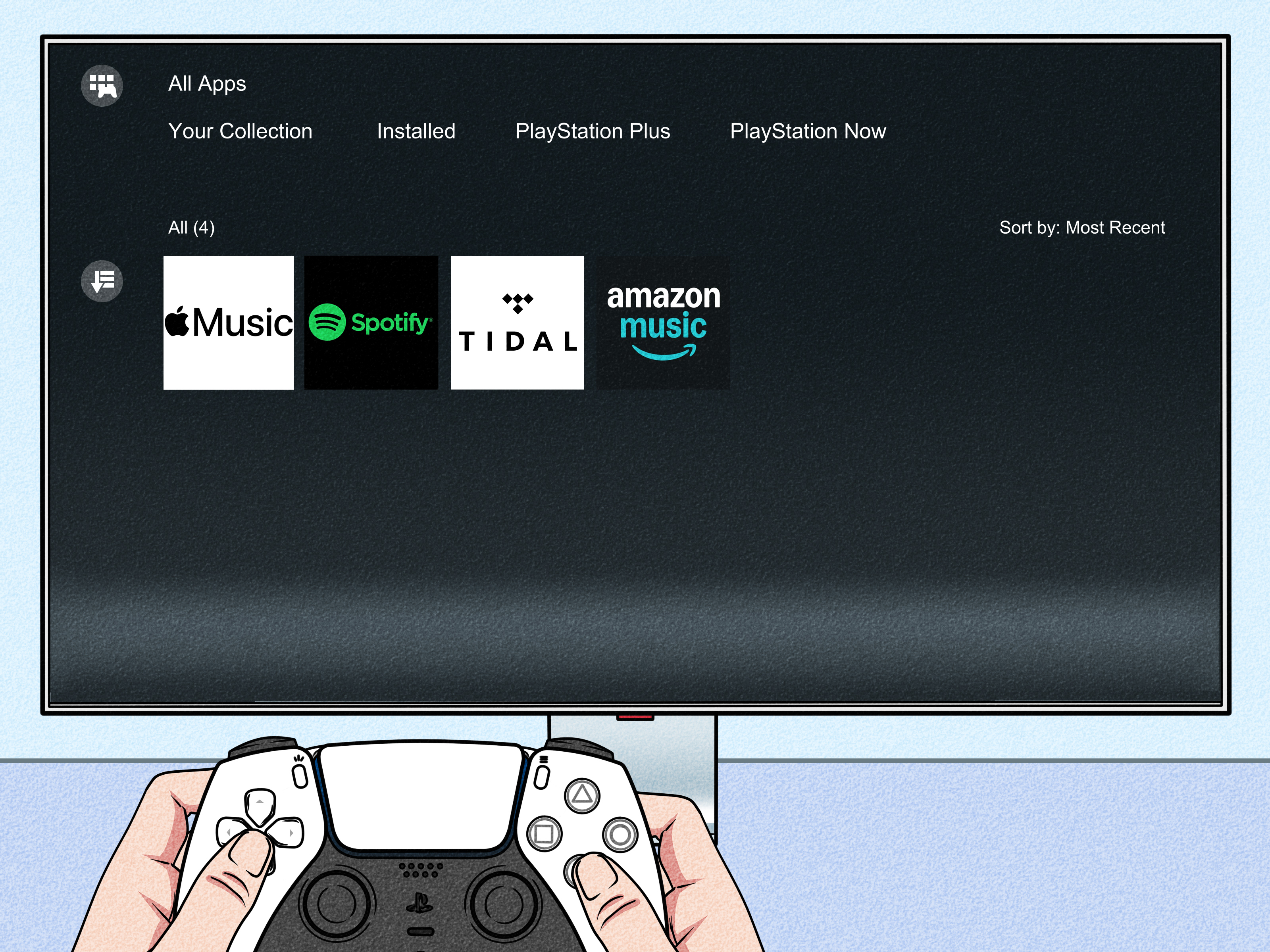
The PS5 has a dedicated media area, so streaming does not feel buried under layers of game icons and old screenshots you forgot to delete. From the media home, you can browse available entertainment apps, download the ones you want, and jump in. Popular services such as Netflix, Disney+, Hulu, Apple TV, YouTube, Spotify, and Apple Music are part of the ecosystem, which covers the everyday streaming needs of most households.
This matters more than it sounds. A media center should not require a treasure hunt every time someone wants to watch a sitcom before bed. On the PS5, the setup is straightforward enough that even the least patient member of the house can probably handle it without starting a family technology summit.
2. It Can Be a Disc Player, Too
If you own a standard PS5 with a disc drive, the console can play 4K Ultra HD Blu-ray discs, regular Blu-rays, and DVDs. That makes it a solid option for people who still buy physical movies or have shelves full of discs from the glorious era when “special features” were a selling point. Disc playback gives the PS5 a practical advantage over streaming-only boxes like many sticks and dongles.
There is one important catch: not every PS5 model handles discs the same way. The original PS5 Digital Edition has no disc drive, so it cannot magically decide to love Blu-rays one day. Some newer slim or compatible digital setups can work with Sony’s Disc Drive accessory, but if you have an older all-digital console, physical movie night is not on the menu. In that case, your PS5 is a streaming center, not a full media center.
3. USB Playback Adds a Useful Bonus
The PS5 can also play certain music and video content from USB drives formatted as exFAT or FAT32. This is handy if you keep home videos, downloaded concerts, vacation clips, or a personal music collection on external storage. It is not a full “dump every file format in the world onto a drive and hope for the best” system, but it is useful for casual local playback.
Think of it as convenient, not limitless. If your personal media library looks like a digital museum with carefully organized folders, rare codecs, and a naming system only you understand, the PS5 may feel a little basic. But for everyday playback, it is more capable than many people realize.
4. Music Playback Is Better Than You Might Expect
The PS5 supports Spotify and Apple Music, which makes it more than just a movie machine. You can throw on playlists, podcasts, or background music while gaming or while the console is acting as the room’s entertainment hub. For people who want one device to cover games, streaming shows, and casual music listening, the PS5 checks a lot of boxes.
That said, it is not replacing a serious hi-fi setup or a dedicated audiophile streamer. It is more of a “one box, one remote-ish experience” solution, and for many living rooms, that is exactly the sweet spot.
5. The Media Remote Makes the Whole Thing Feel More Normal
If you plan to use the PS5 regularly for movies and TV, Sony’s Media Remote is worth considering. It includes media controls and dedicated buttons for services like Disney+, Netflix, Spotify, and YouTube. In plain English, that means your PS5 can feel less like a console you are forcing into a side job and more like an actual living-room media device.
Using a DualSense controller to browse streaming apps is fine for a while, but at some point it starts to feel like eating soup with a screwdriver. Technically possible, not ideal.
How to Use a PS5 as a Media Center
Step 1: Update the Console First
Before you do anything else, update the PS5 system software. This keeps streaming apps compatible, improves stability, and reduces the odds of random behavior that makes everyone blame the internet, the TV, and each other. A media center should be boring in the best way possible. Updates help get you there.
Step 2: Go to the Media Section
From the PS5 home screen, switch over to the media area. This is where your entertainment apps live. Sony keeps it separate from the gaming side, which is useful because it makes the console feel less cluttered when all you want to do is watch a movie and not stare at game tiles like they are judging your backlog.
Step 3: Download the Apps You Actually Use
Open the app library and install the services you want. For most people, that means a mix of Netflix, Hulu, Disney+, YouTube, Apple TV, Spotify, and whatever service currently owns the show the whole internet will not stop talking about. Keep it lean. Installing every app under the sun just because it exists is how devices become digital junk drawers.
Step 4: Sign In and Organize Your Services
Once your apps are downloaded, sign in to each service. This is the least glamorous part of the setup, but also the part that determines whether your PS5 becomes a smooth media hub or a machine that spends every evening asking for forgotten passwords. Get it done once, and future you will be grateful.
Step 5: Add Discs or USB Media if You Use Them
If your console has disc support, test a Blu-ray, DVD, or 4K UHD Blu-ray. If you use local files, plug in a USB drive formatted as exFAT or FAT32 and make sure your content is organized clearly. This is especially useful for family videos, offline music, or media you want available without depending on a streaming subscription.
Step 6: Turn On Accessibility and Comfort Features
For a better viewing experience, adjust accessibility settings like closed captions if needed. This is one of those small setup choices that makes a big difference during late-night viewing, busy family rooms, or anything involving dialogue mixed like the actors are whispering from inside a cave.
Step 7: Decide Whether You Want the Media Remote
If your PS5 is becoming a serious part-time media center, the Media Remote makes daily use much nicer. It is not mandatory, but it does reduce friction. And in media-center land, less friction is everything. The ideal system is one that nobody has to think about.
Where the PS5 Falls Short
The PS5 is good at entertainment, but it is not perfect as a media center. First, it is still built primarily for gaming. The interface is better than many consoles of the past, but the experience is not always as laser-focused as a dedicated streaming box.
Second, local media flexibility is limited compared with platforms built around that purpose. If you use Plex, for example, the PS5 app can work, but power users with huge local libraries, lots of file types, and a love of fine-tuned playback often prefer more specialized hardware. That is where dedicated streamers start showing off a little.
Third, the PS5 can be overkill. If all you want is streaming apps, buying or using a full game console for that job is a bit like hiring a race car to bring home groceries. It will work. It might even look cool. But it is not always the smartest tool for the task.
Best Alternatives to a PS5 Media Center
Apple TV 4K
If you want a premium streaming box with a polished interface, Apple TV 4K is one of the best alternatives. It supports 4K playback, Dolby Vision, HDR10+, and Dolby Atmos, and it fits especially well in homes already using Apple devices and services. It feels fast, clean, and purpose-built for media. In other words, it knows what it is and does not keep trying to sell you on a boss fight.
Apple TV 4K is the best pick for people who care about smooth performance, a refined interface, and a streaming-first experience. It is not cheap, but it is the kind of device that quietly earns its place under the TV.
Roku Ultra
Roku Ultra is a great option for people who want simplicity. It supports 4K, Dolby Vision, Dolby Atmos, Wi-Fi 6, Ethernet, and local playback through USB. That is a very respectable feature list for a box that is designed around streaming first, not gaming first.
Roku’s big strength is ease of use. The interface is approachable, app support is broad, and the device generally stays out of your way. If your goal is “please let everyone in the house understand this immediately,” Roku Ultra is a strong contender.
NVIDIA SHIELD TV Pro
The NVIDIA SHIELD TV Pro is the power-user favorite. It supports 4K, Dolby Vision, HDR10, AI-enhanced upscaling, and Plex Media Server, plus it offers strong format support and expandability. If your media center idea includes a serious personal library, network playback, and a desire to tweak things just because you can, this is the grown-up choice.
For Plex-heavy homes, SHIELD TV Pro makes a lot of sense. It is less “plug it in and forget it” than Roku, but more flexible and media-focused than a PS5.
Xbox Series X
If you like the “one console does it all” idea but want a different ecosystem, the Xbox Series X is a viable alternative. It supports many major entertainment apps, and the standard model includes a UHD Blu-ray drive. That makes it a closer head-to-head rival to a disc-equipped PS5 than a typical streaming box.
The Xbox route makes sense if you already live in Microsoft’s gaming world or want one machine for games and streaming. But just like the PS5, it is still a console first. If media is your only priority, dedicated streamers remain the cleaner solution.
Should You Use a PS5 as Your Main Media Center?
If you already own a PS5, the answer is often yes. It is good enough, convenient enough, and flexible enough to serve as a media center for streaming, music, and physical discs on the right model. For many households, that is more than enough. One machine under the TV is easier to manage than three little black boxes breeding in the entertainment cabinet.
But if your primary goal is a better streaming experience, a quieter dedicated box, or a stronger setup for local libraries and Plex, then a purpose-built device may serve you better. The PS5 is a very capable media-center substitute. It is not always the best media-center specialist.
Real-World Experiences Using a PS5 as a Media Center
In real living rooms, the PS5 tends to shine most when convenience matters more than perfection. Picture a Friday night: someone finishes a game, tosses the controller on the couch, and within a minute the same console is launching a streaming app for a movie. That handoff is where the PS5 feels genuinely useful. There is no input switching circus, no second device waking up slowly, and no tiny streaming stick acting like it needs a motivational speech before opening an app.
Families often like the PS5 media setup because it centralizes entertainment. Kids may use it for YouTube or Disney+, parents may use it for Hulu or Netflix, and everyone benefits from having one familiar system connected to the main TV. Even people who are not “gamers” usually figure out the media side quickly, especially if the Media Remote is in the picture. Once that remote enters the room, the PS5 stops feeling like a game machine being borrowed for movie duty and starts feeling like a legitimate entertainment hub.
Another common experience is rediscovering physical media. Plenty of PS5 owners start out using the console only for games and streaming, then remember they can also pop in a 4K Blu-ray and get a better, more stable viewing experience than whatever compression a streaming service happens to be serving that night. Suddenly the console becomes the machine for “important movie nights,” while streaming handles casual viewing. That is a pretty nice split of responsibilities for a device you already own.
Of course, not every experience is perfect. Some people eventually notice that the PS5 is a little too game-console-ish for households that mostly stream. It is larger than a streaming box, it is pricier than a streaming box, and for a movie-only household it can feel like bringing a gym membership to a chess tournament. Others bump into the limits of local media and realize they really want a Plex-centered setup with broader format support and more control. That is often the moment when the NVIDIA SHIELD TV Pro or a Roku Ultra enters the chat.
Still, for many users, the PS5 hits a sweet spot: one powerful device, one HDMI connection, plenty of major apps, and disc playback on supported models. It is not the absolute best media center for every person, but it is often the most practical one already sitting under the TV. And honestly, that counts for a lot. The best home entertainment setup is not always the one with the fanciest specs. Sometimes it is the one that gets everyone from “What should we watch?” to opening credits with the fewest arguments.
Conclusion
The PS5 is a surprisingly strong media-center option if you already own one. It handles streaming apps well, supports music services, and can play discs on compatible hardware. For a lot of people, that is enough to make it the default entertainment machine in the living room.
Still, the right choice depends on what kind of viewer you are. If you want a simple streaming-first experience, look at Roku Ultra. If you want premium polish, Apple TV 4K is excellent. If your house runs on local libraries and Plex, NVIDIA SHIELD TV Pro is hard to beat. And if you want a gaming-console alternative that still does movie night, Xbox Series X deserves a look.
The PS5 can absolutely be your media center. Just know when it is the hero of the story and when it is the very talented side character.