
You know that moment when you’re cleaning your inbox, feeling productive, and Outlook is finally cooperating… and then you delete the email. The one with the contract. Or the password reset link. Or the “we picked you!” message you definitely wanted to keep forever. And because you were feeling spicy, you hit Shift+Delete or emptied Deleted Items.
First: breathe. Second: stop clicking random buttons like you’re defusing a bomb in a movie. Most “permanently deleted” Outlook emails aren’t truly gone immediatelyespecially on Microsoft 365/Exchange and Outlook.com, where there’s often a behind-the-scenes safety net.
Below are four practical, proven methods to recover permanently deleted emails in Outlook, written for real humans (including the ones who swear they “barely touched anything”).
Before You Panic: What “Permanently Deleted” Usually Means in Outlook
In Outlook, “deleted” can mean several different things depending on your account type (Microsoft 365/Exchange, Outlook.com, IMAP, POP) and how you deleted the message:
- Regular Delete: Email typically goes to Deleted Items (or Trash).
- Empty Deleted Items: Email leaves Deleted Items… but may still be recoverable for a limited time.
- Shift+Delete: Skips Deleted Items and goes straight to a recoverable holding area (if your mailbox supports it).
- Purged from the recoverable area: That’s the “goodbye forever” step. If this happened, you’ll need an admin restore or a backup.
On many Microsoft 365/Exchange mailboxes, there’s a hidden location commonly called the Recoverable Items folder (older folks may call it the “dumpster,” which is weirdly accurate). For Exchange Online, retention is often 14–30 days by default, though organizations can configure policies and holds that change what’s possible.
Translation: the faster you act, the more likely you can recover the email without begging IT or sacrificing your weekend.
Way 1 Recover from Deleted Items (and a Few “Sneaky Not-Deleted” Places)
This sounds too obvious, which is exactly why it works so often. People regularly assume an email is permanently deleted when it’s just sitting in Deleted Items like a bored housecat.
Step-by-step (Outlook desktop: Windows/Mac)
- Open Outlook and click Deleted Items (or Trash).
- Use the search bar to search by sender, subject keywords, or date.
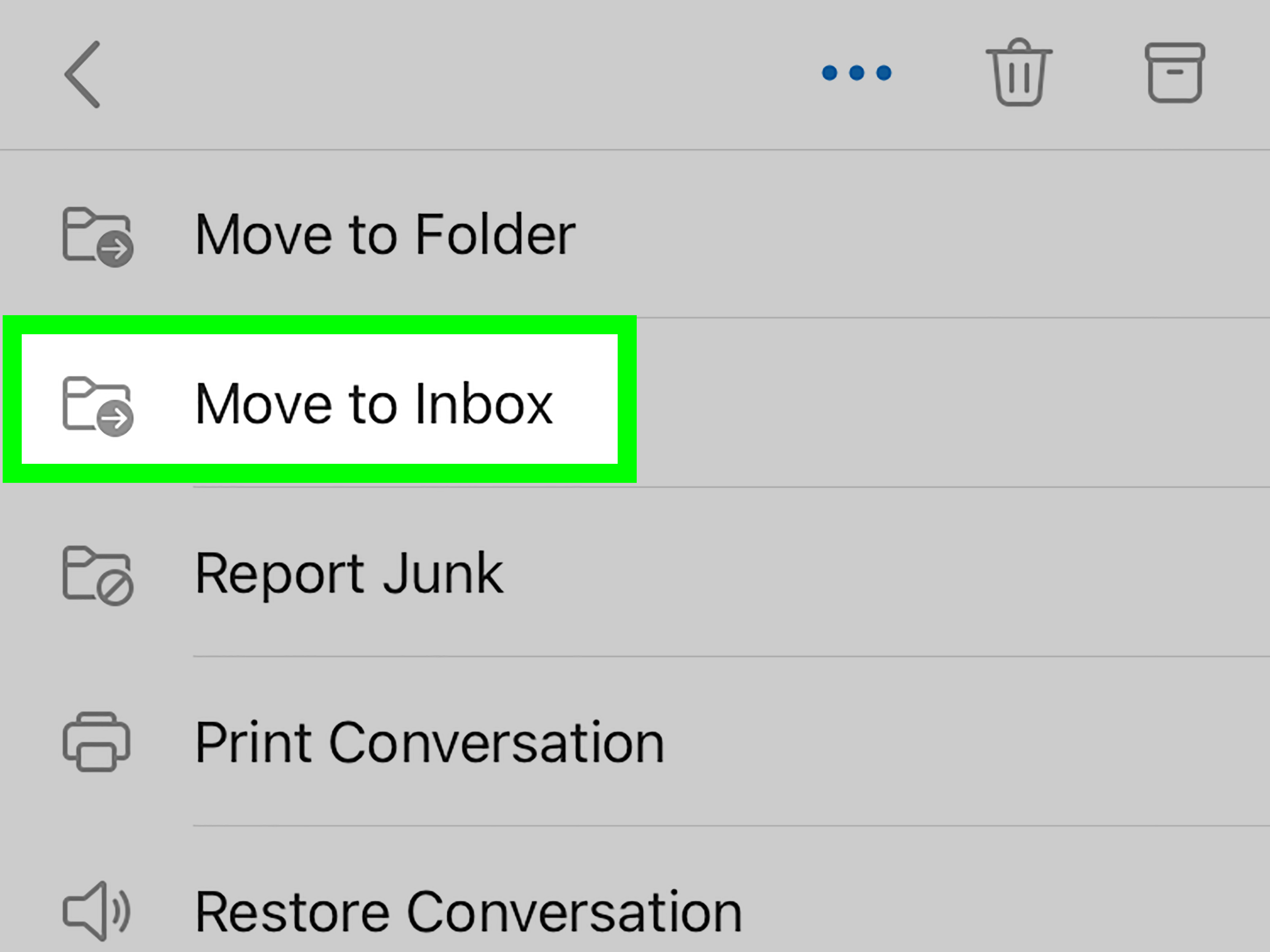
- Right-click the message and choose Move → Inbox (or drag-and-drop it to the correct folder).
- If you deleted it seconds ago, try Ctrl+Z (Windows) or Cmd+Z (Mac). In some setups, Undo can reverse the most recent move/delete actionworth a quick shot before deeper recovery.
Step-by-step (Outlook on the web / Outlook.com)
- Open your mailbox in the browser.
- Click Deleted Items.
- Select the email and click Restore (or right-click → Restore).
Also check these folders before you declare the email extinct
- Junk Email (filters get petty sometimes)
- Archive (you may have archived instead of deleted)
- Clutter/Other (Focused Inbox setups split mail)
- Rules-moved folders (a rule can instantly relocate mail after it arrives)
If it’s still in Deleted Items, congratulations: your email wasn’t “permanently deleted,” it was just temporarily grounded. Now let’s handle the actually-scary cases.
Way 2 Use “Recover Deleted Items” (Recoverable Items / Dumpster)
This is the big one: the feature built specifically for the “I emptied Deleted Items and immediately regretted my life choices” scenario. If your account supports it, Outlook can show emails that were removed from Deleted Items (or deleted with Shift+Delete) and let you restore them.
New Outlook and Outlook on the web: “Recover items deleted from this folder”
- Open Deleted Items.
- Look for a link/button that says Recover items deleted from this folder.
- Select the email(s) you want back.
- Click Restore.
Important detail: Items restored from this recoverable area often reappear in Deleted Items first. So if you restore something and don’t see it in Inbox immediately, check Deleted Items and then move it where it belongs.
Classic Outlook for Windows: “Recover Deleted Items From Server”
- Make sure you’re online and connected (this is server-side recovery).
- Click Deleted Items.
- On the ribbon, look for Recover Deleted Items From Server (wording can vary slightly by version).
- Select the messages you want, choose Restore Selected Items, then click OK.
Why you might not see the recovery option
- Account type limitation: Many POP/IMAP configurations don’t support server-side “Recover Deleted Items.”
- You’re in the wrong folder: In some Outlook versions, the recovery command appears only when you’ve selected Deleted Items under the correct account.
- Retention expired: Recoverable items are typically kept for a limited window (often days to a few weeks).
- It was purged: If someone emptied the recoverable items store (or a policy purged it), user-level recovery may be over.
If Way 2 doesn’t workeither because the button doesn’t exist or the email isn’t listedyou still have options. That’s where admins and backups come in.
Way 3 Ask Your Microsoft 365/Exchange Admin to Restore Deleted Messages
If you’re using Outlook at work or school, your mailbox is often managed by Microsoft 365 (Exchange Online) or Exchange Server. Admins can sometimes recover messages that end users can’tespecially if retention settings, single item recovery, or legal/retention holds are in play.
When this is your best move
- You emptied Deleted Items and the message is not in “Recover Deleted Items.”
- The email disappeared due to a retention policy or automated cleanup.
- You need recovery across a date range or for multiple messages/folders.
- The mailbox is on hold or your org uses compliance features (which can preserve content longer).
What to send your IT admin (so they can actually help you)
Admin tools work best when you provide specifics. Send a short request that includes:
- Approximate deletion date/time (even “Tuesday afternoon” helps)
- Sender address/name
- Subject line (or keywords from it)
- Recipients (you, a group mailbox, etc.)
- Where it used to live (Inbox, a subfolder, Sent Items)
- Any attachments (filename, PDF, etc.)
What admins typically do (in plain English)
Depending on permissions and configuration, admins can:
- Open an Exchange admin recovery interface for that mailbox and restore deleted items.
- Search the Recoverable Items area using PowerShell tooling and restore matching messages.
- Use compliance/eDiscovery searches (when available) to locate preserved content and export or restore it.
Reality check: Admin recovery is still subject to retention rules. If the organization’s retention window has expired and there are no holds/backups, even IT can’t resurrect it. (At that point you’re in “recreate the email from memory” territory, which is basically improvisational theater.)
Way 4 Restore from Backups (PST Exports, File History, OneDrive, Third-Party Backups)
If the message is truly gone from the mailbox system, your best bet is a backup. In Outlook-land, that often means a PST file (an Outlook data file) or a third-party Microsoft 365 backup solution your org uses.
Option A: Import/Open a PST file (the “I actually planned ahead” method)
If you (or your company) exported mail to a PST in the past, you may be able to retrieve the deleted email from that archive. How it works depends on which Outlook you’re using:
- Classic Outlook: You can typically import a PST via the Import/Export wizard and browse folders like a mailbox.
- New Outlook: You can usually access PST email data, but “full import” capabilities may be limited compared to classic Outlook.
- Outlook for Mac: You can import a Windows PST and the data shows up under “On My Computer.”
Once the PST is visible, search inside it for the sender/subject, then move the recovered email back into your active mailbox.
Option B: Restore a deleted PST from your computer backup
Sometimes the email is “gone” because your local data file or archive was deleted or corrupted. If you used:
- Windows File History
- OneDrive folder protection/sync
- Time Machine (Mac)
- Enterprise backup tools
…you may be able to restore the PST file itself, then open/import it in Outlook and retrieve the email.
Option C: Repair a damaged PST (the “it’s not deleted, it’s just broken” surprise)
If your PST exists but Outlook won’t open it or folders look incomplete, you may be dealing with corruption. Microsoft provides an inbox repair utility (commonly referenced as the Inbox Repair Tool) that can scan and repair PST issues. This won’t magically recover truly purged server mailbut it can recover items from a damaged local file and even produce recovered folders you can browse afterward.
Option D: Last-ditch file recovery (use carefully)
If you permanently deleted a PST from your computer and don’t have backups, file recovery software may helpespecially if you stop using the drive immediately (new data can overwrite the “deleted” file space). This is a “success varies wildly” situation, but it’s still a legitimate path when the email is business-critical.
Bonus: Make Future Deletions Less Terrifying
If you’d like to avoid repeating this emotional journey, here are a few low-effort habits that pay off:
- Turn on prompts before permanent deletion so Outlook asks “Are you sure?” when you try to nuke something.
- Don’t auto-empty Deleted Items on exit unless you absolutely love risk.
- Create a “Receipts & Contracts” folder (or similar) and move important threads there immediately.
- Export a quarterly PST archive for critical mailboxesor use a real backup solution if you’re in Microsoft 365.
- Know your retention window: if you’re in a company environment, ask IT how long recoverable items are kept.
Conclusion
Recovering permanently deleted emails in Outlook isn’t magicit’s mostly about knowing which safety net applies to your account. Start with Deleted Items, then use Outlook’s built-in Recover Deleted Items feature to pull messages back from the Recoverable Items area. If that fails (or the button doesn’t exist), escalate to your Microsoft 365/Exchange admin and lean on retention/compliance tooling. And when the mailbox can’t help you anymore, backupsespecially PST exports or managed Microsoft 365 backupsbecome the hero of the story.
One last tip: when you do recover something, move it out of danger immediately. Because nothing hurts quite like recovering an email only to delete it again while celebrating.
Extra: Real-World Recovery Experiences (So You Don’t Learn the Hard Way)
I’ve seen Outlook email recovery play out in the wild enough times to know one thing for sure: the panic is always louder than the problem. Here are a few real-world-style scenarios (names and details changed to protect the innocent… and the chronically click-happy).
1) The “Shift+Delete Sprint”
Someone deletes an email with Shift+Delete because they’re “speed cleaning.” Two minutes later they realize the message contained a customer’s updated billing address. Cue dramatic keyboard smashing. The fix? Open Deleted Items, hit Recover Deleted Items, restore it, then move it to a safe folder. The lesson: Shift+Delete is not a productivity hackit’s a trust fall with your mailbox.
2) The “I Emptied Deleted Items… Twice” Situation
Outlook on the web makes it very easy to empty a folder. It also makes it very easy to feel powerful while doing it. In this case, the user emptied Deleted Items and thenbecause Outlook offered another buttonemptied the recoverable area too. That second step is often irreversible for end users. The rescue required IT involvement and depended heavily on retention/compliance configuration. The lesson: if you see the word “recoverable,” treat it like a warning label, not a challenge.
3) The “It’s Not Deleted, It’s Just Moved” Plot Twist
A manager swears an email vanished. Deleted Items is empty. Recoverable Items shows nothing. Everyone stares at the screen like it owes them money. The real culprit? A mail rule quietly moving messages from a specific sender into a deep folder nobody remembers creating. The lesson: before you assume deletion, search globally and inspect rulesOutlook is great at hiding things in plain sight.
4) The “Retention Window Roulette”
A student deleted a thread and only noticed weeks later. Their institution’s retention policy kept recoverable items for a limited period, and the email had aged out. There was no hold, no special backup for that mailbox, and the recoverable list was empty. The lesson: recovery is usually a race against a clock you can’t see. If something matters, don’t wait to check.
5) The “PST Saves the Day” Classic
A small business owner exported a PST every few months because they didn’t fully trust “the cloud.” That paranoia paid off: a key invoice email was gone, and none of the mailbox recovery options turned it up. They opened the PST archive, searched the sender’s name, found the invoice thread, and dragged it back into the live mailbox. The lesson: backups are boring until they’re the most exciting thing you’ve done all week.
If you take nothing else from these stories, take this: Outlook recovery works best when you act quickly, search smart, and know which system you’re on. Deleted Items is the shallow end. Recoverable Items is the deep end. Admin restores and backups are the lifeguards. And the “Empty folder” button? That’s the diving boardfun until you realize you forgot how to swim.