
Posting one picture on Twitter is easy. Posting multiple pictures in a single tweet is almost as easy, but it feels slightly more magicallike discovering your phone has been hiding a tiny photo album button in plain sight. Whether you call it Twitter, X, a “post,” or still stubbornly say “tweet” because language has muscle memory, the process is simple: compose a post, tap the photo icon, choose up to four images, arrange them in the order you want, add your caption, and publish.
This guide walks you through how to post multiple pictures in a single tweet on Twitter from the mobile app and desktop, plus image sizing tips, accessibility advice, common mistakes, troubleshooting fixes, and real-world posting examples. The goal is not just to help you upload photos, but to help you make the post look intentional instead of like your camera roll tripped and fell onto the internet.
Can You Post Multiple Pictures in One Tweet?
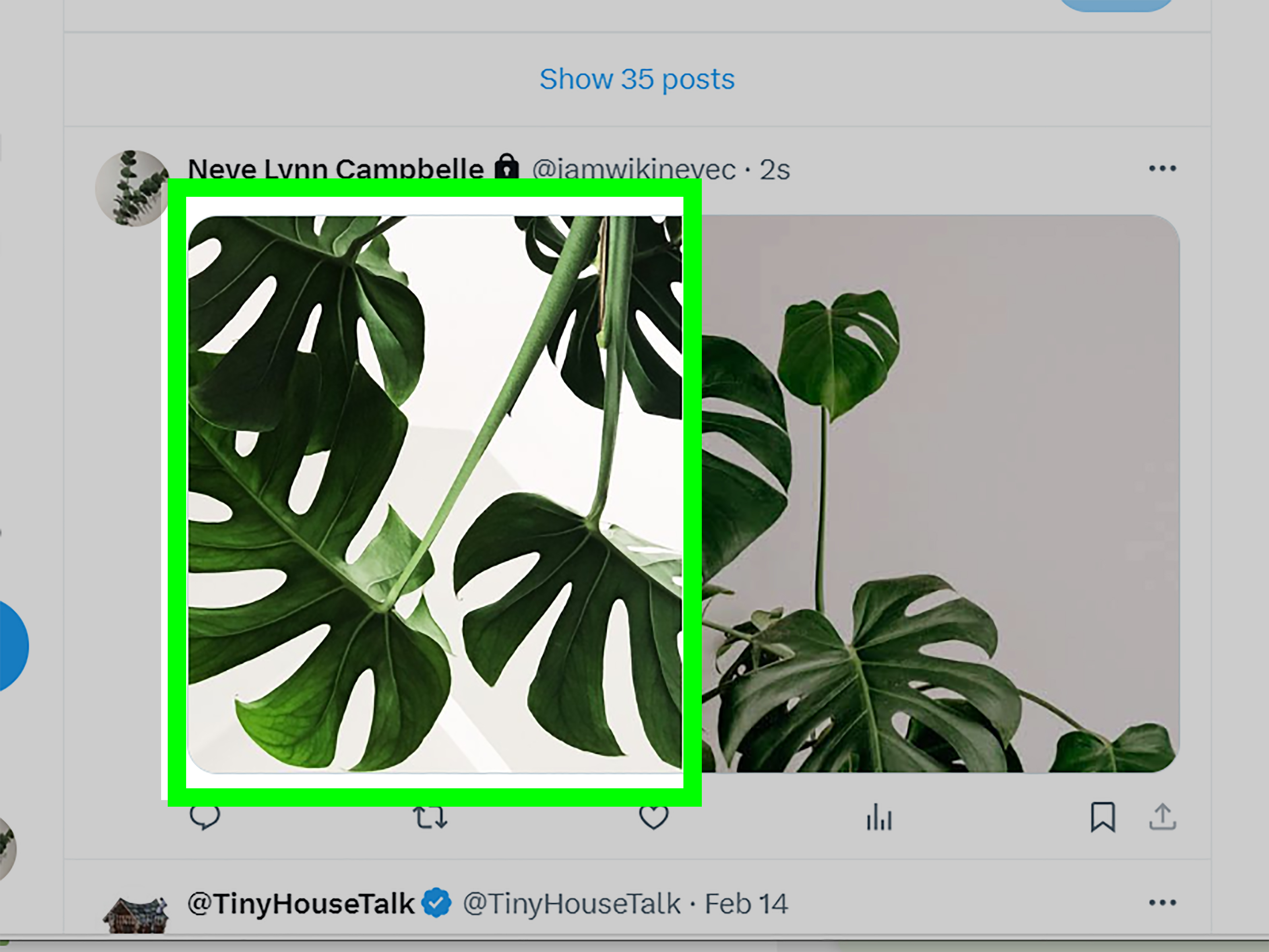
Yes. Twitter/X allows users to attach up to four photos to one post. These images appear together in a grid-style layout in the timeline. When someone taps or clicks the post, they can open each image individually and view it larger.
This feature is useful for tutorials, product reveals, event recaps, before-and-after comparisons, memes, travel photos, outfit posts, screenshots, food photos, brand announcements, and any situation where one picture simply refuses to do all the work.
How Many Pictures Can You Add to a Single Tweet?
You can add between one and four pictures to a single Twitter/X post. Four is the maximum for a standard multi-photo post. If you want to share more than four images, the best option is to create a thread and add more images to additional posts in that thread.
Quick rule:
- 1 photo: Best for a hero image, announcement, quote graphic, or single screenshot.
- 2 photos: Great for comparisons, before-and-after posts, and side-by-side examples.
- 3 photos: Useful for step-by-step visuals or a small photo story.
- 4 photos: Ideal for mini galleries, event recaps, product angles, or grouped screenshots.
How to Post Multiple Pictures in a Single Tweet on the Twitter/X Mobile App
The mobile app is the easiest place to create a multi-image tweet because your camera roll is already right there, probably full of screenshots, pet photos, and at least seven accidental pictures of your ceiling.
Step 1: Open the Twitter/X App
Open the X app on your iPhone or Android device. Make sure you are signed in to the account where you want to publish the post. If you manage multiple accounts, double-check the profile icon before posting. Nothing says “Monday” like publishing your lunch review from a business account.
Step 2: Tap the Compose Button
Tap the compose button, usually shown as a plus icon or feather-style writing icon. This opens the post composer where you can write your text and add media.
Step 3: Tap the Photo Icon
Tap the photo or gallery icon. This opens your device’s media library. Depending on your phone settings, the app may ask for permission to access your photos. Grant access to all photos or selected photos, depending on your privacy preference.
Step 4: Select Up to Four Pictures
Choose the images you want to include. You can select up to four photos. If you pick more than four, Twitter/X will not add all of them to the same post. Select your strongest images first because image order affects how the grid appears.
Step 5: Reorder the Photos
After selecting two or more images, you can press and hold a photo thumbnail, then drag it to rearrange the order before posting. Put the most important image first. This is the image that usually gets the most attention, especially in preview layouts.
Step 6: Add Your Tweet Text
Write a caption that gives context. A good caption does not need to explain every pixel, but it should tell people why the images matter. For example, instead of writing “Photos from today,” try “Four details from today’s café redesign: warmer lighting, cleaner shelves, better menu boards, and one plant doing the emotional labor.”
Step 7: Add Alt Text
Tap the ALT option or image description button on each photo and write a short description. Alt text helps people who use screen readers understand what is in the images. It also helps users with slow connections or accessibility needs. Keep it clear, specific, and useful.
Step 8: Tap Post
Preview your post one last time. Check the image order, caption, spelling, tags, and alt text. Then tap Post. Congratulations: your multi-picture tweet has left the nest.
How to Post Multiple Pictures in One Tweet on Desktop
Posting multiple images from a computer is just as simple, and it is often better for brands, designers, writers, and anyone who prepares polished graphics before publishing.
Step 1: Go to X.com
Open your browser, visit X.com, and sign in. You can compose from the home feed or profile page.
Step 2: Open the Composer
Click the post composer box or the post button. This opens the area where you can write text and attach media.
Step 3: Click the Media Icon
Click the media icon, then choose images from your computer. You can upload JPG, PNG, or GIF files, though animated GIFs are generally treated differently from standard multi-photo posts.
Step 4: Select Your Images
Select up to four pictures. You may be able to select them all at once, or you can add them one by one. After they upload, review how they appear in the composer.
Step 5: Add Description and Caption
Click the option to add image descriptions where available. Then write your tweet text. For professional posts, keep the caption focused. For personal posts, personality is welcome. Twitter has survived many things; it can survive a tasteful joke.
Step 6: Publish the Post
Click Post when everything looks right. Your pictures will appear together in one tweet-style post.
Best Image Sizes for Multiple Pictures on Twitter
Twitter/X can crop image previews depending on the number of images, aspect ratios, and device screen size. That means your image may look slightly different in the timeline than it does when opened full size.
For general use, these sizes work well:
- Landscape image: 1200 x 675 pixels or 1600 x 900 pixels
- Square image: 1080 x 1080 pixels
- Vertical image: 1080 x 1350 pixels or similar portrait format
- Recommended format: JPG for photos, PNG for graphics with text
- Safe design tip: Keep faces, text, logos, and key details near the center
If you are posting a four-image grid, avoid placing tiny text near the edges. The timeline preview may crop or shrink details, especially on mobile. If your post includes instructions, use large readable text and simple visuals. Your audience should not need a microscope, a prayer candle, and a NASA monitor to understand your graphic.
What the Multi-Photo Grid Looks Like
When you post multiple pictures in a single tweet, Twitter/X automatically creates a layout. You do not manually design the grid inside the app; the platform handles the display.
Two Pictures
Two images usually appear side by side. This format is perfect for before-and-after examples, comparison shots, “expectation vs. reality” jokes, or two product angles.
Three Pictures
Three images often display with one larger image and two smaller stacked images. Put the most important visual first because the first image usually receives the largest visual emphasis.
Four Pictures
Four images commonly appear as a balanced grid. This is great for collections, such as four screenshots, four event highlights, four menu items, or four outfit ideas. It gives your tweet a gallery feel without requiring people to leave the timeline.
Tips for Writing Better Captions for Multi-Photo Tweets
A multi-image post should feel organized. The caption is your tour guide. Without it, people may understand the photos, but they may not understand the point.
Use a Clear Hook
Start with a reason to look. Examples include:
- “Four small design changes that made this homepage easier to read.”
- “Before, during, after, and the tiny disaster in between.”
- “A quick visual guide to setting up your desk for better focus.”
- “The product photos looked normal until image four.”
Number the Images When Needed
If order matters, number the images in your caption. For example: “Image 1 shows the old layout, image 2 shows the wireframe, image 3 shows the redesign, and image 4 shows the mobile version.” This is especially helpful for tutorials, case studies, and educational posts.
Do Not Overload the Caption
Let the images do some of the work. A caption should add context, not wrestle the photos for attention. If you need more explanation, create a thread and use the first post as the visual summary.
How to Add Alt Text to Multiple Pictures
Alt text is one of the most overlooked parts of posting images, but it matters. When you add more than one picture, write a separate image description for each one. Do not copy and paste the same description unless the images are truly identical, which would raise the philosophical question of why you posted both.
Good Alt Text Example
Weak: “Chart.”
Better: “A bar chart comparing website traffic from January to April, showing steady growth from 12,000 visits in January to 28,000 visits in April.”
Alt Text Best Practices
- Describe the important visual information.
- Mention text that appears inside the image if it matters.
- Keep the description concise but complete.
- Avoid starting every description with “Image of” unless it feels necessary.
- Do not use alt text as a secret joke, keyword dump, or hidden marketing pitch.
Can You Add a GIF With Multiple Pictures?
In most standard posting situations, animated GIFs are handled separately from multi-image photo posts. If you are trying to add several pictures and a GIF together, the platform may prevent that combination or limit how the media can be attached. For a clean post, use either multiple photos or one GIF. Mixing formats can get fussy, and fussy media uploads are how perfectly good afternoons disappear.
Can You Add a Video and Multiple Photos in One Tweet?
Twitter/X supports photos, GIFs, and videos, but combinations can be limited depending on the app version, account type, device, and current platform rules. If your goal is a reliable multi-photo post, use photos only. If you need to include a video, consider making a thread: post the video first, then reply with the photo gallery, or start with the photos and add the video in a follow-up.
Common Problems and How to Fix Them
Problem: You Can Only Select One Image
Make sure you are using the official app or X.com and that your app is updated. Some third-party tools, browsers, or older app versions may not support the same media options.
Problem: The Upload Fails
Check your internet connection, file size, and file format. Large images may fail on weak connections. Try compressing the image slightly, switching from PNG to JPG for photos, or uploading from a more stable network.
Problem: The Image Looks Cropped
Keep the most important content centered. Use standard image ratios such as landscape, square, or portrait. Preview before posting whenever possible.
Problem: The Photos Are in the Wrong Order
Before posting, press and hold the image thumbnail, then drag it into the correct position. If the post is already published, you usually cannot simply rearrange the images inside that same post. You may need to delete and repost.
Problem: Text in the Image Is Too Small
Use larger fonts and fewer words. Remember that many people will see your tweet on a phone while standing in line, walking, or pretending not to check social media during a meeting.
Creative Ways to Use Multiple Pictures in One Tweet
1. Before-and-After Posts
Use two photos to show transformation: a room makeover, website redesign, haircut, fitness progress, recipe result, desk setup, or restored product. Put the “before” image first if you want a story arc, or put the “after” first if you want instant impact.
2. Mini Tutorials
Use four images as a quick visual lesson. For example, a designer could show sketch, wireframe, final mockup, and live page. A cook could show ingredients, prep, cooking, and finished dish.
3. Product Showcases
Brands can use multiple pictures to show different angles, colors, features, or use cases. A single image says “Here it is.” Four images say “Here it is, and yes, we thought about the details.”
4. Event Recaps
Share a four-photo highlight reel from a conference, launch party, workshop, concert, or community meetup. Choose images that show variety: people, setting, activity, and a memorable detail.
5. Screenshot Explainers
For software tips, multiple screenshots can walk users through a process. Add numbers, arrows, or simple labels before uploading. Keep screenshots clean and crop out anything private.
Privacy and Safety Tips Before Posting Photos
Before you post multiple pictures, zoom in and check the details. Photos can accidentally reveal addresses, license plates, private documents, children’s school names, passwords, email inboxes, reflection details, or location clues. The internet has excellent eyesight and absolutely no chill.
If you are posting screenshots, crop out personal information. If you are sharing event photos, consider whether everyone pictured would be comfortable being posted publicly. If the images show your home or workplace, remove identifying details where possible.
Experience-Based Advice: What Actually Works When Posting Multiple Pictures on Twitter
After working with multi-image social posts, one pattern becomes very clear: the first image does the heavy lifting. People scroll fast. They do not politely stop at every post, adjust their glasses, and say, “Let us evaluate this content with the seriousness it deserves.” They glance, decide, and move on. That means your first photo should be the strongest, clearest, or most curiosity-building image in the set.
For example, if you are posting a room makeover, do not start with a dim “before” photo unless the transformation is the story and the contrast is dramatic. If the finished room looks amazing, lead with that. Then use the remaining images to show the process. The same idea applies to product photos. Start with the most attractive or useful image, then follow with close-ups, lifestyle shots, or feature details.
Another practical lesson: consistency matters more than perfection. Four images with similar lighting, framing, and color feel professional even if they were taken on a phone. Four random images with different crops, lighting temperatures, and visual styles can feel messy. Before posting, ask whether the images look like they belong together. If not, crop them similarly or edit them lightly for brightness and contrast.
When posting screenshots, readability is everything. A screenshot that looks clear on your laptop may become tiny in the mobile timeline. Crop tightly around the important part, remove extra browser tabs, and use simple annotations if needed. A red arrow is not elegant, but neither is making your audience pinch-zoom like they are decoding a treasure map.
For educational posts, number the visuals. A caption such as “1. Problem, 2. Fix, 3. Result, 4. Lesson” instantly gives the viewer a path through the images. This works especially well for tutorials, marketing breakdowns, design critiques, coding examples, fitness form checks, recipes, and case studies. People like knowing where to look first.
For personal posts, the best multi-photo tweets often feel like a tiny story. Instead of uploading four similar photos from the same angle, choose variety: wide shot, close-up, candid moment, and funny detail. A travel post with four nearly identical beach photos is pleasant, but a travel post with the beach, the food, the street sign, and the “we got lost but found this dog” moment is memorable.
For brands, multiple pictures can improve trust because they answer questions visually. A customer wants to know what the product looks like in real life, how big it is, what comes in the box, and how it is used. Four pictures can answer those questions faster than a long caption. This is especially useful for fashion, beauty, tech accessories, food, furniture, digital templates, and handmade products.
Finally, never skip the preview. A post can look perfect in your folder and weird in the composer. Check whether a face is cropped, a logo is cut off, or text is too close to the edge. Think of the preview as the fitting room mirror of social media. It may not flatter every choice, but it tells the truth before you walk outside.
Conclusion
Learning how to post multiple pictures in a single tweet on Twitter is simple, but making that post look good takes a little intention. Open the composer, tap the photo icon, select up to four images, arrange them in the right order, add a clear caption, write alt text for each image, and publish. That is the basic recipe.
The better recipe is to think like a storyteller. Choose a strong first image, keep important details centered, use readable visuals, write helpful captions, and make every image earn its spot. Whether you are sharing a tutorial, a product, a joke, a travel memory, or four screenshots of something wonderfully chaotic, a multi-photo tweet gives you more room to communicate without asking your audience to chase links or open a separate album.
Note: This article uses “tweet” and “Twitter” for search clarity while also referring to the current platform name, X, where helpful for modern readers.