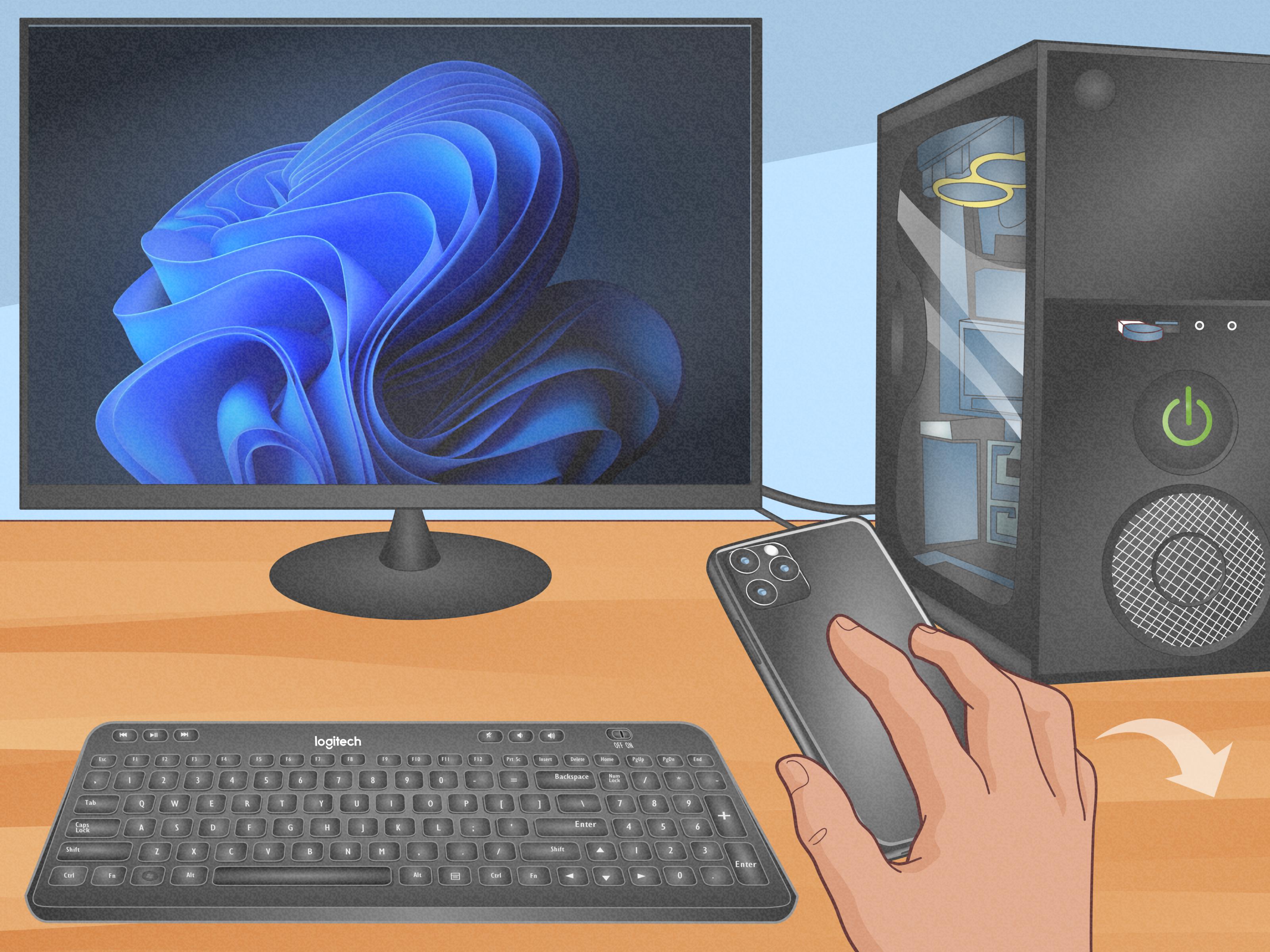

Few tech problems feel more insulting than a keyboard that suddenly stops typing. You press a key, nothing happens, and now your expensive Logitech keyboard is acting like a decorative tray. The good news is that most Logitech keyboard problems are fixable. In many cases, the culprit is something simple: drained batteries, a sleepy Bluetooth connection, a receiver plugged into a cranky USB hub, a confused driver, or a keyboard that is connected to the wrong device channel.
This guide walks through the most effective ways to fix a Logitech keyboard that is not working, whether it is wired, Bluetooth, Logi Bolt, or Unifying receiver based. We will cover quick checks, deeper troubleshooting steps, Windows and Mac fixes, and the telltale signs that your keyboard may be ready for retirement. No techno-magic required. Just a calm process, a little patience, and maybe one dramatic sigh.
Start Here: Figure Out What Kind of Logitech Keyboard You Have
Before you start pressing random buttons like you are launching a spaceship, identify how your keyboard connects. Logitech keyboards usually fall into one of these categories:
- Wired keyboard: connects by USB cable.
- Wireless keyboard with USB receiver: often uses a tiny dongle, sometimes a Logi Bolt receiver or a Unifying receiver.
- Bluetooth keyboard: pairs directly with your computer, tablet, or phone.
- Multi-device keyboard: can switch among channels or devices, often marked 1, 2, and 3.
That detail matters because a wired keyboard problem is usually about ports, power, or drivers, while a wireless problem is often about batteries, pairing, interference, or the receiver.
Try the Fast Fixes First
These are the boring steps that people skip, then later discover one of them was the answer all along.
1. Turn the keyboard off and back on
Yes, the oldest trick in the book still works. Power the keyboard off, wait a few seconds, then turn it back on. If your model has a status LED, watch for signs of life. No light at all can point to a battery or power problem.
2. Check the batteries or charge level
If your Logitech keyboard uses replaceable batteries, put in a fresh set. Do not trust the half-dead batteries from the junk drawer that have been rolling around since the age of dinosaurs. If the keyboard is rechargeable, plug it in and let it charge for a bit before testing again.
3. Make sure the keyboard is actually connected to the right device
Many Logitech keyboards can connect to multiple devices. If yours has Easy-Switch buttons or device selector keys, make sure you are typing on the correct channel. It is surprisingly common to think the keyboard is broken when it is actually trying to chat with your iPad in the other room.
4. Restart your computer
A restart can clear Bluetooth glitches, reload drivers, and fix temporary USB weirdness. It is not glamorous, but it is often effective.
How to Fix a Logitech Keyboard With a USB Receiver
If your keyboard uses a small USB dongle, the issue is often the receiver rather than the keyboard itself.
Plug the receiver directly into the computer
Skip the USB hub, dock, extender, or monitor passthrough for now. Plug the receiver directly into a working USB port on your computer. Wireless receivers can act picky when they are buried behind accessories, especially if signal interference or low power delivery is involved.
Try a different USB port
Move the receiver to another USB port. Front ports sometimes work better than rear ones for wireless receivers because they reduce distance and obstruction. On desktops, this can make a real difference.
Wait a few seconds after reconnecting
Unplug the receiver, wait about 10 seconds, then plug it back in. Sometimes Windows or macOS just needs a clean re-detect instead of your full emotional monologue.
Re-pair the keyboard
If the connection was lost, re-pairing may solve it. Logitech has used different software utilities over the years, but for many supported devices, Logi Options+ is now the main place to manage devices and check connection status. If your keyboard uses an older Unifying receiver, the pairing process may still depend on Logitech’s Unifying tools or Logitech instructions for that specific model.
Move the keyboard closer
Wireless range sounds impressive on the box, but real desks are full of signal blockers: metal stands, routers, speakers, charging cables, and general electronic chaos. Move the keyboard closer to the receiver and test again.
Reduce interference
Keep the receiver away from Wi-Fi routers, wireless speakers, smartphones, and other radio-happy gadgets. If the keyboard drops out randomly or only works sometimes, interference is a strong suspect.
How to Fix a Logitech Bluetooth Keyboard
Bluetooth problems love to pretend the keyboard is broken when the real problem is pairing, device memory, or a hiccup in the computer’s Bluetooth stack.
Make sure Bluetooth is turned on
Open your computer’s Bluetooth settings and confirm Bluetooth is enabled. That sounds obvious, but it is worth checking before you spend 20 minutes blaming the keyboard.
Remove the keyboard and pair it again
If the keyboard shows up in Bluetooth settings but will not connect, remove or forget the device, then pair it again from scratch. This often fixes a stale or corrupted pairing record.
Put the keyboard into pairing mode
Most Logitech Bluetooth keyboards need you to hold a device key or pairing button until the indicator light blinks rapidly. Once it appears in Bluetooth settings, select it and complete the pairing steps.
Check whether it is already paired to another device
If your keyboard was recently used with a tablet, phone, or another computer, it may still be trying to reconnect there first. Switch to the right device channel or remove old pairings and try again.
Update the Bluetooth driver
On Windows, outdated Bluetooth drivers can cause connection, detection, or pairing issues. Updating the Bluetooth driver or reinstalling it through Device Manager can often revive a stubborn keyboard.
Fixes for a Logitech Keyboard That Is Connected but Still Not Typing
Sometimes the keyboard appears connected, but it types nothing, types the wrong thing, or only some keys work. That usually points to software settings rather than total hardware failure.
Check keyboard layout settings
If the wrong characters are appearing, you may have the wrong input language or keyboard layout selected. For example, a U.S. layout and a different regional layout can turn everyday typing into a strange guessing game.
Turn off Filter Keys and Sticky Keys
Accessibility settings in Windows can change how the keyboard responds. Filter Keys, Sticky Keys, and related options can sometimes make it seem like the keyboard is lagging, ignoring keystrokes, or behaving strangely. Review those settings and disable anything you do not need.
Try the On-Screen Keyboard
If you need to log in, search settings, or install software while your physical keyboard is misbehaving, use the On-Screen Keyboard. It is not elegant, but it gets the job done and helps you troubleshoot without borrowing someone else’s laptop like a panicked neighbor.
Check Num Lock
If the number pad is not working, Num Lock may be off. On some Logitech models, you may need to tap it once or hold it briefly. When only the numpad fails while the rest of the keyboard works, this is one of the first things to test.
Clean the problem keys
If just one or two keys are not working, the issue may be dust, crumbs, or debris under the keycap area. Use compressed air or a soft brush to gently clean around the key. Keyboards have an almost magical ability to collect snack evidence.
How to Fix Logitech Keyboard Driver Problems on Windows
Driver issues are a classic cause of “connected but not working” keyboard problems.
Reinstall the keyboard driver
Open Device Manager, locate the keyboard, uninstall the device, and restart the computer. Windows usually reinstalls the driver automatically during startup. This can fix corruption, failed updates, or odd detection problems.
Update drivers through Device Manager or Windows Update
Check for driver updates for both the keyboard and Bluetooth hardware if you are using a Bluetooth model. Also run regular Windows updates, since keyboard and Bluetooth fixes sometimes arrive quietly as part of the broader system update process.
Look for error symbols
If Device Manager shows a warning icon next to the keyboard or Bluetooth adapter, that is a clue the system sees a hardware or driver issue. In that case, updating or reinstalling the affected driver is usually the next move.
How to Troubleshoot a Logitech Keyboard on Mac
Mac users can hit many of the same connection problems, just with more polished menus.
Check Bluetooth settings
Go to Bluetooth settings and confirm the keyboard appears there. If it is listed but not connecting, remove it and re-pair it.
Reconnect the keyboard
Turn the keyboard off and back on, then retry pairing. If the keyboard is rechargeable, charge it first before assuming the connection itself is the problem.
Test another app or user account
If the keyboard works in some places but not others, the problem may be app specific or tied to a software setting in your user profile rather than the keyboard itself.
Use Logitech Software the Smart Way
For many current Logitech devices, Logi Options+ is the most useful software tool. It can help you confirm whether the device is detected, check battery status on supported models, and sometimes install firmware updates. If your keyboard suddenly started acting weird after a failed update or after changing devices, checking Logi Options+ is a smart move.
That said, not every Logitech keyboard uses the same software path. Older Unifying models may behave differently from newer Logi Bolt models, so it helps to look up your exact model if a general fix does not work. Logitech support pages for the product can tell you which pairing or update method applies.
Test the Keyboard on Another Computer
This is one of the best ways to separate a keyboard problem from a computer problem. Pair or connect the Logitech keyboard to a second device.
- If it works on another computer, the keyboard is probably fine and your original machine is the real troublemaker.
- If it fails on multiple devices, the keyboard itself is much more likely to be the issue.
This single test can save a lot of time and stop you from reinstalling drivers for an hour when the keyboard simply has a hardware fault.
Signs Your Logitech Keyboard May Be Damaged
Not every problem is fixable with software or reconnection steps. Hardware failure becomes more likely when:
- The keyboard shows no lights or signs of power even with fresh batteries or a full charge.
- It disconnects constantly on multiple computers.
- Several keys fail after liquid exposure.
- The USB cable is frayed or the receiver is physically damaged.
- Only part of the keyboard works and cleaning or re-pairing does nothing.
If that sounds familiar, repair or replacement may be the practical answer. Sometimes the keyboard is not being dramatic. Sometimes it is simply done.
Best Order to Troubleshoot a Logitech Keyboard
If you want the shortest path to a fix, follow this order:
- Restart the keyboard and computer.
- Replace batteries or charge the keyboard.
- Confirm you are on the correct device channel.
- Reconnect the receiver or re-pair Bluetooth.
- Move the receiver to a direct USB port and reduce interference.
- Check accessibility settings, layout settings, and Num Lock.
- Reinstall or update drivers.
- Test the keyboard on another device.
- Check Logitech software and firmware options.
- Consider hardware failure.
Common Real-World Experiences With a Logitech Keyboard That Stops Working
One of the most common real-world experiences is the “it was working perfectly yesterday” situation. A person sits down with coffee, opens the laptop, and suddenly the Logitech keyboard refuses to type a single letter. Panic arrives immediately. Work emails are waiting, the search bar is useless, and even logging in feels impossible. In many of these situations, the fix ends up being embarrassingly simple: the keyboard switched to the wrong device channel, the batteries dipped too low overnight, or the USB receiver got bumped into a different port during cleanup. It feels like a disaster, but the solution takes less than five minutes.
Another very typical experience happens with Bluetooth models. The keyboard looks connected, the computer says it remembers the device, yet nothing appears on screen when you type. Users often describe this as the keyboard “half existing.” It is there, but also not there. In practice, removing the Bluetooth device and pairing it again solves a surprising number of these cases. The pairing record gets stale, the OS gets confused, or the keyboard keeps trying to reconnect to an old tablet instead of the current computer. Once that stale connection is cleared, the keyboard usually snaps back to normal.
Office setups create another familiar headache. Many people use docks, hubs, monitors with USB passthrough, and crowded desks full of wireless gear. Then the Logitech keyboard starts lagging, dropping keystrokes, or refusing to connect at all. Users often assume the keyboard is defective, but the real problem is the environment. Moving the receiver from a hub to a direct USB port, bringing it closer to the keyboard, or shifting it away from a Wi-Fi router often changes everything. It is not glamorous, but wireless devices can be a little high-maintenance when surrounded by electronic roommates.
There is also the classic “only some keys work” experience. This one sends people directly into conspiracy mode. They suspect malware, broken updates, or a haunted spreadsheet. But in real life, partial key failure is often tied to accessibility settings, keyboard layout mix-ups, Num Lock confusion, or plain old debris under the keys. Someone spills a little soda, eats crackers over the desk for six months, then acts shocked when the space bar starts negotiating its contract. Cleaning, checking settings, and testing another computer usually reveals whether the keyboard is dirty, misconfigured, or truly failing.
Then there is the final, honest experience: sometimes the keyboard really is dying. After years of use, some Logitech keyboards start showing the same symptoms over and over on every device: random disconnects, dead keys, no power light, or complete refusal to pair. At that point, troubleshooting becomes less about clever fixes and more about confirming the truth. That can actually be helpful. Once users test the keyboard on another machine and see the same failure, they stop wasting time blaming Windows, Bluetooth, Mercury in retrograde, or the family Wi-Fi. The keyboard had a good run. It typed many passwords, many emails, and possibly a few strongly worded messages. It can retire with dignity.
Final Thoughts
If your Logitech keyboard is not working, do not assume the worst right away. Most issues come down to power, pairing, USB placement, wireless interference, software settings, or drivers. Start with the simple checks, then move into re-pairing, port changes, settings, and driver fixes. In plenty of cases, the keyboard is not broken at all. It is just confused, underpowered, or connected to the wrong thing at the worst possible moment.
Work through the steps in order, test the keyboard on another device, and use Logitech’s software tools when needed. With a little patience, you can usually bring the keyboard back from the dead without buying a replacement or launching it dramatically across the room.