
We’ve all been there: you closed a tab, your Mac sneezed (aka “restarted”), and the one page you actually needed
vanished into the internet void. The good news? Your browser probably kept receipts.
In this guide, you’ll learn exactly how to find browsing history on a Mac in Safari,
Google Chrome, and Mozilla Firefoxplus what to do if history is missing,
how to search it quickly, and how to clear it the right way when you’re done.
Quick Start: The Fastest Ways to Open History on Mac
If you’re in a hurry (and you are), these shortcuts get you to history fast:
- Safari: Command + Y
- Chrome: Command + Y
- Firefox: Command + Shift + H (History sidebar / Library options vary)
Now let’s break it down by browser, with the options that help you find the exact pagewithout scrolling through
“today’s 47 rabbit holes” one by one.
How to Find Browsing History in Safari on Mac
Safari is the default browser on macOS, which means it quietly tracks your browsing history like a helpful (and
slightly judgy) assistant. Here’s how to open it, search it, and use it to get back to what you were doing.
Method 1: Use the History Menu (Most People’s Go-To)
- Open Safari.
- In the top menu bar, click History.
- Choose Show All History.
You’ll see a list of visited pages organized by date. This view is perfect when you remember the day you visited
something (“It was definitely last Tuesday… or last decade.”).
Method 2: Use the Keyboard Shortcut (Fastest)
Press Command + Y to open Safari history instantly. If you love keyboard shortcuts, this is
your new favorite.
How to Search Safari History (So You Don’t Scroll Forever)
In the history window, use the search field to type:
- a website name (like “nytimes” or “wikipedia”)
- a keyword from the page title (like “budget,” “pasta,” or “how to fix…”)
- part of a URL (like “/login” or “/guide”)
Example: If you were researching “best external SSD for Mac” and now only remember the phrase “Thunderbolt,” type
Thunderbolt in the search box and Safari will filter results.
Find Recently Closed Tabs (Because That’s Usually the Real Problem)
Sometimes you don’t need full historyyou just need the tab you closed 12 seconds ago. Try:
- History → Recently Closed (if available)
- Or reopen the last closed tab with Command + Z in some contexts, or use the browser’s reopen option if shown
If you don’t see a “Recently Closed” option, don’t panicuse Show All History and search the site name.
Safari + iCloud: Your History Might Be Shared Across Devices
If you use Safari with iCloud enabled, your browsing activity can sync across your Apple devices. That’s helpful when:
- You visited a page on your iPhone and want it on your Mac.
- You started research on your iPad and want to continue on a bigger screen.
It also means clearing Safari history can affect more than one device (we’ll cover that in the clearing section).
Advanced (Optional): Where Safari Stores History on Mac
Most people never need this. But if you’re troubleshooting, migrating data, or using a backup, it helps to know that
Safari history is stored as a database file in your user Library (which macOS often hides).
If you’re working on your own Mac and you have a good reason (like restoring from a backup), Safari’s history files
typically live in your user folder under Library in the Safari directory.
Tip: The Library folder can be hidden in Finder. In Finder, click Go in the menu bar,
then hold Option to reveal Library.
How to Find Browsing History in Google Chrome on Mac
Chrome is like a Swiss Army knife: powerful, popular, and occasionally the reason your laptop fan sounds like it’s
training for takeoff. The upside? Chrome’s history tools are excellent.
Method 1: Open Chrome History From the Menu
- Open Google Chrome.
- Click the three-dot menu (top-right).
- Hover History, then click History again.
This opens the full history page where you can search, filter by date, and jump back into older sessions.
Method 2: Keyboard Shortcut (Fastest)
Press Command + Y to open Chrome history in a new tab.
Method 3: Search History From the Address Bar (Super Fast)
Chrome has a shortcut-style search feature that lets you search history without even opening the history page first.
In the address bar, type something like:
- @history, then press Tab or Space, then type your keyword
- Or start typing a site name and look for suggestions tied to your past visits
Example: Type @history, hit Tab, then type air fryer time chart.
Chrome will surface matching pages you visited before.
History Groups and “Resume Browsing” (When You Want the Whole Research Trail)
Depending on your Chrome version and settings, Chrome may organize activity into groups. This is useful when you were
researching a topic and want to pick up where you left offwithout reconstructing your entire brain from scratch.
Chrome Sync: Your History Might Live in Your Google Account
If you’re signed into Chrome and have syncing enabled, your browsing history can be associated with your Google account.
That’s handy if:
- You used Chrome on another device and want the same sites on your Mac.
- You reinstalled Chrome or switched Mac user accounts.
It also means deleting history on one synced device can remove it from other synced devices, too.
Private Browsing Note (Incognito = No Local History)
If you used Incognito mode, Chrome won’t save browsing history for that session. You might still see:
- downloaded files in your Downloads folder
- bookmarks you saved
But the actual list of visited pages from Incognito won’t appear in Chrome’s history.
Advanced (Optional): Where Chrome Stores History on Mac
Like Safari, Chrome stores history locally in your user Library inside Chrome’s profile folder. This matters if you’re:
- moving your Chrome profile to a new Mac
- recovering from a backup
- checking which Chrome profile you’re actually using
Chrome also supports multiple profiles, so make sure you’re checking history under the correct profile (look at the
profile icon near the top-right of Chrome).
How to Find Browsing History in Mozilla Firefox on Mac
Firefox is beloved for privacy controls and customization. It also gives you multiple ways to view history, including
a searchable library and a sidebar for quick access.
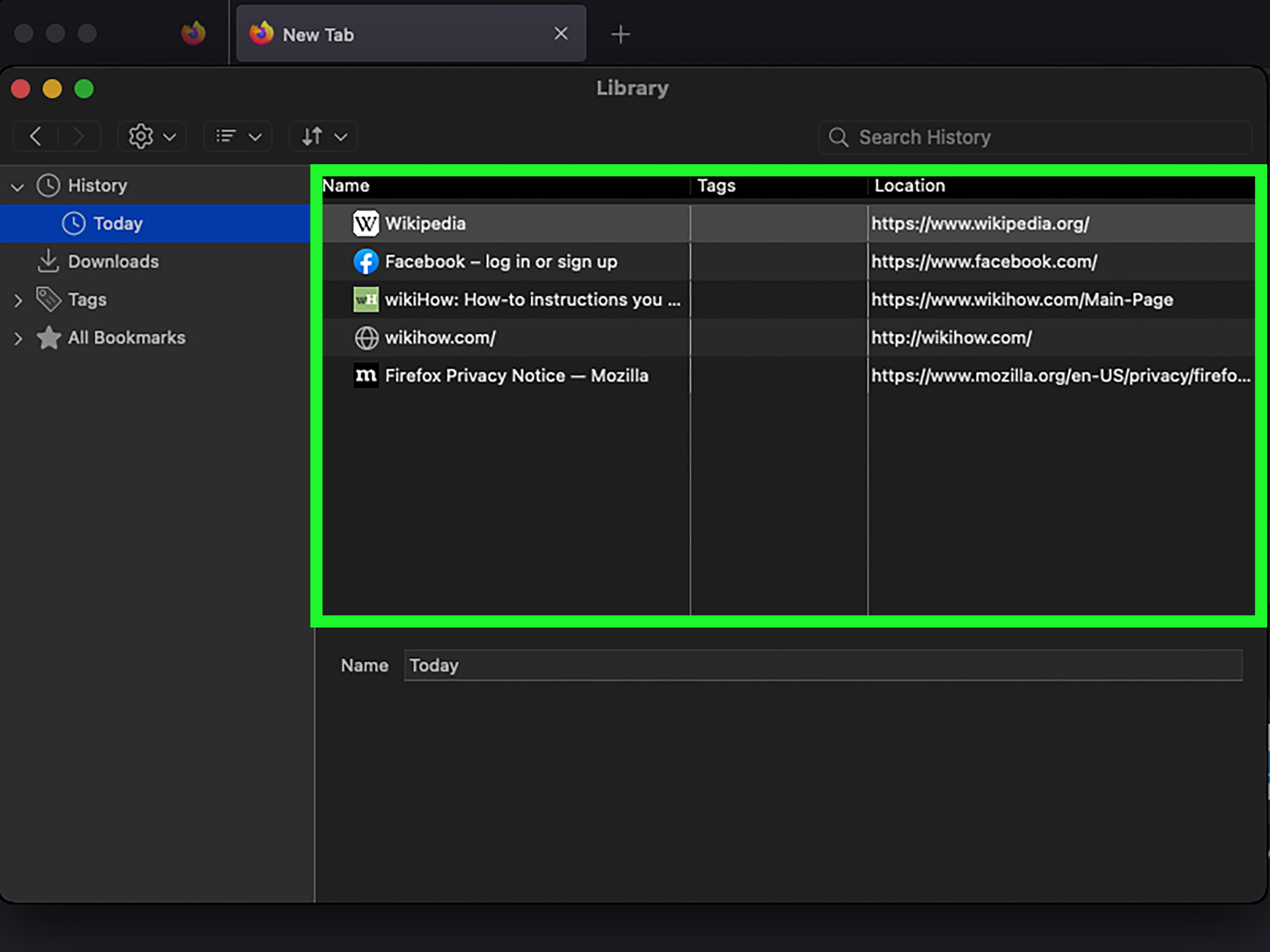
Method 1: Use the History Menu
- Open Firefox.
- Click History in the menu bar (or the menu button if your layout differs).
- Choose Manage History or Show All History (wording can vary slightly).
This opens the Library-style history view where you can search and sort results.
Method 2: Open the History Sidebar (Quick Browsing)
Firefox can show a history sidebar, which is perfect if you want to keep history open while browsing. A common shortcut is:
Command + Shift + H for history tools on Mac (Firefox also lists shortcuts in its help documentation).
Search and Sort Firefox History Like a Pro
In Firefox’s history/library window, you can:
- use a search field to find a specific site or keyword
- sort by name, URL, or visit time
- right-click results to open in a new tab or bookmark them
Example: If you only remember that a page was “something about FAFSA deadlines,” type FAFSA.
Firefox will filter results so you don’t have to scroll through your entire internet life story.
Advanced (Optional): Where Firefox Stores History on Mac
Firefox stores history inside your Firefox profile folder (which can be useful for backups and troubleshooting). If you ever
need to find that folder on your own Mac, Firefox’s support docs explain how to locate your profile directory in
Application Support.
What If Your Browsing History Is Missing?
If you opened history and it looks suspiciously empty, here are the most common reasons (and the least dramatic fixes).
1) You Used Private Browsing
Private Browsing (Safari) and Incognito (Chrome) don’t save browsing history. Firefox’s Private Browsing works similarly.
If you were in a private window, the sites won’t show up later in history.
2) History Was Cleared (On Purpose or by a Cleanup Tool)
Clearing history deletes your local record of visited pages. Some “cleanup” apps and privacy tools can also clear history
automatically. If history was cleared, the best chance of recovery is usually a backup (like Time Machine) or synced account
history (where applicable).
3) You’re in the Wrong Browser Profile or Mac User Account
Chrome and Firefox can both have multiple profiles. macOS can also have multiple user accounts. Your history lives inside the
profile/account that did the browsing. If you recently switched profiles, you may simply be looking in the wrong “bucket.”
4) Sync Settings Changed
Turning sync on or off (iCloud for Safari, Google account sync for Chrome, Firefox Sync for Firefox) can change what appears
on a specific device. If you expected history to appear from another device, check whether sync is enabled.
How to Clear Browsing History on Mac (Without Regrets)
Sometimes you want to find history. Other times you want to erase it so thoroughly that even your future self can’t judge you.
Here’s how to clear history responsibly.
Clear Safari History
- Open Safari.
- Click History → Clear History.
- Choose a time range (last hour, today, today and yesterday, or all history), then confirm.
Important: Clearing Safari history can also remove history across other devices if Safari is syncing with iCloud, and it removes
more than just the list of visited pages (like frequent sites and recent searches).
Clear Chrome History
- Open Chrome.
- Open history (Command + Y) and select Clear browsing data.
- Choose the time range and the data types (history, cookies, cache), then confirm.
If you’re signed into Chrome and syncing, deleting history can remove it from other synced devices as well.
Clear Firefox History
- Open Firefox.
- Go to History → Clear Recent History.
- Select a time range and what to clear, then confirm.
Firefox also allows automatic clearing on exit if you prefer a “leave no trace” approachhelpful on shared computers.
Smart Privacy Tips for Shared Macs (Without Being Creepy)
Browsing history is personal. If you share your Mac with family members, roommates, or classmates:
- Use separate macOS user accounts for separate browsing histories.
- Use browser profiles (especially in Chrome) to keep work and personal browsing separate.
- Use Private Browsing/Incognito for sensitive logins on shared machines.
- Remember: privacy modes hide history on your device, but they don’t make you invisible to websites, networks, or admins.
Conclusion: Finding Mac Browsing History Is EasyIf You Know Where to Look
To find browsing history on Mac, you usually just need the right menu option or shortcut:
Safari and Chrome both love Command + Y, while Firefox gives you a Library and sidebar system that’s
great for searching and organizing. If history is missing, it’s often because of private browsing, cleared data, or the
wrong profile. And if you decide to clear history, be mindful of syncing so you don’t accidentally wipe more than you intended.
Next time a tab disappears, don’t panic. Your browser already wrote it down. (You’re welcome.)
Experience-Based Tips: Real-World “Where Did That Page Go?” Moments (500+ Words)
Here’s the part nobody tells you until you’ve lived it: most “I can’t find my browsing history” problems aren’t technical.
They’re human. They happen because we browse in bursts, multitask like pros, and trust our brains to remember details that
our brains absolutely did not agree to remember.
One of the most common scenarios is the “I saw it earlier today” moment. You remember reading something
helpfulmaybe a troubleshooting guide, a scholarship page, a recipe, or a product comparisonbut you don’t remember the
website. In Safari, the fastest win is opening Show All History and typing a keyword you recall from the
page title. Even a single word“deadline,” “driver,” “SSD,” “marinade”can be enough. In Chrome, the history search is
even more forgiving, and using the address bar history search (the @history trick) feels like cheating
in the best way.
Another classic is the “It was on my phone” situation. You did the browsing while waiting in line, then
later sat down at your Mac and expected the page to magically appear. This is where syncing saves the dayif
it’s enabled. People often assume iCloud Safari or Chrome sync is “just on,” then get confused when nothing transfers.
A quick mental checklist helps: “Was I signed in?” “Was I using the same browser?” “Was I in a private window?” If you were
in private mode, your Mac won’t see that history later, no matter how much you glare at it.
Then there’s the multi-profile trap, which happens a lot in Chrome and sometimes in Firefox. You might have
a “School” profile and a “Personal” profile (or a “Work” profile that your future self regrets creating). If you open history
and it looks empty, it might not be emptyit might be the wrong profile. The fix is simple: click the profile icon and switch.
The emotional damage of realizing you’ve been browsing in the wrong profile for weeks is optional, but common.
A surprisingly frequent experience is the “history is there, but it’s messy” problem. You’re searching for
one page, but history shows 200 pagessome auto-refreshing sites, some redirects, some “I didn’t even click that” entries.
The practical move is to search by a strong clue (a brand name, a location, a specific term) and then narrow down by date.
If you’re hunting something importantlike a payment portal or an application formlook for recognizable domains and titles,
then open candidates in new tabs so you don’t lose your place.
Finally, there’s the “I cleared history and now I regret everything” story. Clearing history can feel like
cleaning your room by throwing everything into the closet. It looks tidy… until you need the thing you just “organized.”
If you like staying private but hate losing useful pages, a simple habit helps: when you find something worth returning to,
bookmark it immediately (or save it to Reading List in Safari). Think of it as “future-proofing” your browsing life.
Bottom line: the best way to find browsing history on Mac is knowing which tool fits the momentSafari’s history search,
Chrome’s history page and address bar search, or Firefox’s library and sidebar. The best way to not need history as often?
Bookmark anything you’d be sad to lose. Your future self will thank youand probably stop naming tabs “Important!!!” as a strategy.