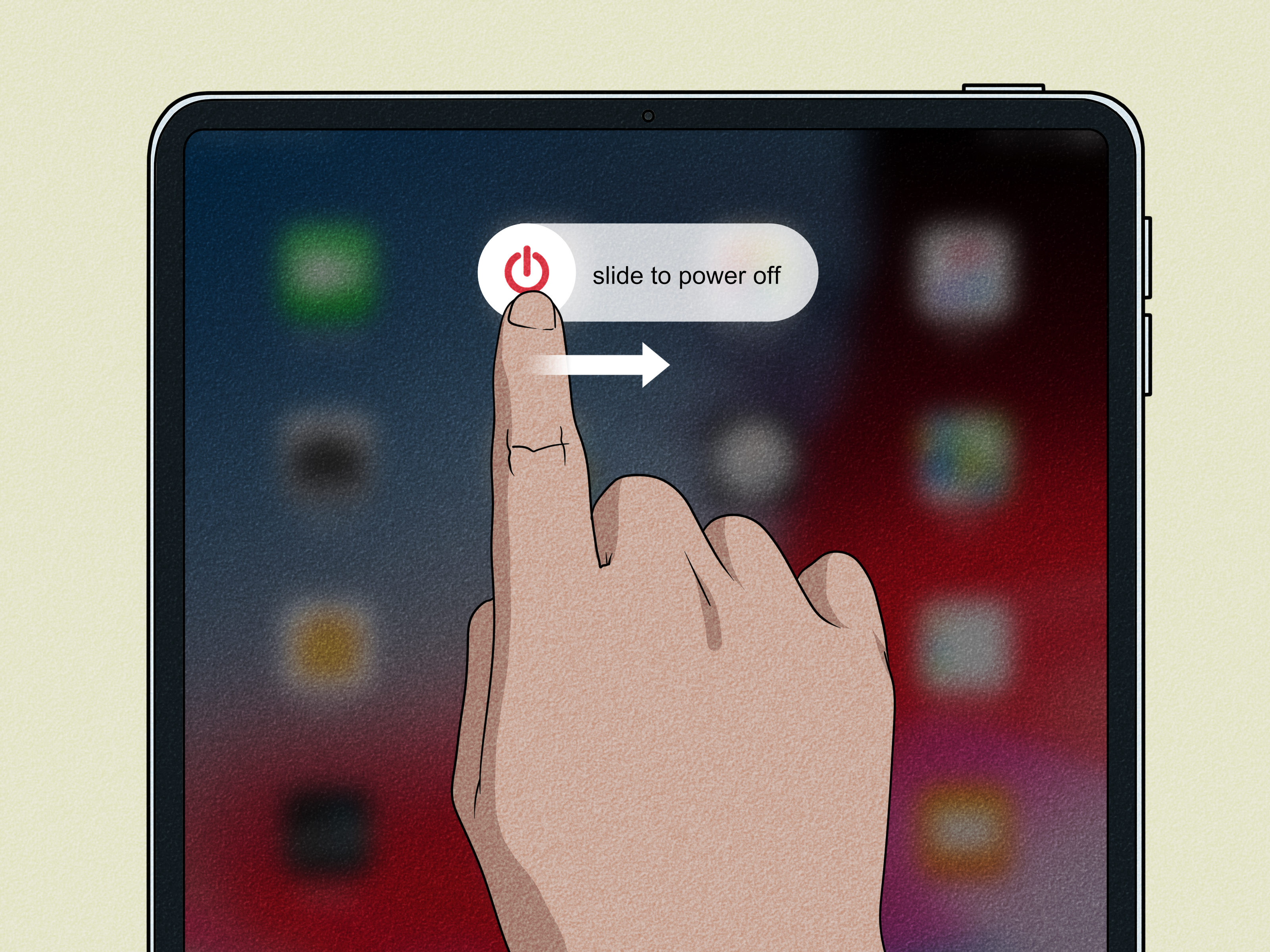

Turning off an iPad should be easy. After all, it is a tablet, not the control panel of a submarine. Yet Apple has changed the button combination over the years, so the correct method depends on whether your iPad has a Home button.
On newer iPads, holding the top button by itself usually wakes Siri instead of displaying the power-off screen. On older models, that same button is exactly what you hold to shut the device down. To make matters more confusing, putting the screen to sleep is not the same as turning the iPad off fully.
This guide explains how to completely power off every major type of iPad, including models with Face ID, models with Touch ID in the top button, and older models with a circular Home button. It also covers software-based shutdown methods, force restarts, frozen screens, charging problems, and the surprisingly important difference between “off,” “asleep,” and “having a small electronic tantrum.” Apple’s current instructions confirm the button, Settings, and Control Center methods described below.
Quick Answer: How to Turn an iPad Off Completely
| iPad Type | What to Press | What to Do Next |
|---|---|---|
| iPad without a Home button | Hold the top button and either volume button | Drag the “slide to power off” slider |
| iPad with a Home button | Hold the top button | Drag the “slide to power off” slider |
| Any responsive iPad | Open Settings > General > Shut Down | Drag the power-off slider |
| iPadOS 18 or later | Open Control Center and hold the power icon | Drag the power-off slider |
| Frozen iPad | Use the model-specific force-restart combination | Release when the Apple logo appears |
After dragging the slider, allow approximately 30 seconds for the iPad to shut down fully. A black screen alone does not always mean the process is complete, so resist the urge to begin pressing every button like you are entering a video-game cheat code.
Is Your iPad Off or Just Sleeping?
Pressing the top button once locks the iPad and turns off its display. This is sleep mode, not a complete shutdown. The device remains ready to wake quickly, and normal background functions may continue depending on your settings and network connection.
When an iPad is fully powered off, the operating system shuts down and the screen remains black. Pressing the Home button, tapping the display, or connecting a keyboard will not immediately return you to the Lock Screen. To start the iPad again, you must hold its top button until the Apple logo appears.
Sleep, shutdown, restart, and force restart
- Sleep: The display turns off, but the iPad remains powered on.
- Shutdown: The iPad powers off and stays off until you start it again.
- Restart: You shut the iPad down and then turn it back on normally.
- Force restart: You use a special button sequence when the device is frozen or unresponsive.
A force restart is not a more enthusiastic version of a regular shutdown. It is an emergency troubleshooting procedure and should mainly be used when normal controls are unavailable.
How to Identify Whether Your iPad Has a Home Button
Look at the front of the device while holding it vertically. If you see a physical circular button beneath the display, you have an iPad with a Home button. Depending on the model, that button may also contain a Touch ID fingerprint sensor.
If the front is almost entirely screen, with no circular button below it, your iPad does not have a Home button. It may use Face ID or Touch ID built into the top button. On these models, the top button performs several jobs, including waking the device, locking it, authenticating purchases, and calling Siri. No pressure, little button.
How to Turn Off an iPad Without a Home Button
This method applies to modern all-screen iPad models, including many versions of the iPad Pro, iPad Air, iPad mini, and standard iPad.
- Locate the top button along the outer edge of the iPad.
- Locate the two volume buttons.
- Press and hold the top button and either volume button at the same time.
- Continue holding until the power-off screen appears.
- Release both buttons.
- Drag the slide to power off control from left to right.
- Wait about 30 seconds for the iPad to shut down completely.
You may use either volume button for a normal shutdown. You do not need to remember which one raises or lowers the volume, which is helpful because the behavior of the buttons can appear to change when some iPads are rotated.
Why holding only the top button may not work
On an iPad without a Home button, pressing and holding only the top button generally activates Siri. To reach the power-off slider, hold the top button together with either volume button.
If Siri appears, nothing is broken. You simply gave the iPad the wrong handshake. Close Siri and try the two-button combination again.
How to Turn Off an iPad With a Home Button
Older iPad models use a simpler shutdown procedure because their top button does not need to perform quite as many duties.
- Find the top button on the upper edge of the iPad.
- Press and hold the top button.
- Keep holding until the power-off slider appears.
- Release the button.
- Drag the slider from left to right.
- Wait for the screen to go black and the shutdown to finish.
You do not need to hold the Home button during a normal shutdown. The Home button becomes relevant only when force-restarting an unresponsive older iPad.
How to Turn Off Any iPad Without Using Its Buttons
If a button is difficult to press, covered by a stubborn case, or beginning to feel as reliable as a weather forecast from a squirrel, you can shut down the iPad through Settings.
- Open the Settings app.
- Tap General.
- Scroll to the bottom of the General screen.
- Tap Shut Down.
- Drag the power-off slider to the right.
This method works on both Home-button and all-screen iPads, provided the display and touch controls are responsive. It is also useful when you cannot remember a button combination or want to avoid repeatedly pressing a damaged top button.
How to Shut Down an iPad From Control Center
On an iPad running iPadOS 18 or later, Apple also provides a power control inside Control Center.
- Swipe down from the upper-right corner of the screen to open Control Center.
- Find the power icon in the upper-right area.
- Touch and hold the power icon.
- Release it when the shutdown screen appears.
- Drag the power-off slider.
- Wait approximately 30 seconds for the iPad to turn off.
If the power icon does not appear, your iPad may be running an older software version or have a different Control Center layout. Use Settings > General > Shut Down instead. Apple documents the Control Center shutdown option for newer system versions.
How to Turn Your iPad Back On
To start any iPad after a complete shutdown, press and hold the top button. Release it when the Apple logo appears.
The startup process may take longer than waking the device from sleep. That is normal because iPadOS is loading again rather than simply illuminating the Lock Screen.
If nothing appears, connect the iPad to a compatible charger. A deeply discharged battery may need several minutes before displaying even a low-battery symbol. Apple notes that an extremely depleted iPad can initially show a blank screen while charging.
What to Do When the iPad Is Frozen
If the screen does not respond, the normal power-off slider may be impossible to use. In that situation, perform a force restart. This does not erase the iPad, but it abruptly restarts the system, so it should not replace the standard shutdown method when the device is working normally.
Force restart an iPad without a Home button
- Press and quickly release the volume button closest to the top button.
- Press and quickly release the volume button farthest from the top button.
- Press and hold the top button.
- Continue holding through the black screen.
- Release the top button when the Apple logo appears.
The first two presses should be quick taps, not long holds. The sequence is tap, tap, hold. Rhythm matters. Imagine knocking politely twice and then leaning on the doorbell.
Force restart an iPad with a Home button
- Press and hold the Home button and top button simultaneously.
- Continue holding both buttons when the screen goes black.
- Release the buttons when the Apple logo appears.
Apple recommends these force-restart procedures when an iPad is frozen, unresponsive, or will not start normally. If the device remains stuck at the Apple logo, a computer-assisted update or recovery procedure may be necessary.
Common Shutdown Problems and Solutions
The power-off slider never appears
First, confirm that you are using the correct combination for your model. On an all-screen iPad, hold the top button and a volume button together. On a Home-button model, hold only the top button.
Remove a tight protective case if it prevents the buttons from moving fully. If the touchscreen still works, bypass the physical buttons through Settings > General > Shut Down.
The iPad turns on when connected to power
An iPad may respond when it is connected to a charger, especially when the battery was very low. If your goal is simply to charge it, there is usually no practical need to keep forcing it off. Connect it to a suitable power source and allow the battery to recover.
The iPad will not turn back on
Connect it to a wall charger using a compatible cable and adapter. Inspect the charging port for visible debris, try another known-working cable, and allow sufficient charging time. If the iPad still does not respond, attempt the appropriate force-restart sequence.
When the device remains unresponsive after charging and force-restarting, hardware inspection or Apple support may be required.
The screen is black, but sounds continue
The iPad is probably locked or experiencing a display-related problem rather than being fully powered off. Try pressing the top button once. If sounds continue but the display remains black, perform a force restart.
Does Turning Off an iPad Delete Anything?
A normal shutdown does not erase your apps, photos, accounts, documents, or settings. It simply closes the operating system and powers down the device.
However, save important work before shutting down. Most modern apps automatically preserve changes, but an unsaved document, unfinished form, or active upload could be interrupted.
Do not confuse Shut Down with options under Transfer or Reset iPad. Resetting settings, erasing content, and restoring a device are entirely different actions.
For important data, maintain an iCloud or computer backup rather than treating shutdown as a protective measure. Apple supports backups through iCloud, Finder on a Mac, and compatible Windows software.
Should You Turn Your iPad Off Every Night?
Most people do not need to power off an iPad every evening. The device is designed to spend long periods locked or asleep, ready to wake when needed.
A full shutdown can still be useful when:
- You will not use the iPad for an extended period.
- An app or system feature is behaving strangely.
- Wi-Fi, Bluetooth, audio, or accessories are not responding correctly.
- You are preparing to clean, transport, or store the device.
- You want to confirm that a recurring problem survives a complete restart.
Restarting occasionally can clear temporary software problems, but there is no need to turn shutdown into a nightly ceremony involving candles and a farewell speech.
Practical Experiences: What Common iPad Shutdown Situations Teach Us
The most common shutdown mistake happens when someone moves from an older iPad to a newer all-screen model. Years of muscle memory say, “Hold the top button.” The new iPad responds by opening Siri, and the user assumes Apple has removed the ability to turn the device off. In reality, the command has simply changed to the top button plus either volume button.
A representative example is a user upgrading from an older iPad with Touch ID in the Home button to a newer iPad Air with Touch ID in the top button. On the old tablet, holding the top button produced the power slider. On the new one, the same action summoned Siri. After using the correct two-button combination, the slider appeared immediately. The lesson is simple: identify the physical design before troubleshooting the software.
Another frequent situation involves protective cases. Rugged cases are excellent for preventing damage, but some have stiff button covers. A user may believe the top button is broken because the power-off screen appears only after pressing extremely hard. Removing the case often reveals that the button works normally. When removing the case is inconvenient, Settings > General > Shut Down provides a cleaner solution and reduces wear on the hardware.
Software shutdown is also valuable for users with limited hand strength. Holding two buttons simultaneously can be uncomfortable, particularly on a large iPad. The Settings method requires only taps and a short swipe. On newer software, the Control Center power icon offers another accessible route. AssistiveTouch can also provide alternatives for certain physical button actions, including restarting the device, although the Settings shutdown control remains the clearest way to leave the iPad fully powered off.
Frozen-screen cases teach a different lesson: do not keep waiting for the power slider when the touchscreen cannot respond. A force restart is designed for that exact scenario. On all-screen models, the volume-button sequence must be performed quickly and in the correct order. Many unsuccessful attempts happen because the user holds each volume button instead of pressing and releasing it. Once the “quick press, quick press, hold” rhythm is understood, the procedure becomes much more reliable.
Low-battery situations can also imitate a failed shutdown or hardware problem. An iPad with an extremely depleted battery may show no image immediately after it is connected to power. The natural response is to unplug it, reconnect it, press buttons repeatedly, and begin planning a dramatic funeral for the tablet. A better approach is to use a known-working charger, leave the device connected, and give it time to display the low-battery symbol.
Charging experience matters here. Apple explains that an iPad manages charging automatically and stops actively charging when the battery becomes full. Newer supported models may also offer an 80 percent charge limit to reduce the amount of time the battery remains completely full. These features are separate from shutting down, but they explain why powering off the iPad every night is generally unnecessary for ordinary charging.
One more practical lesson concerns restarting too soon. After dragging the power-off slider, some users immediately hold the top button again. The iPad may still be completing its shutdown, leading to confusing behavior or a delayed startup. Waiting roughly 30 seconds creates a clear separation between powering down and turning the device back on.
Finally, shutting down is often treated as a universal repair. It is an excellent first step for temporary glitches, but it cannot repair a damaged charging cable, blocked port, failing display, worn button, or serious operating-system problem. If the same issue returns after every restart, investigate the underlying cause rather than restarting the iPad six times and hoping the seventh attempt impresses it.
Frequently Asked Questions
Can I turn off an iPad without touching the physical buttons?
Yes. Open Settings, tap General, scroll down, select Shut Down, and drag the slider. On supported iPadOS versions, you can also use the power control in Control Center.
Why does Siri appear when I try to turn off my iPad?
Your iPad probably does not have a Home button. Hold the top button and either volume button together instead of holding the top button alone.
Can I ask Siri to shut down my iPad?
Siri capabilities can vary by software version and configuration. The most dependable methods are the physical button combination, Settings > General > Shut Down, or the Control Center power control.
Will a force restart erase my photos?
A force restart does not normally erase stored content. However, unsaved work in an active app may be lost because the operating system is being restarted abruptly.
How long should an iPad take to turn off?
The display usually goes black quickly, but Apple recommends allowing approximately 30 seconds for shutdown before turning the device back on.
How do I know the iPad is fully off?
After waiting for shutdown to complete, pressing the Home button, tapping the display, or using a connected keyboard should not instantly show the Lock Screen. Starting the device requires holding the top button until the Apple logo appears.
Conclusion
To turn off an iPad without a Home button, hold the top button and either volume button, then drag the power-off slider. To turn off an iPad with a Home button, hold the top button by itself and drag the slider. Every responsive model can also be shut down through Settings > General > Shut Down, while newer iPadOS versions include a power control in Control Center.
Use a force restart only when the iPad is frozen or unresponsive. For everyday use, locking the screen is usually enough, and you do not need to perform a complete shutdown every night. The key is knowing whether you are putting the device to sleep, powering it off, restarting it normally, or using the emergency button sequence. Once those actions are separated, shutting down an iPad becomes refreshingly boringwhich is exactly what a power button should be.
Note: Instructions were checked against current Apple Support and iPad User Guide resources covering shutdown controls, model-specific buttons, normal restarts, force restarts, charging, USB-C power, backups, accessibility controls, and battery management.