
Taking videos with an Android phone sounds simple: open the Camera app, tap the red button, and try not to record your thumb. Easy, right? Mostly. But if you want videos that look clean, sound clear, and do not resemble security footage from a haunted gas station, a few smart habits make a huge difference.
Modern Android phonesfrom Google Pixel and Samsung Galaxy models to Motorola, OnePlus, Xiaomi, and other devicescan record sharp, colorful, social-media-ready clips. Many support features like 4K video, 60 frames per second, stabilization, slow motion, time lapse, portrait-style blur, quick video shortcuts, and built-in editing. The catch is that settings and button names vary by brand, Android version, and camera app. In other words, Android gives you power, but it occasionally hides that power behind three dots, a gear icon, and a menu labeled “More.” Classic.
This guide explains how to take videos with an Android in five practical steps. You will learn how to prepare your phone, choose the right video settings, frame your shot, record smoothly, and edit or share the result. Whether you are filming a school project, a family moment, a cooking clip, a product demo, a travel memory, or your dog making questionable life choices, these steps will help your Android video look more polished.
Why Android Phones Are Great for Video Recording
Android phones are excellent everyday video cameras because they are always nearby, easy to use, and increasingly powerful. Many Android devices include multiple rear cameras, front-facing cameras, smart stabilization, HDR options, low-light modes, and quick access to video from the lock screen or camera shortcut. Some Samsung Galaxy phones offer features like Dual recording or Director’s View, while Pixel phones include options such as stabilization modes, slow motion, time lapse, and enhanced video settings on supported models.
The best part is that you do not need to become a filmmaker who wears a scarf indoors and says “the light is the character.” You only need to understand what your Android camera is doing and make a few simple choices before recording.
Step 1: Open the Camera App and Switch to Video Mode
Start by opening your Android phone’s Camera app. You can usually find it on the home screen, in the app drawer, or from the lock screen shortcut. On many phones, double-pressing the power button quickly opens the camera, which is perfect when something interesting is happening and you have about three seconds before it stops being interesting.
Once the Camera app is open, look near the bottom of the screen for camera modes. Swipe or tap until you find Video. On some devices, you may see related options such as Portrait Video, Slow Motion, Time Lapse, Pro Video, or More. For a normal video, choose the standard Video mode first.
Quick Video Shortcut on Some Android Phones
Some Android phones let you record a short video without fully switching modes. On many Samsung Galaxy devices, for example, you can press and hold the photo shutter button in Photo mode to start a quick video. If you want to keep recording without holding your finger down, drag the shutter toward the lock icon. This is handy when your cat suddenly performs parkour across the sofa and you need evidence for the group chat.
Front Camera vs. Rear Camera
Use the rear camera when quality matters most. Rear cameras usually have better sensors, sharper lenses, stronger stabilization, and more resolution options. Use the front camera for selfies, reaction clips, video diaries, or tutorials where you need to see yourself while recording. If your phone supports dual recording, you may be able to capture both your face and the scene in front of you at the same time.
Step 2: Choose the Right Video Settings Before You Record
Before tapping Record, check your settings. This one-minute habit can save you from blurry footage, giant file sizes, weird framing, and the painful realization that you recorded a once-in-a-lifetime sunset in potato mode.
Resolution: 1080p or 4K?
1080p Full HD is a smart default for most everyday Android videos. It looks good, creates manageable file sizes, and uploads smoothly to social platforms. Choose 4K when you want extra detail, plan to crop later, or are filming something important like travel footage, a performance, or product content. Just remember: 4K video uses more storage and may drain your battery faster.
For most users, 1080p at 30 frames per second is reliable. For action, sports, pets, kids, or fast movement, 60 frames per second can look smoother. On supported phones, you may see settings like 4K 30fps or 4K 60fps. Use 4K 60fps when your phone supports it, you have enough storage, and the lighting is good.
Frame Rate: 30fps vs. 60fps
30fps is the standard choice for everyday video, interviews, tutorials, and social posts. 60fps captures motion more smoothly, which is great for sports, dancing, pets, moving cars, or handheld walking shots. However, 60fps often needs more light and more storage. If your room is dim, 30fps may look cleaner because the camera has more time to gather light for each frame.
Orientation: Vertical or Horizontal?
Decide where the video will live before you record. For TikTok, Instagram Reels, YouTube Shorts, and Snapchat-style content, record vertically in a 9:16 shape. For YouTube long-form videos, school presentations, TV playback, landscape scenes, and cinematic clips, record horizontally. Switching orientation halfway through a video usually looks awkward, like your phone got dizzy.
Turn On Stabilization When Needed
Many Android camera apps include video stabilization. Use it when recording handheld, walking, filming kids, capturing pets, or shooting travel clips. Stabilization helps reduce shaky movement, although it may slightly crop the image. If your phone offers different stabilization modes, choose the standard mode for general use and stronger stabilization for walking or action footage.
Step 3: Frame, Focus, and Light Your Shot
Good video begins before the recording starts. The camera app can do a lot, but it cannot magically fix a dark room, a messy background, or your subject standing directly in front of a window like a mysterious witness in a crime documentary.
Clean the Lens
Wipe the camera lens with a soft cloth before recording. Phones live in pockets, bags, hands, and occasionally under couch cushions, so the lens often collects fingerprints. A greasy lens makes video look cloudy, soft, or hazy. Cleaning it is the cheapest video upgrade you will ever make.
Use Good Light
Face your subject toward a light source whenever possible. Natural window light is excellent for indoor videos. Outdoors, avoid harsh midday sun if you can, because it creates strong shadows and squinty faces. Early morning and late afternoon light is usually softer and more flattering.
If you are filming indoors, move closer to a window or turn on a lamp. Try not to place a bright window directly behind your subject unless you want them to appear as a dramatic silhouette. That can look cool, but only if “secret agent refusing to reveal identity” is your artistic goal.
Tap to Focus and Adjust Exposure
Before recording, tap your subject on the screen. This tells the camera where to focus. On many Android phones, tapping also gives you an exposure slider so you can brighten or darken the image. If your subject looks too dark, raise the exposure slightly. If the sky or background is blown out, lower it a bit.
Use Grid Lines for Better Composition
Turn on grid lines in your camera settings if available. Grid lines help you keep horizons straight and place your subject in a balanced position. A simple trick is the rule of thirds: place your subject near one of the vertical grid lines instead of dead center. This often makes the video feel more natural and less like a passport photo with motion.
Step 4: Record Smoothly and Capture Clean Audio
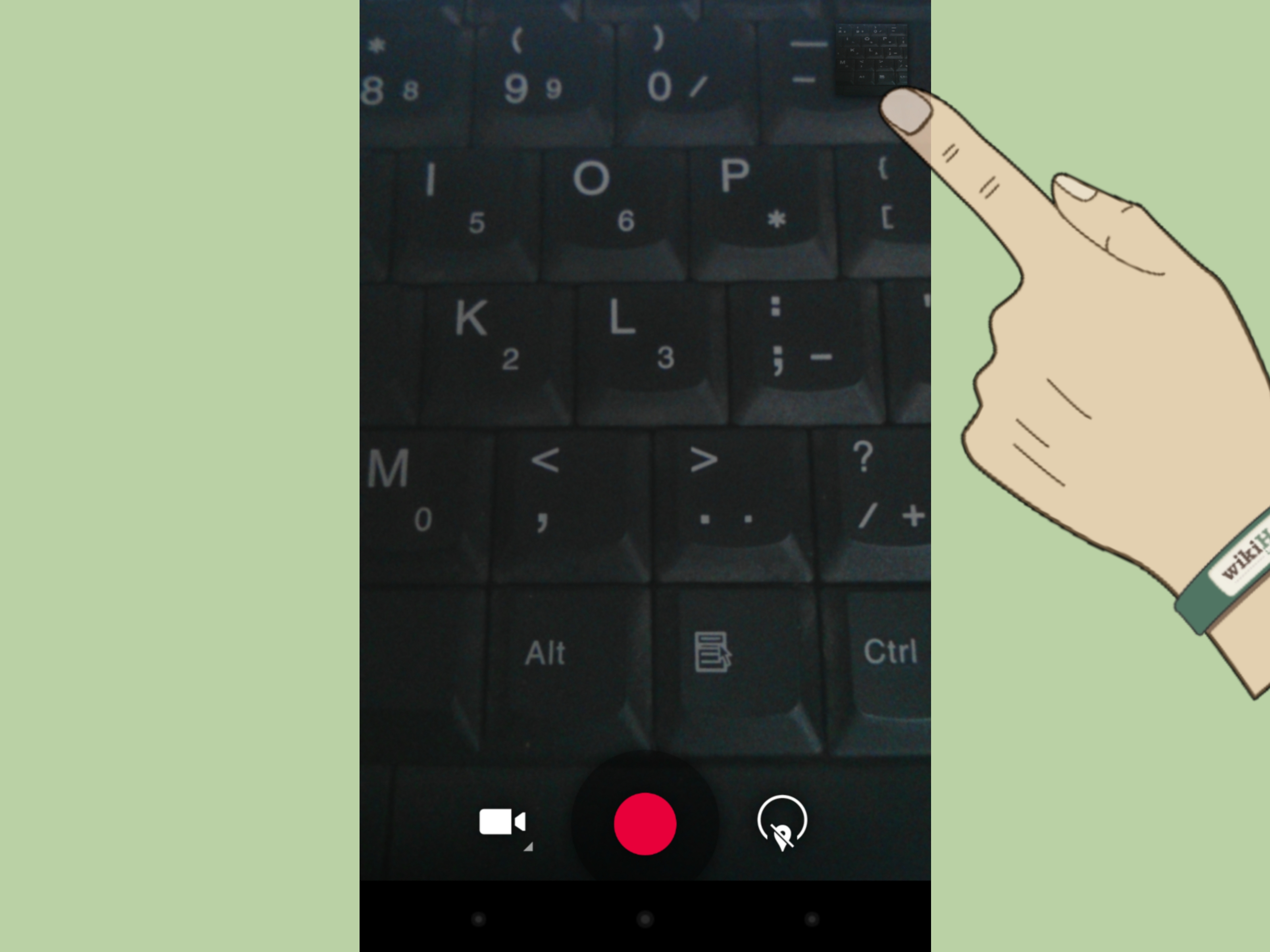
Now you are ready to record. Tap the Record button, usually shown as a red circle. While recording, most Android phones display a timer. Tap the stop button when finished. Some camera apps also let you pause and resume recording, which is useful when filming tutorials, travel clips, or anything involving multiple attempts and one very uncooperative object.
Hold the Phone Steady
Use both hands when possible. Tuck your elbows close to your body, stand with your feet stable, and move slowly. If you are walking, bend your knees slightly and take softer steps. Yes, you may look a little silly. No, your viewers will not know. They will just see smoother footage.
For even better results, use a tripod, phone stand, or small stabilizer. A basic phone tripod is perfect for cooking videos, study tutorials, product demos, makeup clips, fitness form checks, and hands-free recording.
Avoid Wild Zooming
Digital zoom often reduces quality. If your phone has dedicated lenses such as ultra-wide, wide, or telephoto, switch between them carefully. If not, move closer to your subject whenever it is safe and practical. Zooming in and out during a video can also make viewers feel like they are riding a tiny roller coaster, so use it only when it helps the story.
Check the Audio
Audio matters more than many beginners expect. A slightly imperfect video with clear sound is watchable. A beautiful 4K video with muffled audio is a tragedy wearing nice shoes. Before recording an important clip, do a quick sound check. Record a few seconds, play it back, and listen for wind, echoes, traffic, air conditioners, or music that overpowers voices.
Stay close to the person speaking. Built-in phone microphones work best at short distances. If you are filming interviews, tutorials, or talking-head videos, consider using wired earbuds, a USB-C microphone, or a small wireless mic. If you are outside, shield the microphone from wind with your body or record in a calmer spot.
Use Special Modes When They Fit the Scene
Android camera apps often include creative video modes. Slow motion is great for action, sports, water splashes, pets, and dramatic hair flips that may or may not deserve an award. Time lapse works well for sunsets, clouds, traffic, drawing, cleaning, cooking prep, or long processes that would otherwise test everyone’s patience. Portrait video or blur modes can separate a person from the background on supported phones. Use these modes with purpose, not just because the button looks tempting.
Step 5: Review, Edit, Save, and Share Your Android Video
After recording, tap the thumbnail preview in the Camera app or open your Gallery or Google Photos app. Watch the video before sharing it. Check the beginning, middle, and end. Make sure the subject is in focus, the audio is clear, and the clip does not include five seconds of you whispering, “Is it recording?” We have all been there. Some of us live there.
Trim the Beginning and End
Most Android phones let you trim videos directly in the gallery or Google Photos. Remove the shaky start, the awkward ending, or any section where nothing happens. A tighter video feels more professional immediately.
Crop or Rotate When Necessary
If you recorded horizontally but need a vertical clip for social media, crop carefully so the subject stays centered. If the video is crooked, use rotate or straighten tools. For Instagram Reels, TikTok, and YouTube Shorts, keep important faces, text, and action away from the very edges because app buttons and captions may cover them.
Adjust Brightness, Color, and Sound
Google Photos and many Android gallery apps include editing tools for brightness, contrast, filters, speed changes, text, music, muting, and frame exporting. On supported Pixel devices, additional audio tools may be available. Use edits lightly. The goal is to improve the video, not turn your breakfast vlog into a neon science experiment.
Back Up Important Videos
Videos can take up a lot of space, so review your storage regularly. Back up important clips to Google Photos, another cloud service, or a computer. Delete accidental recordings, duplicates, and blurry takes. Your future self will appreciate not having to scroll through 63 nearly identical clips of a birthday cake.
Best Android Video Settings for Common Situations
Everyday Family or Friend Videos
Use 1080p at 30fps, standard stabilization, and automatic exposure. This combination gives you good quality without huge files. Hold the phone steady, keep the subject near good light, and record short clips instead of one endless video.
Sports, Pets, and Fast Action
Use 1080p or 4K at 60fps if your phone supports it and the lighting is bright. Turn on stabilization. Start recording a few seconds before the action begins so you do not miss the best moment.
Social Media Videos
Record vertically for Reels, TikTok, and Shorts. Use 1080p or 4K if you want room to crop. Keep the subject centered, speak clearly, and leave space at the top and bottom for captions, buttons, and interface overlays.
Tutorials and Product Demos
Use a tripod or stable surface. Record horizontally for YouTube or vertically for short-form apps. Lock focus on the product or action area when possible. Use bright, even lighting and keep the background simple.
Travel and Outdoor Clips
Use 4K when you want maximum detail, especially for landscapes. Turn on stabilization for walking shots. Capture short clips from different angles: wide scene, medium detail, close-up texture, and a reaction shot. This gives you better material for editing later.
Common Android Video Mistakes to Avoid
Recording With a Dirty Lens
A smudged lens can ruin otherwise good footage. Clean it before important clips.
Ignoring Storage Space
High-resolution video fills storage quickly. Before recording a long event, check available space and battery level.
Standing Too Far From the Speaker
Phone microphones are not magic. Move closer or use an external mic for voice-heavy videos.
Overusing Digital Zoom
Digital zoom can make footage softer and shakier. Move closer or use a real telephoto lens if your phone has one.
Forgetting the Final Platform
A horizontal video can look great on YouTube but awkward on TikTok. A vertical video works beautifully for Shorts but may not suit a classroom presentation. Choose orientation before recording.
Extra Experience: What Actually Helps When Taking Videos With an Android
After recording many Android videos in everyday situations, one lesson stands out: the best video is rarely created by the most expensive setting. It is created by preparation. A clean lens, good light, steady hands, and clear audio usually matter more than whether the phone is set to the flashiest resolution. A 1080p video in beautiful window light often looks better than a 4K video filmed in a dark room while the phone struggles like it has homework due at midnight.
One useful habit is to record in short clips. Instead of filming one ten-minute video of an event, capture several 10- to 30-second moments. This makes editing easier and helps you avoid boring sections. For example, if you are recording a family picnic, film the table setup, people laughing, food close-ups, a wide shot of the location, and a few candid moments. Later, those clips can become a fun highlight video instead of one long recording where the main event is someone looking for napkins.
Another practical experience: audio surprises people. When you record a friend speaking from across a room, the phone captures everything between you and themfootsteps, fans, traffic, other conversations, and the mysterious hum of modern life. Moving two or three feet closer can improve the sound dramatically. If the video is important, record a five-second test and play it back. This tiny test prevents big regret.
Lighting also changes everything. Outdoors, shade can be better than direct sun because faces look softer and people stop squinting like they are solving math in their head. Indoors, turning your subject toward a window usually works better than relying on ceiling lights. If the background is brighter than the subject, tap the subject on the screen and adjust exposure. Many Android users skip this step, but it can rescue a shot instantly.
For handheld recording, slower movement is your friend. Pan slowly. Walk slowly. Change angles with intention. Fast camera movement often looks exciting while you are filming but chaotic when you watch it back. If you need a smooth walking shot, hold the phone with both hands and keep your elbows close. Think “calm documentary,” not “squirrel with a phone.”
Finally, edit before sharing. Trimming the first and last seconds can make a casual Android video feel much cleaner. Remove the part where you start recording, adjust your grip, or say, “Wait, hold on.” Add captions when people may watch without sound. Use music only when it supports the clip, not when it attacks the viewer with enthusiasm. A simple, clear, well-trimmed video usually performs better than an over-edited one.
The real secret to taking better videos with an Android is consistency. Use the same checklist every time: clean lens, choose orientation, check light, tap to focus, steady the phone, record clean audio, and trim before posting. Do that, and your Android videos will look better immediatelyeven if your subject is a dog, a sandwich, or your uncle explaining Bluetooth for 14 minutes.
Conclusion
Learning how to take videos with an Android is less about memorizing every camera setting and more about building a simple routine. Open the Camera app, switch to Video mode, choose smart settings, frame your shot, record steadily, check your audio, and edit before sharing. Once you understand these basics, your phone becomes a reliable video tool for school, work, social media, travel, family memories, and creative projects.
Android phones differ by model, so explore your camera app and test features like stabilization, slow motion, time lapse, 4K, 60fps, quick video, and built-in editing. The more you practice, the faster you will know which settings fit each situation. And yes, you will still occasionally record your thumb. That is not failure. That is tradition.