
Note: This HTML includes only the body content and is ready for web publishing.
Making a video call on an iPhone or iPad sounds simple because, well, it should be. Tap a name, smile at the camera, try not to stare at your own forehead, and boom—you are connected. But if you have ever opened three apps, denied the microphone by accident, and then wondered why Grandma could see your ceiling fan but not hear a single word, you know the process can get weirdly dramatic.
The good news is that Apple gives you several easy ways to start a video call, and they are all built around the same idea: get connected fast without needing a full technical support team in your kitchen. Whether you want to use the FaceTime app, call from a Messages thread, start from a contact card, or send a FaceTime link to someone using Android or Windows, your iPhone or iPad can handle it.
In this guide, you will learn four practical ways to make a video call on iPhone or iPad, plus tips to fix common issues, choose the right method, and make your calls look and sound better. If you are helping a parent, a friend, or yourself after a long day, this article will walk you through it in plain English—with no robot fluff and no button-mashing panic.
Before You Start: Three Quick Checks
Before diving into the four methods, take a minute to set yourself up for success. This is the part nobody wants to read, but it saves a lot of “Can you hear me now?” energy.
1. Make sure FaceTime is turned on
On iPhone or iPad, go to your settings and confirm FaceTime is enabled. If it is off, you will keep poking at the screen and wondering why nothing happens. That is not intuition. That is technology laughing softly in the distance.
2. Check camera and microphone permissions
If you are using FaceTime or a third-party video app, your device needs permission to use the camera and microphone. If the other person can hear you but not see you—or see you but hear only the emotional silence of your confusion—permissions are a good place to check first.
3. Use a stable internet connection
Video calls do not need magic, but they do need reliable Wi-Fi or cellular data. If your image freezes every seven seconds and turns you into a modern art project, the connection is usually the culprit.
1. Use the FaceTime App
The most direct way to make a video call on iPhone or iPad is through the FaceTime app. This is Apple’s built-in solution, and for most users, it is the easiest, cleanest, and least annoying option.
How to start a FaceTime video call
- Open the FaceTime app.
- Tap New Call or New, depending on your device.
- Type the person’s name, phone number, or email address.
- Select the contact when it appears.
- Tap FaceTime to begin the video call.
That is it. No ceremony. No scavenger hunt. Just a straightforward path from “I should call them” to “Why am I looking at myself from this angle?”
Why this method works so well
The FaceTime app is ideal when both people use Apple devices. It is fast, familiar, and tightly integrated with your contacts. You can also use Group FaceTime when you need to talk with several people at once, which is perfect for family catch-ups, study groups, or group planning sessions that begin as one quick question and somehow become a 40-minute debate.
Best use cases
- Calling family members with iPhones or iPads
- Quick personal check-ins
- Small group video chats
- Users who want the easiest built-in option
2. Start a Video Call from Messages
If you are already texting someone, there is no need to back out, open FaceTime, and pretend you enjoy extra steps. You can start a video call right from the Messages conversation.
How to make a video call from Messages
- Open the Messages app.
- Select the conversation with the person you want to call.
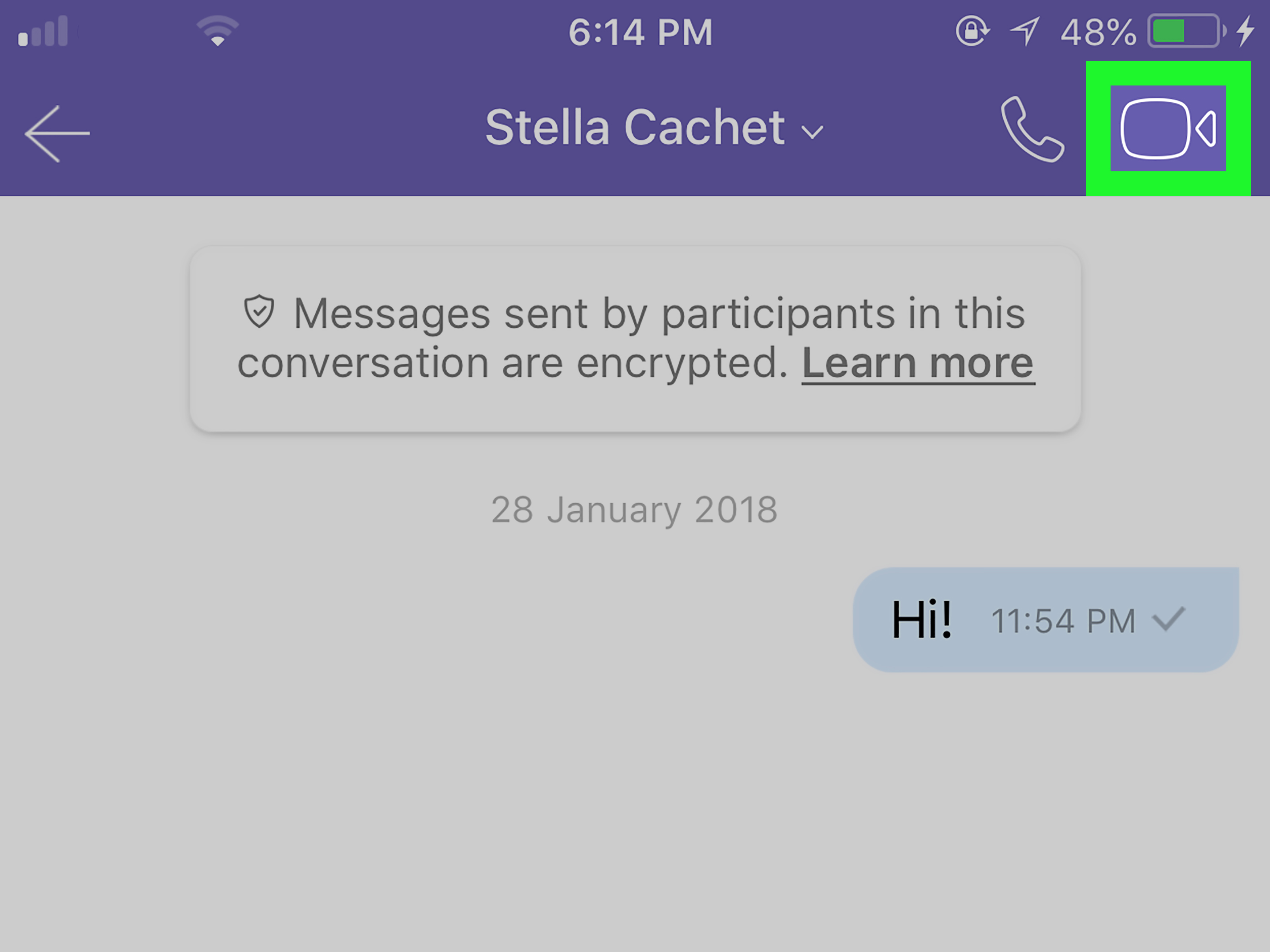
- Tap the FaceTime button at the top right.
- Choose FaceTime Video.
This method feels especially natural because it follows how people actually communicate. You text first, realize typing is taking forever, and then switch to video when the conversation gets longer, funnier, or more complicated than expected.
Why this is a smart option
Starting a call from Messages is perfect when the conversation is already happening. You are not searching for a contact. You are not opening another app. You are simply upgrading the chat from text to face-to-face communication. It is like taking the elevator instead of the stairs, except with fewer regrets.
When to use it
- You are already texting the person
- You want to switch from typing to talking quickly
- You need to show something visually during the conversation
- You want the fastest route to a one-on-one video chat
3. Make a Video Call from the Contacts App
The Contacts app is another easy way to make a video call on iPhone or iPad. This method is especially helpful when you have someone saved already and want a tidy, organized starting point.
How to start a video call from Contacts
- Open the Contacts app.
- Find and tap the person you want to call.
- Look for the FaceTime option or video icon on the contact card.
- Tap it to start the video call.
This method is simple, practical, and surprisingly underrated. It is great for people who like using saved contact cards instead of hunting through recent texts or call history. It also feels a little more intentional, like you are making a proper call instead of accidentally wandering into one.
Why this method is useful
The Contacts app works well when you call the same people often or when you are helping someone who prefers a clear visual list. It is also handy for older users, because once a contact is saved correctly, the process becomes repeatable and easy to remember.
Best situations for this option
- Calling saved contacts regularly
- Helping parents or grandparents use video calling
- Keeping calls organized and predictable
- Using an iPad where contact-based calling feels especially neat
4. Create a FaceTime Link for a Video Call
This is the modern trick that makes FaceTime much more flexible. Instead of calling one specific Apple user directly, you can create a FaceTime link and share it through Messages, Mail, or another app. Even better, people on Android or Windows can join through a web browser.
How to create a FaceTime link
- Open the FaceTime app.
- Tap Create Link.
- Choose how you want to share it, such as through Messages or Mail.
- Send the link to the person or group.
- Tap the link yourself when it is time to start or join the call.
If you have ever tried to include someone who does not use an Apple device, this method is a lifesaver. It helps bridge the gap between Apple users and everyone else without forcing the whole group to switch platforms. That is what we call progress—or at least fewer awkward workarounds.
Why FaceTime links matter
FaceTime links make scheduling easier and make cross-platform calling much more realistic. They are especially useful for family groups, remote planning, tutoring sessions, or any situation where not everyone lives inside the Apple ecosystem.
Great times to use a FaceTime link
- Calling someone on Android or Windows
- Scheduling a group video chat ahead of time
- Sending one link to multiple people
- Creating a simpler join process for less tech-savvy users
What About Other Video Calling Apps?
FaceTime is excellent, but it is not the only game in town. Many iPhone and iPad users also rely on apps like WhatsApp, Google Meet, Zoom, Microsoft Teams, Signal, or Webex. These apps can be better when you need broader compatibility, work-friendly features, or a platform your whole group already uses.
For example, WhatsApp is popular for personal international calls, Google Meet is common for school and casual meetings, Zoom is still a go-to for organized virtual sessions, and Teams or Webex often show up when work enters the chat. Signal is a strong choice for users who care deeply about privacy. So while this article focuses on four built-in Apple-friendly ways to make a video call, you are never stuck with just one path.
Tips to Make Your iPhone or iPad Video Calls Better
Once you know how to start the call, the next step is making it look and sound good. No one expects a movie set, but a few smart habits can make a huge difference.
Use good lighting
Face a window or a lamp instead of sitting with bright light behind you. Otherwise, you become a mysterious shadow figure, which is fun for ghost stories but not ideal for a Monday check-in.
Prop up your device at eye level
Holding the phone too low creates the classic “accidental documentary about your chin” effect. A stand, a stack of books, or even a stable table setup makes the call more flattering and comfortable.
Wear earbuds if the room is noisy
Earbuds often improve audio clarity and reduce echo. This helps during longer calls, especially in busy homes or public spaces.
Try Apple’s video effects if available
On supported devices, Apple offers features like Portrait mode, reactions, and Center Stage. These can make calls feel more polished and dynamic, especially on iPad. They are not essential, but they can be fun and useful.
How to Fix Common Video Calling Problems
Sometimes the hardest part of a video call is not the conversation. It is convincing the technology to cooperate. Here are some common issues and what to do about them.
The camera does not work
Check whether the app has permission to use the camera. Then make sure no other app is interfering and that the front camera is not blocked. Yes, this includes your finger.
The microphone is not working
Go into your privacy settings and confirm microphone access is enabled for the app. Also check whether you accidentally muted yourself. It happens to the best of us and to the loudest of us.
The call keeps freezing
Move closer to your Wi-Fi router, switch networks if needed, or try again using stronger cellular data. Closing other bandwidth-hungry apps can help too.
You cannot reach the other person
Make sure you are using the correct phone number or email address associated with FaceTime. If you are using a FaceTime link, confirm they opened it in a supported browser and joined properly.
Which of the Four Ways Is Best?
The answer depends on what you need in the moment.
- Use the FaceTime app when you want the most direct built-in option.
- Use Messages when you are already texting and want to switch fast.
- Use Contacts when you like a clean, repeatable calling routine.
- Use a FaceTime link when you need flexibility, scheduling, or cross-platform access.
In real life, most people end up using a mix of all four. The “best” method is the one that gets you from point A to point B with the least friction and the fewest chances of yelling, “Why is this not working?” at a very expensive rectangle.
Everyday Experiences With Video Calling on iPhone or iPad
Video calling on iPhone or iPad is one of those features that feels ordinary until you stop and think about how much it changes everyday life. A quick FaceTime call is no longer just a tech trick. It is how grandparents watch birthday candles get blown out. It is how students check in on group projects without leaving the house. It is how someone traveling for work can still read a bedtime story, laugh at a family joke, or help pick out the right cereal from a grocery aisle halfway across the country.
One of the best things about using an iPhone or iPad for video calls is how natural it feels once the setup is done. You tap a few buttons, and suddenly distance shrinks. A text message can share information, but a video call shares mood, expression, and all the little reactions that make a real conversation feel real. You can hear the hesitation in someone’s voice, see the grin they are trying not to show, and catch the dog wandering through the background like an unpaid scene-stealer.
The iPad, in particular, creates a different kind of experience. Because the screen is larger, it often feels more relaxed and more social. Families set it on a kitchen counter during holiday cooking. Friends use it while folding laundry and catching up. People prop it up during long-distance dinners so it feels like they are sharing the same room, even if the food definitely does not taste the same through a screen.
There is also something comforting about how repeatable the process becomes. Once someone learns to use FaceTime from Messages or tap a FaceTime button inside Contacts, the fear disappears. That matters a lot for older adults and less confident users. The first call may take patience, but the fifth call often becomes second nature. Suddenly, a device that once felt intimidating becomes a tool for connection. That is a big emotional upgrade for one little icon.
Of course, video calling is not always graceful. Sometimes the audio echoes. Sometimes the call begins with everyone saying, “Can you hear me?” three times in a row. Sometimes someone answers while still figuring out the camera angle, and the first thing you see is one eyebrow and a ceiling light. But that awkwardness is part of the charm. Video calls do not need to be perfect to be meaningful.
What makes the experience so valuable is not the resolution, the interface, or the special effects. It is the immediacy. You can solve a problem faster, explain something visually, or simply be present for someone in a way a normal phone call cannot match. You can show a new haircut, a repaired sink, a homework worksheet, or the world’s most average houseplant as if it were a museum exhibit. It all counts because someone else is there with you, live, in that moment.
That is why knowing four ways to make a video call on iPhone or iPad is genuinely useful. It gives you options. And options matter when one person is texting, another prefers contact cards, and someone else needs a link because they are not using an Apple device. The more comfortable you are with these methods, the easier it becomes to stay connected without turning each call into a small tech support event.
Final Thoughts
If you want to make a video call on iPhone or iPad, you have more than one easy option. The FaceTime app is the classic choice, Messages is perfect for quick transitions from text to talk, Contacts keeps things organized, and FaceTime links open the door to more flexible calling—even with people outside the Apple world.
Once you know these four methods, video calling becomes much less intimidating and much more useful. Whether you are chatting with family, joining a school discussion, handling a work check-in, or helping someone troubleshoot from afar, your iPhone or iPad can become a simple, reliable connection tool. And if your first call is a little awkward, welcome to the club. That just means you are doing it live.