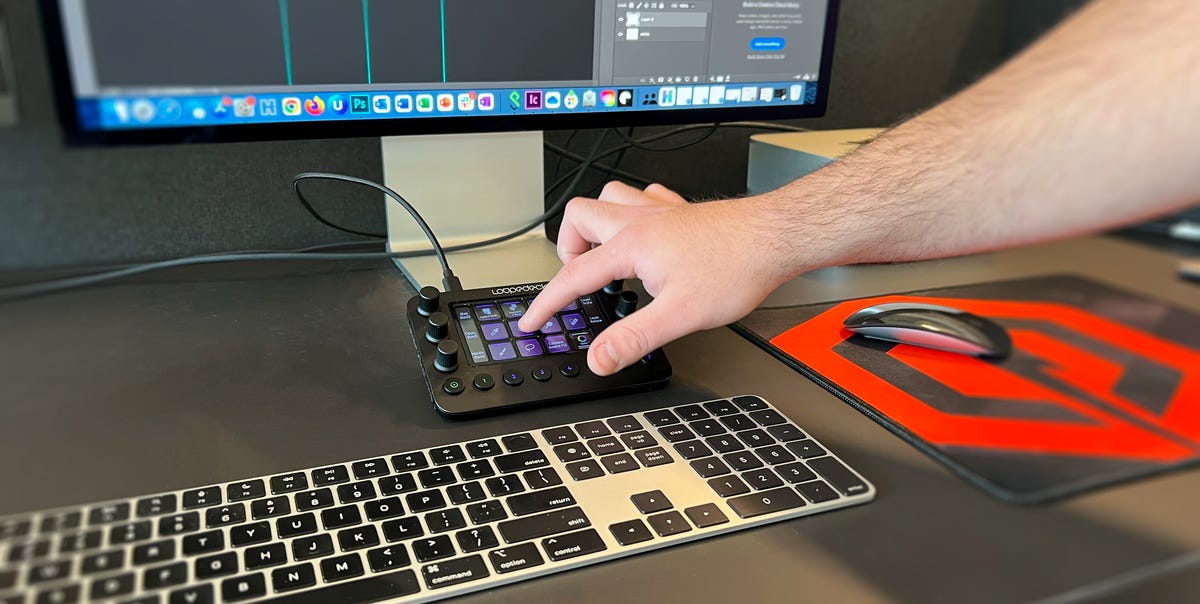

If your keyboard shortcuts are a toolbox, the Loupedeck Live is the rolling cart with labeled drawers, a satisfying click, and one knob that makes you feel like a
film editor even when you’re just adjusting computer volume. It’s a compact creator control console built to speed up streaming, photo editing, video editing, and
everyday desktop work by turning multi-step actions into tactile, repeatable moves.
This review breaks down what the Loupedeck Live does well (spoiler: tactile control and workflow switching), what it does “okay” (software learning curve), and the
big 2025 question: is it still a smart buy now that Loupedeck hardware sales have ended and remaining units are mostly “while supplies last” through retailers?
Quick verdict
- Best for: creators who juggle apps (Lightroom + Photoshop, Premiere + After Effects, OBS + Twitch) and want a single console that adapts as they switch tasks.
- Big win: dials + touch controls + pages/profiles can replace a mess of hotkeys and on-screen hunting.
- Big trade-off: you’ll spend time setting it up (and you shouldthis is a “custom kitchen,” not a microwave dinner).
- 2025 reality check: hardware is no longer sold directly by Loupedeck, but support continues, and the software ecosystem has been positioned to keep moving forward.
What is the Loupedeck Live, exactly?
The Loupedeck Live is a desktop console meant to sit next to your keyboard and mouse. Instead of memorizing a hundred shortcuts or constantly digging through menus,
you assign actions to on-device controls. Tap to trigger a command. Turn a dial to adjust a value. Swipe to jump pages. Build separate layouts for each app, or set
up workspaces for different parts of the same applike “cull,” “color,” and “export.”
The core idea is simple: your hands learn the moves. After a while, “turn Dial 2 for highlights” becomes muscle memory, and you stop losing creative momentum to
interface friction. The Loupedeck Live is most compelling when you’re bouncing between tasksediting, publishing, streaming, and answering emails like you’re running
a one-person studio (because you are).
Design and controls
Layout: touch + tactile + dials (the whole buffet)
The Live’s control mix is what separates it from basic macro pads. You get a set of touch buttons that can change icons and functions depending on the page or app,
plus tactile buttons and analog dials for fine adjustments. In real use, this matters: touch is great for labeled commands (“Cut,” “Mute Mic,” “Export”), while
dials are great for continuous values (audio levels, exposure, brush size, timeline scrubbing, zoom).
The biggest ergonomic advantage is that the Live can show you what a dial is currently assigned to right on the interface. That reduces the “wait, what does this
knob do right now?” problem that can happen with generic controllers. You can also create multiple pages so the same physical surface can hold a lot more than
it appears at first glance.
Desk footprint and portability
The Loupedeck Live is compact enough to travel with, but it’s not “throw it in a pocket” small. Think “fits in a backpack next to your laptop,” not “sits next to
your keys like a USB stick.” The detachable stand helps find a comfortable angle, and the overall shape is designed for frequent, hands-on use rather than occasional
button presses.
Build quality: made for daily tapping and twiddling
Reviews consistently describe the device as feeling solid and purpose-built, with controls that are meant to be used constantly. That matters because this isn’t a
gadget you want to baby. A workflow console only earns its keep if it’s always within reach and always ready. If you treat it like “serious desk equipment,” it tends
to make sense. If it lives in a drawer, it becomes an expensive paperweight with unrealized potential.
Setup and software experience
Profiles, workspaces, and the “it follows you” magic
The Live is designed around the idea that your controls should change when your context changes. You can build profiles for apps (or scenarios), and workspaces within
those profiles for groups of tools. The goal is to keep what you need on the surface without turning the console into a chaotic junk drawer.
When the console recognizes the active application, it can switch layouts automatically. That’s the moment the Live stops being “a macro pad” and starts feeling like
“a control surface.” You jump from Photoshop to Premiere Pro, and the labels and dial behaviors can change so you’re not constantly rethinking your hand movements.
Marketplace and plugins: your shortcuts, pre-built
The Loupedeck ecosystem includes native plugins and downloadable assets. Out of the box, you’ll see popular creator tools supportedstreaming apps, editing suites,
music tools, smart lighting, and productivity utilities. You can also stack actions into macros, create toggles, and customize icons so the device is readable at a
glance.
The marketplace matters because it reduces setup time. Instead of hand-building every single shortcut, you can start from an existing profile and tune it. That’s
the difference between “I’ll try this tonight” and “I’ll try this after I reorganize my entire life.”
Learning curve: powerful, not telepathic
Let’s be honest: you don’t buy a workflow console because you love doing setup. You buy it because you hate repeating the same tasks forever. The Live can absolutely
speed you up, but it asks for an upfront investment. Expect a little trial and error: deciding what belongs on page one, what should be a dial vs a button, and what
deserves a single macro instead of five separate commands.
The good news is that the learning curve is mostly front-loaded. Once you build a layout that matches how you think, the device becomes intuitive fast.
The bad news is that copying someone else’s layout rarely works perfectlybecause nobody else has your exact combination of apps, habits, and “I always forget to do
that one thing” moments.
How it performs in real creator workflows
Photo editing: faster sliders, better flow
Photo work is where the Live’s dials shine. A typical Lightroom Classic setup might map exposure, contrast, highlights, shadows, whites, and blacks to dials, with
push-to-reset behavior. Meanwhile, touch buttons can handle common actions like rating, flagging, switching tools, toggling before/after, copying settings, or
jumping to export presets.
The time savings here is less about “each edit is 30 seconds faster” and more about reducing friction across hundreds of micro-decisions. When your hand can reach a
dial without looking, you stay in a visual mindset instead of an interface mindset. That’s a fancy way of saying: you keep your creative brain online and your
“where is that slider again?” brain offline.
Video editing: timeline control and repetitive tasks
Video editing is full of repeat actions: split, ripple delete, nudge, zoom timeline, toggle snapping, switch tools, add markers, adjust audio gain, and export with
the right settings. The Live can bundle many of these into one place. Dials are useful for scrubbing and incremental adjustments, while buttons handle discrete steps
like cuts, switching panels, and launching sequences.
The console is especially helpful when you build “mode-based” workspaces: one for rough cuts, one for audio cleanup, one for color tweaks, and one for export and
delivery. That way, you don’t clutter a single layout with everything, and you stop hunting for the same command in three different menus.
Streaming and live production: fewer clicks, fewer “oops” moments
Streaming workflows benefit from clearly labeled, easy-to-hit controls. You can map scene switching, mic mute, camera toggles, sound effects, chat commands, and
lighting changes. Having a physical control surface also reduces the chance you accidentally click the wrong window during a live moment (because nothing says
“professional streamer” like opening a spreadsheet on stream by mistake).
The Live’s ability to hold multiple pages helps structure a stream: “starting soon,” “live,” and “wrap-up” can each have a dedicated set of controls. This is one of
the most underrated advantages of a multi-page console: it’s not just fasterit’s calmer.
Productivity work: the sleeper hit
Many people buy a creator console for editing or streaming and then discover it quietly becomes their “everything” controller. A good productivity setup might include
meeting controls (mute, camera, share screen), window management, copy/paste variations, launching frequently used folders, and app switching.
If you do any repetitive admin workexporting assets, uploading files, naming batches, posting to platforms, switching between browser tabs and creative appsthe Live
can reduce the mental tax of context switching. It won’t replace good habits, but it can remove the small annoyances that drain your attention over time.
Loupedeck Live vs. the alternatives
Versus Elgato Stream Deck
The classic Stream Deck strength is simplicity: physical keys with clear software, a big ecosystem, and a streaming-first vibe. The Loupedeck Live leans more “creator
control surface,” especially because of the analog dials and the way layouts can adapt by app and workspace. If you want tactile adjustment (not just triggering
shortcuts), the Live often feels more like a mini mixing board than a button grid.
If your workflow is primarily launching actions and running macros, a Stream Deck may feel more straightforward. If your workflow involves lots of continuous
adjustmentslevels, sliders, scrubbingthe Live’s dials become a bigger advantage.
Versus Logitech MX Creative Console
Here’s the 2025 wrinkle: Logitech now positions the MX Creative Console as the future direction, and Loupedeck hardware is no longer sold directly by Loupedeck.
That doesn’t automatically make the Live a bad buybut it does change the buying logic.
If you want something that’s clearly “current generation” with a forward-looking roadmap under Logitech’s main creator brand, the MX Creative Console is worth
considering. If you find a Loupedeck Live at a good price through a retailer and you like its specific layout (especially the combination of touch buttons, tactile
buttons, and multiple dials), it can still be a strong toolparticularly since the software ecosystem has been built to continue evolving.
Versus TourBox and other editing controllers
Controllers like TourBox focus heavily on tactile buttons and dials for editing, often with strong “hand feel” and muscle memory. The Loupedeck Live’s differentiator
is the labeled touch interface and multi-page navigation: you can keep a lot of commands visible and readable, not just memorized.
If you prefer a controller you can operate without ever looking down, a more purely tactile device might appeal. If you like visual labels and dynamic layouts, the
Live’s screen-based approach is a better match.
Is the Loupedeck Live still worth buying in 2025?
The honest answer is: it depends on price, availability, and your tolerance for setup. Because Loupedeck hardware sales ended (with remaining stock expected to sell
through retailers), you should treat the Live like a “buy it because it fits your workflow,” not “buy it because you assume a long retail future.” The upside is that
official support and warranty processes are expected to continue, and the software platform has been positioned to stay compatible with future plugin development.
Practically, that means the Live can still be a smart purchase if:
- you find it at a strong discount compared to its typical MSRP,
- you specifically want its control mix (dials + touch + tactile buttons),
- you use supported creator apps and expect to keep doing so for years,
- you’re willing to spend an evening (or two) building layouts that match your brain.
It’s a less compelling purchase if you want the safest “buy once, new accessories forever” ecosystem, or if you’re allergic to configuration and just want a
plug-and-play experience with minimal tweaking.
Who should buy it (and who should skip it)
Buy the Loupedeck Live if…
- You edit frequently and want tactile control for sliders, scrubbing, zoom, and audio adjustments.
- You stream or record and want dedicated controls that reduce misclicks and speed up scene/audio changes.
- You switch between many apps and like the idea of a console that adapts as you move.
- You enjoy optimizing your workflow and see setup time as an investment, not a punishment.
Skip it if…
- You rarely repeat tasks (the Live pays off when repetition is the enemy).
- You want zero setup and don’t plan to customize beyond defaults.
- You only need buttons and don’t care about dials/touch navigation.
- You want the newest ecosystem and prefer buying into Logitech’s current flagship creator console direction.
Real-world experiences (extra 500+ words)
Here’s what “living with” the Loupedeck Live tends to look like once it’s actually on your desk and not just in your shopping cart. The first day is usually a mix of
excitement and mild chaos: you plug it in, open the software, and immediately realize you have opinions about everything. Do you want your most-used commands on the
touch buttons or on the tactile ones? Should “undo” be a big, obvious button (so you can smash it confidently), or should it stay on the keyboard because your left
hand already lives there? And why does your brain suddenly forget every shortcut you’ve ever known the moment you’re asked to assign them?
The second day is where things get good. You start building layouts based on moments, not features. For example, a photo workflow often breaks into three
emotional stages: “cull ruthlessly,” “edit carefully,” and “export before you talk yourself into re-editing everything.” A smart Live setup mirrors that. One page is
pure culling: flags, stars, next/previous, zoom, and maybe a button for “reject” that feels just dramatic enough to be satisfying. Another page becomes your editing
cockpit: dials mapped to the adjustments you touch constantly, plus buttons for toggling masks, jumping between tools, and copying settings. Then a final page handles
export presets and naming macrosbecause nobody became a creator to manually type “FINAL_final_v7_THIS_ONE” ever again.
In video editing, the Live tends to become a “repetition killer.” People often report the biggest wins not from one flashy macro, but from eliminating tiny, constant
interruptions: reaching for the mouse to hit the same on-screen control, zooming the timeline the same way 200 times, or nudging clips in small increments. A dial
for timeline zoom or scrubbing isn’t just faster; it feels smoother. You stop thinking in menus and start thinking in motion. Even if you still use the keyboard for
the classics (cut, ripple delete, select tool), having a dedicated surface for the rest can make the whole process feel less like wrestling software and more like
shaping material.
Streaming is where the Live can reduce stress. Instead of juggling windows and hoping your mouse lands on the right button during a live moment, you can map “start
stream,” “switch scenes,” “mute mic,” “play stinger,” and “turn on lights” to clear, readable controls. Owners often describe this as gaining “headspace.” When your
hands know where the controls are, your attention can stay on your audience and content. And yeshaving a big, obvious “panic button” that flips to a safe scene is
a very real quality-of-life improvement.
The funniest long-term change is how the Live creeps into non-creator tasks. People set up pages for meetings, writing, research, and file management. After a while,
the console becomes the thing you reach for when you want to feel organized: one tap to open your daily tools, one dial to control system volume, one button to drop
frequently used snippets. It’s not that the Loupedeck Live makes you a different person. It just makes the “best version of your workflow” easier to access, which
is often enough to make your day feel less scattered.
Conclusion
The Loupedeck Live is at its best when it becomes an extension of your hands: dials for continuous control, touch buttons for labeled actions, and multiple pages for
different phases of work. It can meaningfully speed up editing and streaming, but its real superpower is reducing frictionthose tiny interface annoyances that steal
creative momentum.
In 2025, the buying decision is less about hype and more about fit. If you find the Live at a solid price and you like its specific control layout, it can still be a
fantastic workflow upgradeespecially if you’re willing to customize it and make it yours. If you want the most future-forward “current flagship” creator console path,
you may lean toward Logitech’s newer direction. Either way, the underlying lesson holds: when your tools get out of your way, you create moreand complain less. That
alone is worth something.