
Ubuntu already does a lot for you. But you know what Ubuntu doesn’t do? Re-type the same 12 commands every Friday at 4:59 PM while you whisper,
“Surely there’s a better way.” That better way is a Bash shell script: a tiny text file that turns your favorite command-line routines into a reusable,
one-command superpower.
This guide walks you from “What’s a shebang and why does it sound like a comic-book sound effect?” to writing cleaner, safer, and more maintainable Bash
scripts on Ubuntucomplete with real examples, best practices, and a mini project you can actually use.
What a Shell Script Is (and Why Ubuntu Makes It Easy)
A shell script is a plain-text file containing commands you could type in the terminalplus some programming features (variables, loops, conditionals,
functions). When you run the script, Bash reads it top to bottom and executes it.
On Ubuntu, Bash is usually available out of the box, which means you can start scripting immediately without installing a new runtime, framework, or
anything named “UltraBashJS Pro Max.”
Step 1: Start With a Shebang (Yes, It’s Real)
The first line of many scripts is the shebang. It tells your system which interpreter should run the file.
If you want Bash, you typically use one of these:
Option A: Use Bash by absolute path
This is common and straightforward on Ubuntu. If your environment is standard, it’s perfectly fine.
Option B: Use env for portability
This finds Bash using your PATH, which can be helpful when Bash isn’t in the same location everywhere (for example, different systems or custom setups).
Step 2: Create a Script File
Pick a name (something more descriptive than final_final_really_final.sh), then create the file:
Add this content:
Save and exit. Congrats: you have a shell script. It’s not winning awards yet, but it’s alive.
Step 3: Make It Executable (Permissions: The Bouncer of Linux)
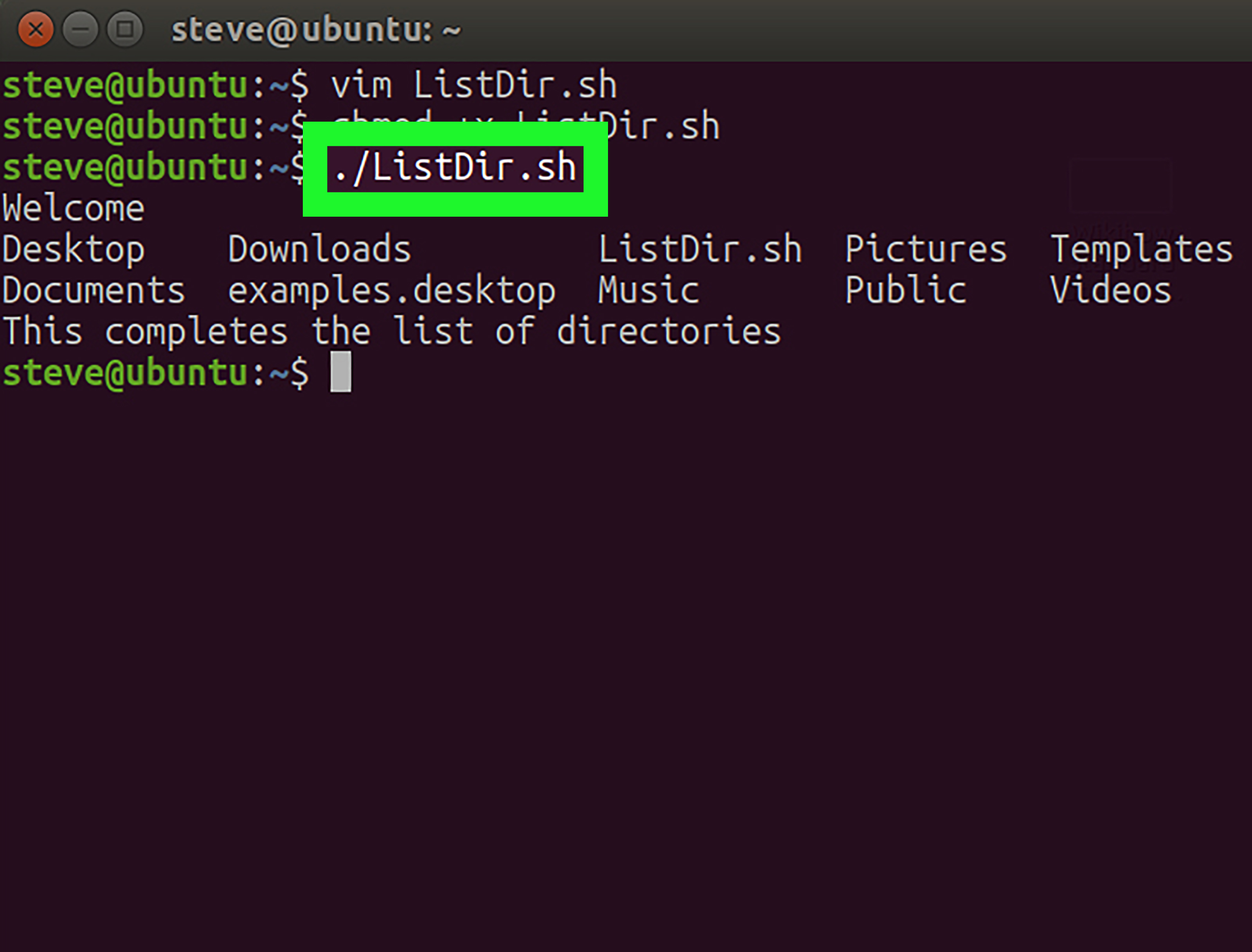
By default, your file is just text. To run it like a program, add execute permission:
Now run it:
If you skip the ./, Ubuntu might not find it because the current directory is often not in your PATH. That’s not Ubuntu being rude;
that’s Ubuntu being cautious.
Alternative ways to run scripts
bash hello.sh(runs it with Bash even if not executable)source hello.shor. hello.sh(runs it in the current shelluseful for environment variables)
Step 4: Comments and Readability (Future You Will Send Thanks)
Use # for comments. Your script is code, but it’s also a note to the next humanoften you.
Step 5: Variables and Quoting (Where Most Bash Bugs Are Born)
Variables are easy in Bashand that’s exactly why they’re dangerous. Assign with no spaces:
Always quote variables (seriously)
Unquoted variables can trigger word-splitting and pathname expansion. This is how “my script worked yesterday” becomes “why is it deleting things today?”
Prefer printf for predictable output
Step 6: Inputs, Outputs, and Exit Codes
Read user input
Use script arguments
Exit codes (0 means “success”)
In Unix-like systems, 0 means success and non-zero means something went wrong. You can check the last exit code with $?.
Use exit codes deliberately:
Step 7: Conditionals Without the Sadness
Use [[ ... ]] in Bash for tests. It’s generally safer and more feature-rich than [ ... ].
File checks
String and number comparisons
Step 8: Loops (Automate the Boring Stuff, Not the Dangerous Stuff)
For loop
While loop reading a file safely
Notice the IFS= and -r. They help preserve whitespace and backslashes instead of letting Bash “interpret” your data.
Step 9: Functions (Because Copy-Paste Is Not a Design Pattern)
Use local variables inside functions
Step 10: Parse Options Like a Pro With getopts
If your script has flags like -v for verbose or -f for a file, getopts is the built-in tool for short options.
Step 11: Make Scripts Safer With “Strict Mode” and Traps
Bash will happily continue after many errors unless you tell it not to. A common approach is “strict mode”:
-e: exit on error-u: treat unset variables as errors-o pipefail: fail a pipeline if any command fails (not just the last one)-E: let traps work more predictably with functions/subshells
Cleanup with trap
This prevents the classic “my script crashed and left 900 temporary files” souvenir.
Step 12: Debugging on Ubuntu (Because Staring at the Screen Is Not Debugging)
Syntax check without running
Trace execution
Lint your script
ShellCheck is a popular static analysis tool that catches common mistakes (especially quoting issues and subtle pitfalls).
Step 13: Running Scripts the “Ubuntu Way”
Put scripts somewhere sensible
~/bin(for personal scripts; add it toPATHif needed)/usr/local/bin(for system-wide custom scripts, typically managed by admins)
Schedule scripts
For automation you can use cron (classic) or systemd timers (modern and powerful). If you schedule a script, remember: the environment is
different from your interactive terminal. That’s why scripts should use explicit paths and predictable behavior.
Be careful with sudo
Don’t casually sprinkle sudo inside scripts unless you truly mean it. It can prompt for passwords at inconvenient times (like 3 AM),
and it changes what “home directory” and permissions mean.
Common Pitfalls (So You Don’t Become a Bash Cautionary Tale)
- Unquoted variables: Use
"$var"unless you have a very specific reason not to. - Using eval: Powerful, risky, and often unnecessary. It can enable code injection if you’re building commands from input.
- Parsing ls output: Don’t do
for f in $(ls). Use globs or a safe find loop instead. - Assuming pipelines succeed: Without
pipefail, a failing command in a pipeline can be hidden. - Relying on your interactive environment: Scheduled jobs have different PATH and variables.
Mini Project: A Practical Ubuntu Backup Script (Safe, Verbose, and Not Terrifying)
Here’s a script you can actually use. It syncs a source directory to a destination using rsync, supports a dry run, and logs what it’s doing.
How to run it
Try a dry run first:
Conclusion: Your Bash Script Toolkit
Writing shell scripts in Ubuntu is less about memorizing syntax and more about developing good habits: quote variables, handle errors, keep scripts readable,
and test safely. Start smallautomate one repetitive taskthen level up with functions, options, and safety features like strict mode and ShellCheck.
Most importantly: treat your scripts like real software. Because they are. (And unlike some software, yours can be short, fast, and doesn’t need a login screen.)
Experience Notes From the Trenches (Real-World Lessons, About )
The first Bash script most people write is a “shortcut script.” Mine was basically: cd into a directory, run a command, copy a file, and echo
something triumphant like “DONE!” I felt unstoppableright up until I ran it on a folder named My Stuff and the script exploded like a piñata
full of error messages. That was my introduction to quoting. Bash didn’t “ignore spaces.” It treated them as separators and happily chopped my path into
pieces. Lesson one: if it’s a variable, it’s probably wearing quotes.
Lesson two showed up when I started piping commands togethersomething like grep ... | head ... | awk .... Everything looked fine because the
final command succeeded, but an earlier command failed silently. The script kept going, producing output that was technically “valid” and practically
useless. Adding set -o pipefail changed the game: now the script would stop when any part of a pipeline failed, which meant failures were loud
instead of sneaky.
Then there was the “helpful cleanup” phase. Many of us write a cleanup line like rm -rf $temp_dir and move on with our lives. But if
$temp_dir is empty (or unset), that command can turn into something very different than you intended. Using strict mode
(set -u) and quoting (rm -rf "$temp_dir") reduces the odds you’ll accidentally reinvent chaos. Pair that with
trap cleanup EXIT and you get reliability: the cleanup happens even if the script exits early.
Another surprise arrived the first time I put a script into cron. It worked perfectly in my terminal, then failed in cron with “command not found.” Cron
had a minimal environment and a different PATH. That’s when I started using full paths for critical commands (or setting PATH inside the
script), and I stopped assuming my dotfiles would magically appear for non-interactive shells.
Finally, ShellCheck became my favorite teammate who never gets tired and never says “works on my machine.” It caught quoting mistakes, suggested safer
patterns, and taught me what I didn’t know I didn’t know. The irony is that “Bash is simple” is exactly why it’s easy to write scripts that are subtly
wrong. With a little disciplinefunctions, clear usage text, predictable exit codes, and safety defaultsyour Ubuntu scripts go from “fragile shortcut” to
“tiny tool you can trust.”