
Sending an image in Discord on Android should be a “two taps and done” kind of moment. Yet somehow, the app occasionally acts like it’s never seen a screenshot before.
The good news: once you know where Discord hides the upload button (spoiler: it’s not actually hiding), posting images becomes effortlesswhether you’re sharing a meme,
a homework diagram, a bug report screenshot, or a “look at my cat doing taxes” photo.
This guide walks you through every practical way to post images in Discord on Androiddirect upload, sharing from your gallery, sending from Files, adding alt text,
marking spoilers, and fixing the most common “why won’t it send?!” problems. You’ll also get real-world tips at the end so you can post faster, cleaner, and with fewer
accidental “oops wrong channel” moments.
Before You Post: 3 Quick Things to Check
1) Make sure you’re in the right place
Images can be posted in server channels, group chats, and DMs. If you can type a message there, you can usually upload an image there tooassuming you have permission
in that channel (some servers restrict attachments).
2) Know the file size reality (so you don’t fight your phone)
Discord has upload limits. If your image (or especially a video) is too large, it may fail to send or force you into compression gymnastics. If you hit limits often,
you can either reduce the file size or consider a plan that allows bigger uploads.
3) Permissions matter on Android
If Discord can’t access your photos/camera (or Android is using a picker that only shows selected images), you may need to allow permissions or choose a different source
inside the picker. Don’t worrywe’ll fix that later in the troubleshooting section.
Method 1: Post an Image Directly Inside Discord (Fastest)
This is the standard “I’m already chatting, I just want to drop an image here” method. Discord’s mobile interface lets you pick from your gallery or open the camera
without leaving the chat.
Step-by-step: Upload from the chat bar
- Open Discord on your Android phone.
- Go to the DM, group chat, or server channel where you want to post the image.
- Tap the Add File / plus icon near the message box.
- Select Upload a File (wording may vary slightly by version).
- Choose your image from your device, then add optional text.
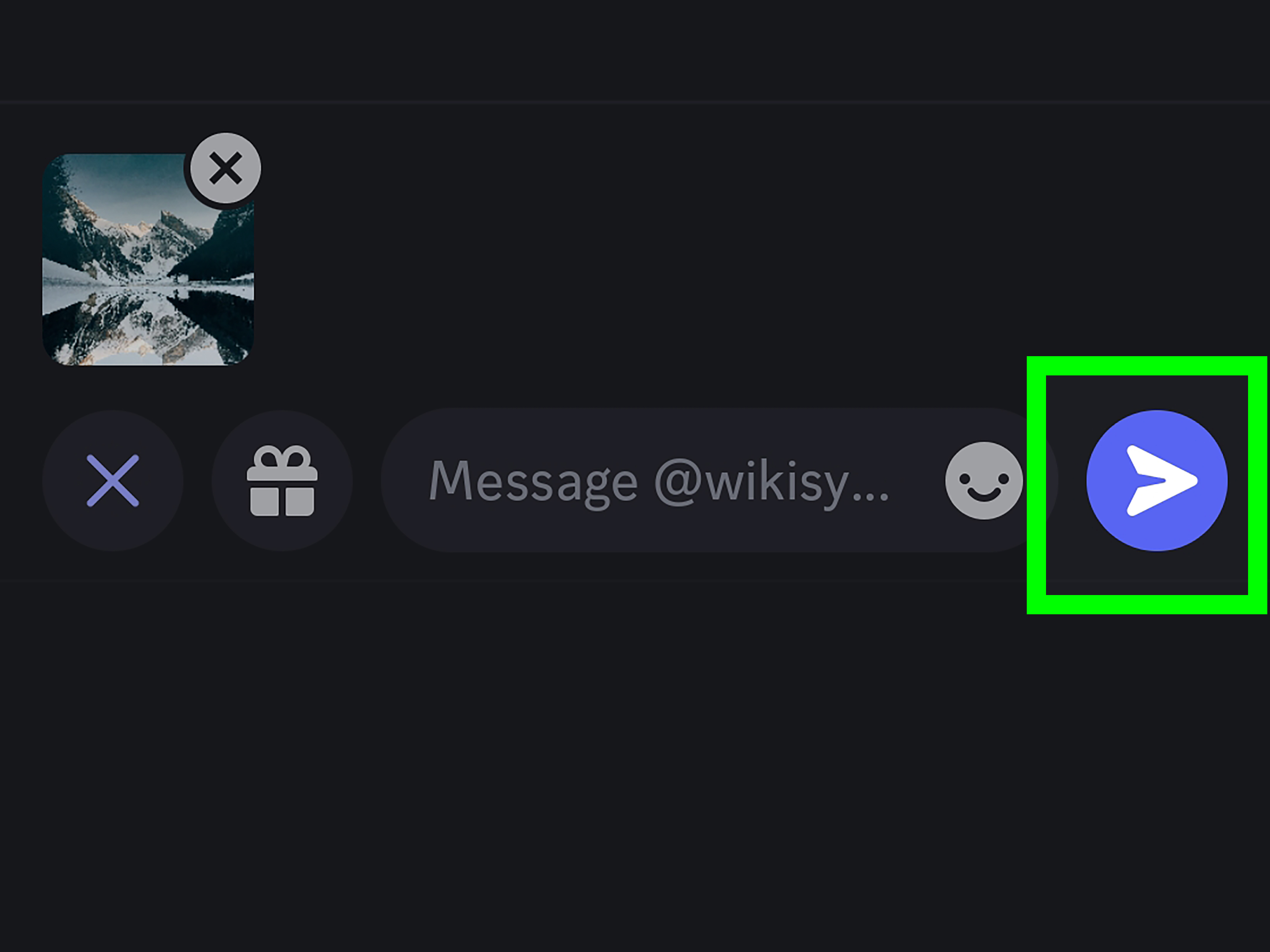
- Tap Send.
Pro tip: If you select multiple images (or images + GIFs) before sending, Discord can bundle them into a single message and display them together as a mosaic. This is
perfect for “here are the 4 screenshots you asked for” without spamming the chat one image at a time.
Want to take a photo and send it instantly?
When you tap the Add File button, Discord can offer a Camera option so you can snap a photo and post it immediately. This is great for quick “here’s
what I mean” contextlike a photo of a whiteboard, a PC error message, or your keyboard doing that one weird thing.
Method 2: Share to Discord From Your Gallery (Best for “I’m already in Photos”)
If you’re scrolling your gallery and you find the perfect imagedon’t copy it, save it again, or do the “switch apps and forget what I was doing” dance. Just use the
Android share menu.
Step-by-step: Share from Google Photos or Gallery
- Open your Gallery app or Google Photos.
- Select the image (or multiple images).
- Tap Share.
- Choose Discord from the share options.
- Select the friend, group chat, or server/channel (Discord will prompt you).
- Add optional text, then tap Send.
This method is especially handy when you’re sharing something time-sensitive (like event flyers, a screenshot of a schedule change, or the “proof” screenshot you promised
your friends you weren’t making up).
Method 3: Post Images From “Files” (Great for Downloads, Screenshots, and Folders)
Sometimes your image isn’t in your galleryit’s in Downloads, a school folder, a file manager, or exported from another app. In that case, attach it as a file.
Step-by-step: Upload from Files
- Open the Discord chat where you want to post.
- Tap the Add File / plus icon.
- Choose Upload a File, then pick Files (if prompted).
- Browse to the folder (Downloads is a common one) and select your image.
- Add a message (optional) and tap Send.
Bonus: If you’re sending a non-image file (like a PDF), Discord will show it as an attachment embed rather than an image preview. That’s normalDiscord is basically
saying, “Cool file. I’m not opening it, but I’ll hold it politely.”
Why Your Picker Looks Different on Android 13+ (And Why That’s Not a Bad Thing)
On newer Android versions, you may see a system photo picker that lets you select only specific photos/videos to share with an app, instead of granting full access to your
entire library. This is a privacy-focused feature, and it can be why Discord “suddenly can’t see your albums” until you choose a different view or source.
The upside: more control. The trade-off: a couple extra taps when you want something from a specific folder (like Screenshots).
Add Alt Text (So Your Image Makes Sense Even If It Doesn’t Load)
Alt text is a short description of your image. It helps friends who use screen readers and also helps anyone who’s dealing with a slow connection (aka “my phone refuses to
load images when I’m on one bar of Wi-Fi”).
How to add alt text on Android
- Attach your image (don’t send it yet).
- Tap the modify option (often a pencil icon) on the attachment preview.
- Add a short description (example: “Screenshot of Discord upload error saying file too large”).
- Tap Save, then send your message.
Keep it simple and specific. You’re not writing a novelthink “helpful label,” not “museum plaque.” Also, alt text typically can’t be added after you’ve already posted the
image, so do it before you hit send.
Mark Images as Spoilers (Because Not Everyone Is Ready)
If your image reveals a game plot twist, a show ending, a surprise party location, or anything your friends want to choose to see, mark it as a spoiler.
How spoiler images usually work
- Attach the image first (before sending).
- Look for a Mark as Spoiler option (often an eye icon) in the attachment preview.
- Enable it, then send.
Spoiler text (and spoiler links) on mobile
If you’re sharing a link (including an image link), you can wrap it like this: ||your link here||. That hides it behind a spoiler cover. Note: Discord
invites can still show embeds and may not be fully hidden by spoiler formatting.
Fix Common Problems When Posting Images on Discord Android
Problem: “Discord won’t let me access photos” or “I can’t find my gallery”
This is usually permissions or the Android photo picker view.
-
Check permissions: Go to Android Settings > Apps > Discord > Permissions and allow Photos and videos (and Camera if you
use it). - Try Files instead of Gallery: If the picker is limiting albums, selecting from Files can help you browse folders directly.
- Use the share method: If Discord’s picker is being stubborn, open the image in your Gallery/Photos app and share to Discord (Method 2).
Problem: “Upload failed” or the image never sends
- Check file size: If the image is too large, reduce its size (crop, export smaller, or screenshot it).
- Switch networks: Try Wi-Fi if mobile data is weak, or vice versa.
- Turn off Data Saving Mode: Discord has data-saving settings that can reduce quality or change upload behavior.
- Restart the app: Yes, it’s the oldest trick in the book. It’s also annoyingly effective.
Problem: “My image is blocked”
Some servers use safety filters that can block images that appear sensitive, especially in channels that aren’t age-restricted. If your image is safe and appropriate,
you may need to try another channel, ask a moderator about the server’s settings, or use a different way to share (like a link) depending on server rules.
Problem: “My links don’t show previews”
Discord can show website previews (embeds) for links, including image linksbut this can be disabled in chat settings. If you want previews, check your Discord
Chat settings and enable link previews/embeds. Also note: server settings and permissions can affect embeds.
Problem: “Discord keeps saving images I send to my phone (why?!)”
Discord’s mobile chat settings can include an option to automatically save images/videos you send. If your storage is filling up with “sent_image_4829.jpg,” toggle that
off in Discord’s Settings > Chat.
Best Practices for Posting Images (So You Don’t Regret It Later)
Crop like you mean it
Cropping removes personal info you didn’t mean to sharelike notification banners, email addresses, usernames, or that one open tab you absolutely do not want anyone to
notice.
Use screenshots strategically
If a photo is too large to upload, taking a screenshot (or exporting a smaller version) can reduce file size fast. It also keeps the focus on what matterslike the exact
error message or the important part of a conversation.
Add context in the caption
The difference between “(image)” and “Here’s the screenshot of the settings pagetap Chat, then Data Saving Mode” is the difference between helpful and mysterious.
Quick FAQ
Can I post GIFs on Android Discord?
Yes. You can send GIFs using the GIF picker inside Discord (usually under the emoji menu), or upload a GIF file the same way you upload an image.
Can I paste an image link instead of uploading?
Yes. If your chat settings allow it, pasting an image URL can display a preview embed. If previews are disabled, it may show as a plain link.
Can I upload multiple images in one message?
Yes. Select multiple images before sending. Discord can group them into a single message and show them together.
Real-World Experiences and Tips (500+ Words of “What Actually Happens”)
Let’s talk about the real experience of posting images in Discord on Androidbecause real life is rarely as neat as “tap button, select photo, done.” Most people start out
posting images for one of four reasons: sharing something funny, showing proof of something (screenshots are the currency of the internet), helping someone troubleshoot,
or collaborating on school/gaming/community stuff.
The #1 “aha” moment for many Android users is realizing there are two easy lanes: upload inside Discord when you’re already chatting, and share to Discord
from your gallery when you’re already browsing photos. Once you use the share method a few times, it feels like a superpowerespecially for quick meme drops or when a
friend asks, “Send me that picture again,” and you don’t want to scroll through a chat history from the Stone Age (last Tuesday).
Another common experience: the Android photo picker on newer phones can feel confusing at first. People will say, “Discord can’t see my albums anymore,” but what’s
happening is usually privacy controls doing their job. The picker is trying to let you share just what you choose, not your entire camera roll. Once you recognize
that, you can adapt: use Files to browse folders, or share directly from Google Photos/Gallery when you want a specific folder like Screenshots. After that, it stops being
“Discord is broken” and becomes “okay, Android wants me to pick on purpose.”
If you’re in group chats, you’ll also notice a pattern: people appreciate bundled screenshots. Instead of sending five images as five separate messages (and
turning the chat into a flipbook), selecting multiple images and sending them together keeps everything tidy. This is especially helpful for school group projects (“Here are
the slides + rubric + the diagram”) or gaming coordination (“Here are the quest steps and the map markers”). Clean posts get faster replies.
The file size limit is where reality sometimes bonks you on the forehead. Photos are usually fine, but videos and “high-res everything” can cause failed uploads. People end
up learning a few practical habits: trim videos, compress before uploading, or send a link instead if the file is huge. Some also discover Discord’s subscription upload sizes
when they hit the wall repeatedly. Whether you upgrade or not, the experience teaches a simple rule: smaller files = fewer problems.
One more experience that’s surprisingly common: “Oops, wrong channel.” On mobile, it’s easy to tap the wrong server or DM thread if you’re moving fast. A quick safety habit
is to glance at the channel name before you hit sendespecially if the image includes personal info like grades, addresses, or private chats. Cropping before sending is the
second line of defense, and it’s worth the extra five seconds.
Finally, alt text and spoiler tags are the “pro moves” that make you look like you know what you’re doing. Adding alt text is great when you’re posting something important
(like instructions, a screenshot of settings, or a chart), and spoiler tags show you respect your friends’ brains (and their watchlists). These features don’t just make your
posts nicerthey make your chats more thoughtful, which is a rare and beautiful thing on the internet.
Conclusion
Posting images in Discord on Android is simple once you know your three best options: upload directly inside Discord, share from your gallery, or attach from Files. Add alt
text when clarity matters, mark spoilers when you’re being considerate, and tweak chat settings if uploads are slow or previews aren’t showing. After that, you’ll spend less
time fighting the appand more time doing what you came to Discord for: sharing stuff with people who get it.