
When Spotlight works, it feels like magic. You tap Command + Space, type three lazy letters, and your Mac obediently coughs up the app, file, setting, or email you wanted. When Spotlight stops working, though, it suddenly feels like your Mac has misplaced its own brain. You know the file is there. Your Mac knows the file is there. But Spotlight stares back like a confused golden retriever.
If Spotlight search is not working on macOS, the good news is that this problem is usually fixable without dramatic measures. In most cases, the issue comes down to one of a handful of culprits: a broken or incomplete index, categories turned off, folders accidentally excluded from search, a keyboard shortcut conflict, low storage, or a startup issue after a macOS update.
Note: This article is written for web publication and intentionally removes citation artifacts, raw source markers, and other nonessential clutter.
Why Spotlight Stops Working in the First Place
Before you start throwing Terminal commands around like confetti, it helps to know what Spotlight is actually doing. Spotlight is not just “search.” It is an indexing system. That means macOS scans your files, apps, folders, mail content, and other supported data, then builds a searchable database so results appear quickly. If that index gets corrupted, interrupted, or blocked, Spotlight starts acting weird.
Common symptoms include:
- Spotlight opens, but finds nothing useful
- Apps do not appear in results
- Recent files are missing
- Specific folders never show up
- Command + Space does nothing
- Search results are incomplete, outdated, or strangely random
That last one is especially rude. Search for “budget,” get a calculator suggestion and a PDF from 2019. Thanks, Mac. Very helpful.
Start With the Fast Fixes First
1. Restart Your Mac
Yes, yes, the classic “turn it off and on again” advice. But in Spotlight’s case, this is not lazy troubleshooting. A restart can clear temporary glitches, relaunch search services, and give indexing a clean chance to resume. If Spotlight search stopped working after an update, a forced shutdown, or a weird app install, restarting is the best place to begin.
2. Make Sure Spotlight Is Allowed to Search the Right Things
Sometimes Spotlight is technically working, but it is not allowed to show the kind of result you want. That happens when result categories are turned off.
- Open System Settings.
- Click Spotlight or Siri & Spotlight, depending on your macOS version.
- Check whether categories such as Applications, Documents, Folders, and other relevant items are enabled.
If you cannot find apps in Spotlight, for example, the “Applications” category may simply be unchecked. That is not a Mac disaster. That is just one tiny setting being a diva.
3. Check Search Privacy
Next, open Search Privacy in Spotlight settings and see whether the drive or folder you want has been excluded. If your Desktop, Documents, or an external drive ended up on the excluded list, Spotlight will not index those locations. No index means no search results.
This is a very common reason Spotlight misses files that are clearly sitting right there, judging you from the Desktop.
4. Confirm That the Shortcut Is the Problem, Not Spotlight Itself
If Command + Space is not opening Spotlight, do not assume search is broken. The keyboard shortcut itself may be conflicting with another shortcut, input method, or app launcher.
Try clicking the Spotlight icon in the menu bar. If Spotlight opens that way, the feature is fine and the shortcut is the real troublemaker. Go to:
- System Settings > Keyboard
- Keyboard Shortcuts
- Select Spotlight
- Check for conflicts or reassign the shortcut
If you use multiple keyboard input sources, that can also interfere with standard Spotlight shortcuts on some macOS setups.
5. Give Indexing Time to Finish
If you recently updated macOS, migrated data, restored from backup, or connected a large external drive, Spotlight may still be indexing. During that time, results can be incomplete or weirdly selective. You may even see an indexing progress indicator in the Spotlight window.
Translation: your Mac is not ignoring you; it is just busy. Annoying, but different.
The Fix That Solves Most Spotlight Problems: Rebuild the Index
If Spotlight search is not finding files, apps, folders, or content correctly, rebuilding the Spotlight index is the most reliable fix. It sounds technical, but the easiest method is built right into macOS.
- Open System Settings.
- Click Spotlight.
- Open Search Privacy.
- Add your startup disk, usually Macintosh HD, or the affected folder to the privacy list.
- Wait a few seconds.
- Remove that same disk or folder from the list.
That remove-and-readd trick tells macOS to reindex the location. In plain English, you are making Spotlight throw away its stale notes and rewrite them.
This process can take a while, especially on a Mac packed with files, screenshots, PDFs, email, and half-finished downloads you swore you were going to organize “this weekend.” Let it finish before deciding it failed.
Use Terminal Only If You Are Comfortable
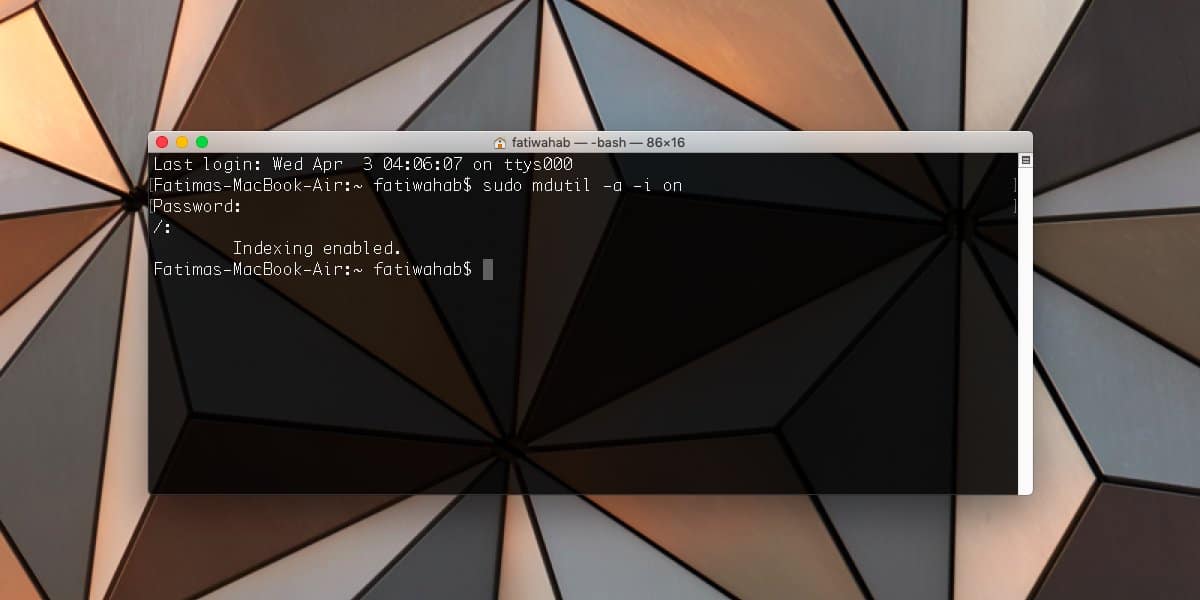
If the settings-based method does not help, you can rebuild the Spotlight index from Terminal. This is an advanced fix, but it is still a legitimate one.
This command tells macOS to erase and rebuild the Spotlight index for the startup volume. You will need an administrator password. Once you run it, give your Mac time to reindex before testing results again.
If the issue is only happening on an external drive, you can target that volume specifically instead of rebuilding everything. But if you are not comfortable with Terminal, stick with the graphical Search Privacy method above. It is safer, easier, and official.
Also, avoid random “miracle fix” commands from forum threads that tell you to delete system files by hand. Spotlight troubleshooting should not feel like defusing a bomb.
If Spotlight Opens but Misses Files, Apps, or Folders
Turn Categories Back On
Spotlight may appear broken when it is really just filtered too aggressively. If you search for an app and get nothing, check whether Applications is enabled. If PDFs or folders are missing, make sure those result types are also turned on in Spotlight settings.
Remove Accidental Exclusions
Check the Search Privacy list carefully. A single excluded folder can make Spotlight look useless. This is especially common with external drives, synced work folders, or users who once added something to privacy for a temporary reason and forgot about it forever.
Try Finder Search as a Backup Check
Sometimes the real problem is not Spotlight itself but search scope. Finder search can be limited to the current folder instead of the whole Mac. If you think search is failing, open Finder and make sure you are searching This Mac instead of one narrow location. That will help you tell the difference between a Spotlight indexing issue and a simple search-scope mismatch.
If Spotlight Refuses to Open at All
Check Whether the Menu Bar Icon Is Hidden
If the Spotlight icon is missing from the menu bar, add it back in system settings and try launching search there. That rules out the possibility that only the shortcut is failing.
Look for a Keyboard Shortcut Conflict
Many users install launcher apps, language tools, clipboard managers, or automation utilities that claim the same shortcut. If another app has hijacked Command + Space, Spotlight may never get the memo. Reassign the shortcut or disable the competing app temporarily.
Update macOS
If Spotlight stopped working after a macOS update, install the latest available point release. Apple regularly fixes post-update bugs in later patches, and search issues are exactly the kind of thing that gets quietly repaired in maintenance updates.
Try Safe Mode if the Problem Started After Login
Safe Mode is useful when Spotlight problems are caused by software that loads at startup. If Spotlight works in Safe Mode but fails in normal mode, that is a strong clue that a login item, extension, or third-party background tool is interfering.
How to start a Mac in Safe Mode
For Apple silicon Macs: Shut down your Mac, press and hold the power button until startup options appear, select your disk, then hold Shift and click Continue in Safe Mode.
For Intel Macs: Restart and immediately hold Shift until the login window appears.
Log in, test Spotlight, and then restart normally. If Safe Mode solves the issue, review recent login items, utilities, and menu bar apps you installed before the problem began.
Do Not Ignore Free Storage Space
If your startup disk is nearly full, Spotlight indexing can become unreliable or painfully slow. macOS also needs working room for updates, caching, and background maintenance. A Mac gasping for storage is not in the mood to build a healthy search index.
Free up space by deleting large installers, emptying the Trash, removing old downloads, or moving bulky files off the internal drive. You do not need to become a minimalist monk, but your Mac does appreciate breathing room.
A Smart Troubleshooting Order That Saves Time
If you want the short version, this is the order that makes the most sense:
- Restart your Mac
- Check Spotlight categories
- Review Search Privacy exclusions
- Test the menu bar icon and verify the keyboard shortcut
- Rebuild the Spotlight index in Settings
- Install macOS updates
- Try Safe Mode
- Use the Terminal reindex command if needed
This order works because it starts with the low-risk stuff and only gets more technical if the easy fixes fail. That is how grown-up troubleshooting should work. Calmly. Methodically. With minimal screaming.
When You May Need Bigger Repairs
If Spotlight still does not work after rebuilding the index, updating macOS, checking the shortcut, freeing space, and testing in Safe Mode, the problem may be deeper than Spotlight itself. At that point, consider testing with another user account, contacting Apple Support, or reinstalling macOS. That sounds dramatic, but it is still less dramatic than spending three weeks manually opening folders like it is 1998.
Final Thoughts
Spotlight is supposed to be the fastest way to get around your Mac. When it fails, the whole system feels clumsier than it should. The good news is that most Spotlight issues come down to a few fixable causes: the wrong categories, an accidental privacy exclusion, an unfinished or corrupted index, a shortcut conflict, or post-update weirdness.
Start simple. Rebuild the index. Check your settings. Give the Mac a minute to finish indexing. And if needed, bring out Safe Mode or Terminal like the responsible troubleshooter you are. In many cases, Spotlight comes back to life without much fuss. Once it does, you can go back to pretending you totally remember where that file was all along.
Extra: Real-World Experiences With Spotlight Search Problems on macOS
If you have ever dealt with Spotlight search not working on macOS, you already know the emotional arc. It starts small. You search for one file and do not find it. No big deal, maybe you mistyped it. Then you search for an app you use every day, and it also does not show up. Now your eyebrow lifts. Then you try Command + Space again, type the exact file name, and Spotlight offers you a web suggestion, a contact from three years ago, and absolutely none of the things you actually need. That is when the eyebrow becomes a full personality trait.
One of the most frustrating parts of this issue is that it makes you doubt yourself. You start thinking, “Did I rename the file? Did I move it? Did I delete it by accident?” Then you open Finder and there it is, sitting smugly in Documents like it never left. That is why Spotlight problems feel so personal. The file exists. The Mac exists. The search exists. But the connection between them has apparently gone on vacation.
A lot of users run into this after a macOS update. The Mac boots fine, everything looks normal, but search becomes flaky. Apps do not appear. Recent PDFs vanish. Mail results lag or disappear. In many of those cases, Spotlight is still rebuilding its index in the background, which means the machine is technically working but not yet useful. That is a miserable distinction when you are trying to find a client contract five minutes before a meeting.
Another common experience is the “half-broken” version of Spotlight. It opens, but only finds system settings and random web results. Or it finds old files but not new ones. Or it works for apps and fails for folders. That kind of partial failure is especially sneaky because it tricks people into chasing the wrong problem. They think their files are gone, when the real issue is usually one setting, one excluded folder, or one damaged index.
Then there is the shortcut confusion. Plenty of Mac users think Spotlight is dead when, in reality, another app has stolen Command + Space. Launcher apps, language switching tools, clipboard managers, and utility software are notorious for this. In those moments, clicking the menu bar icon and seeing Spotlight open normally feels equal parts relief and insult. “Oh, so you were here. Great.”
The rebuild process itself can also test your patience. You follow the steps correctly, remove the drive from Search Privacy, and expect instant redemption. But indexing takes time, and while it is happening, Spotlight may still look unreliable. That waiting period is where people often panic and assume the fix failed. In real life, some of the best Spotlight repairs are deeply boring. You do the right steps, leave the Mac alone for a while, come back later, and suddenly everything works again. Not flashy, but effective.
In the end, the experience of fixing Spotlight usually teaches the same lesson: search problems on a Mac are rarely mystical. They are annoying, inconvenient, and occasionally absurd, but they are usually tied to indexing, settings, shortcuts, updates, or storage. Once you know where to look, the problem becomes much less scary. Still annoying, yes. But at least no longer haunted.