
Your router is broadcasting Wi-Fi, your phone says “Connected,” and yet the internet is… spiritually absent.
Welcome to one of modern life’s greatest plot twists: Wi-Fi with no internet. The good news? Most “router not connecting to the internet”
problems are fixable in under 30 minutesoften in under 5once you troubleshoot in the right order.
This guide walks you through a practical, no-fluff sequence used by major ISPs and router makers, with a few smart detours for DNS,
firmware, and sneaky settings that love to break things at 2:00 a.m. Bring snacks. Your router may already have eaten your patience.
Step 0: Confirm It’s Really the Router (Not the Internet Itself)
Before you do a factory reset and accidentally rename your Wi-Fi to FBI_SURVEILLANCE_VAN_3 out of stress,
do two quick checks to isolate the problem.
Fast reality check (2 minutes)
- Try another device (laptop, tablet, smart TV). If nothing gets online, it’s likely the modem/ISP or the router’s WAN connection.
- Try a wired connection (Ethernet) from a computer to the router. If Ethernet also has no internet, it’s not “just Wi-Fi.”
- Check for an ISP outage using your provider’s status page/app. If the neighborhood is down, your router can’t hero its way through that.
Step 1: Read the Lights Like a Tiny Airport Runway
Router lights look like decoration until you realize they’re basically a mood ring for your internet connection.
The labels vary (Internet/WAN/Online/Globe icon), but the logic is consistent.
What the common lights usually mean
- Power light off: no power, bad outlet, failing adapter, or the router is taking a nap it didn’t schedule.
- Wi-Fi light on, Internet/WAN light off or orange/red: the router is fine locally, but it can’t reach the ISP through the modem/ONT.
- Internet/WAN light blinking: the router is trying to negotiate a connection (DHCP/PPPoE) or authenticatecould be normal during startup.
- Modem “Online/Internet” light off/blinking: the problem is often upstream (signal, ISP outage, coax/DSL/fiber issue) rather than the router.
If your modem/ONT never shows a stable “online” state, jump to When to Call Your ISP.
Otherwise, keep goingyour router may just need a proper reboot sequence.
Step 2: Power Cycle the Right Way (Order Matters)
“Turn it off and on again” is famous because it works. But doing it in the wrong order can leave your router still not connecting to the internet.
Many ISPs recommend a full power cycle so the modem/ONT and router renegotiate the WAN IP address cleanly.
The correct power-cycle sequence (modem + router)
- Unplug the router power.
- Unplug the modem/ONT power (and remove backup battery if it has one).
- Wait 60–120 seconds. (Yes, really. Give capacitors time to discharge and sessions time to drop.)
- Power the modem/ONT back on first. Wait until its status lights stabilize (often 2–10 minutes depending on technology).
- Power the router back on. Wait 2–5 minutes.
- Test internet again on one device.
If you swapped routers recently, this step is especially importantsome ISPs “remember” the last device and won’t hand out a new WAN IP until the modem/ONT resets.
Step 3: Fix the Boring Stuff That Breaks Everything
Connectivity issues often come down to unglamorous problems: a loose cable, the wrong port, or a power adapter that’s quietly failing.
The fix is simpleif you look.
Check cables and ports (yes, all of them)
- WAN vs LAN mix-up: The modem/ONT must connect to the router’s WAN/Internet port (often separated or differently colored).
- Swap the Ethernet cable between modem and router. A bad cable can produce “Wi-Fi works, no internet” chaos.
- Skip splitters/extenders temporarily (especially coax splitters). Go direct: wall → modem → router.
- Check the power brick: if the router randomly restarts, runs hot, or lights flicker, the adapter may be underpowering it.
Overheating is real (and petty)
Routers overheat more often than people thinkespecially when shoved into a cabinet with zero airflow beside a gaming console and a candle.
If the router feels hot, move it into open air and retest after a reboot.
Step 4: Log In and Verify the WAN IP Address
If the physical setup is correct and a proper power cycle didn’t help, it’s time to check what the router thinks is happening on the WAN side.
You’re looking for one big clue: Does the router have a valid WAN IP address?
How to check quickly
-
On a connected device, open a browser and go to your router’s admin page (commonly 192.168.1.1 or 192.168.0.1).
Many routers also list the login URL on a sticker. - Find a section like Status, Internet, or WAN.
- Look for WAN IP (or “Internet IP”). This is not your Wi-Fi IP; it’s what the ISP gives your router.
What the WAN IP results tell you
-
WAN IP is blank, 0.0.0.0, or “disconnected”: the router isn’t receiving an address from the modem/ONT/ISP. This usually points to
DHCP/PPPoE issues, a locked lease, or the modem/ONT not actually online. -
WAN IP looks “private” (10.x.x.x, 172.16–31.x.x, 192.168.x.x): you may have double NAT (common with ISP gateway + your router).
It can still work, but it can also cause weirdnessespecially with VPNs, gaming, or port forwarding. - WAN IP is a normal public address, but sites won’t load: that’s often DNS, a captive portal, or filtering (parental controls/VPN/security).
If your ISP uses PPPoE (common with some DSL/fiber)
PPPoE requires a username/password provided by the ISP. If those credentials are missing or mistyped, the router may broadcast Wi-Fi perfectly while the internet stays offline.
In your router’s Internet/WAN setup, confirm the connection type and re-enter credentials exactly as provided.
Step 5: Fix DNS When the Internet Is “There” but Nothing Loads
DNS is the internet’s address book. When DNS breaks, your router may technically be connected, but websites act like they can’t be foundbecause your device can’t translate
“example.com” into an IP address.
Quick DNS test
- On a computer, try visiting a few sites. If none load, try opening a known IP in a browser (for example, a public site by IP). If IP works but names don’t, DNS is the suspect.
- Alternatively, if some apps work (like streaming) but browsing fails, DNS or a captive portal is still a strong candidate.
Fix DNS at the router (best) or on one device (fast)
-
Router-level fix: In Internet/WAN settings, set DNS servers to a reliable public DNS provider (common choices include Cloudflare or Google Public DNS).
Save and reboot the router. - Device-level fix (Windows): Release/renew IP and flush DNS cache (use admin Command Prompt) if your device is stuck.
- Device-level fix (Mac): Renew DHCP lease and restart network services if the Mac is holding onto a stale address.
DNS issues can also show up after changing routers, changing ISP equipment, or enabling a “security” feature that blocks DNS requests in the name of protecting you from fun.
Step 6: Firmware Updates and Settings That Quietly Break Connectivity
If your router is not connecting to the internet consistentlyor it works after a reboot but fails again laterfirmware and features are next on the list.
Firmware updates fix bugs, improve compatibility, and patch security issues that can destabilize a network.
Update router firmware (without making it worse)
- Use the router app or admin dashboard to check for updates.
- Install updates when you have 10–15 minutes of downtime.
- After updating, reboot once and confirm the WAN IP address looks normal.
Features to temporarily disable for troubleshooting
- VPN client on the router (it can block all traffic if misconfigured).
- Parental controls/content filters (a bad rule can make the internet “disappear”).
- Custom firewall rules you don’t fully remember setting at 1:00 a.m.
- QoS or bandwidth management (rarely, a bug can throttle everything to zero vibes).
Step 7: The Factory Reset (A.K.A. The “Start Over” Button)
A factory reset is the nuclear option: it wipes settings and returns the router to default. Use it when:
(1) the router has clearly wrong configuration, (2) you can’t log in, (3) firmware/settings are corrupted, or (4) nothing else worked.
Before you reset
- Know what you’ll lose: Wi-Fi name, Wi-Fi password, ISP settings (like PPPoE), port forwards, custom DNS, and any fancy tuning.
- Save what you can: Some routers let you export a settings backup file (do that if the current config is mostly sane).
How to do it safely
- With the router powered on, hold the reset button for the time specified by the manufacturer (often 10–15 seconds).
- Wait for it to reboot fully.
- Set it up again from scratch and confirm the WAN IP address is assigned.
Step 8: Edge Cases That Trick Even Smart People
If you’ve done the basics and still have a router not connecting to the internet, you’re probably in “edge case territory.”
Here are the most common culpritsplus how to spot them.
Double NAT (ISP gateway + your router)
If your ISP gave you a modem/router combo (often called a gateway) and you plugged your own router into it, you may be running two routers.
That can work, but it can also cause issues with gaming, remote access, and sometimes “no internet” after updates.
- Symptoms: WAN IP on your router is private (192.168.x.x or 10.x.x.x), port forwarding doesn’t work, random connectivity weirdness.
- Fix: Put your router in “AP mode” or put the ISP gateway in “bridge mode” (only do one, not both).
WAN lease “lock” after swapping devices
Some connections don’t love sudden change. If the modem/ONT still “remembers” the previous router, your new router may not get a WAN IP.
A full modem/ONT power cycle often clears it.
IP conflicts on your home network
If two devices end up with the same IP address (or your router’s LAN subnet clashes with another device), your network can behave like a sitcom:
chaotic, confusing, and nobody communicates. Changing the router’s LAN subnet (for example, from 192.168.1.x to 192.168.50.x) can fix this.
MTU issues (less common, very annoying)
If some sites load but others time outespecially on PPPoEMTU settings can be involved. This is a “make one change at a time” situation.
If you suspect MTU and you’re not sure, your ISP support team can usually confirm the recommended value for your connection type.
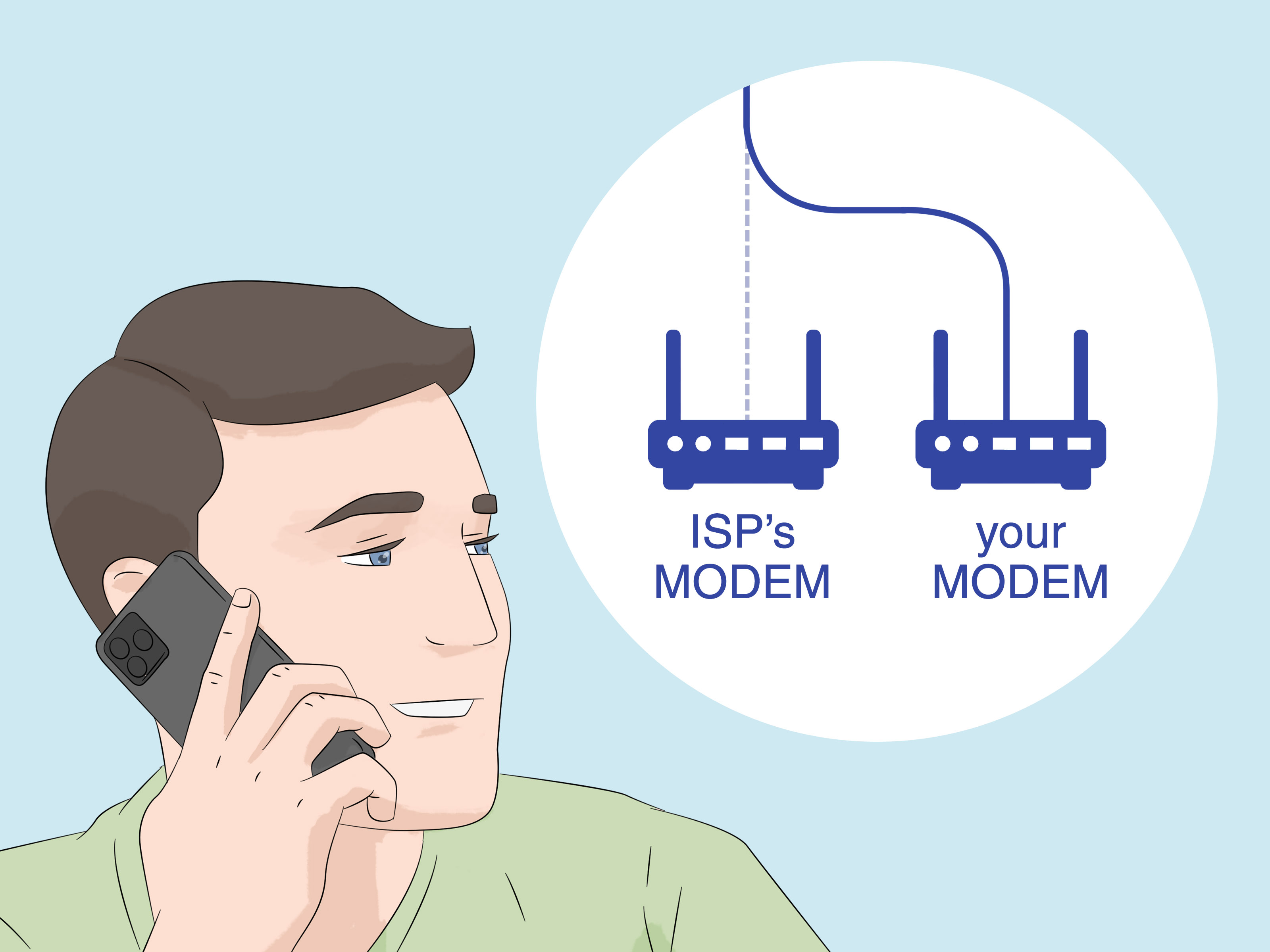
When to Call Your ISP (and What to Say So It Goes Faster)
Sometimes it’s not the router. Sometimes the line is down, the modem can’t sync, or the ISP needs to re-provision equipment.
Calling support is faster when you give them the exact clues they would ask for anyway.
Call your ISP when:
- Your modem/ONT never reaches a stable “online” state after a proper power cycle.
- Your router’s WAN IP stays blank/0.0.0.0 even though the modem shows online.
- The internet light is red/orange on ISP equipment, or the line light keeps blinking for 10+ minutes.
- You recently changed service (new plan, new modem, moved addresses) and the connection never stabilized.
What to tell them
- The status of the modem/ONT lights (Online/DSL/LOS, etc.).
- Whether the router has a WAN IP address (and whether it’s public or private).
- That you power-cycled in the correct order (modem first, then router).
- Any recent changes (new router, firmware update, service move, new splitter, construction, storm).
Bonus: A Quick “Make It Stable” Checklist After You’re Back Online
Once the internet returns, take five minutes to prevent the same problem from coming back like a sequel nobody asked for.
- Update firmware and enable automatic updates if offered.
- Change default router admin credentials and use a strong Wi-Fi password.
- Disable WPS if you don’t need it.
- Place the router in open air and avoid stacking it under heat-producing devices.
- Document ISP settings (PPPoE credentials, VLAN tagging, any special requirements) in a secure place.
Real-World Experiences: What Usually Fixes “Wi-Fi Connected But No Internet”
Here’s the part most troubleshooting guides skip: the patterns people run into repeatedly. If you’ve been staring at your router like it owes you money,
you’re not aloneand your situation is probably one of these.
Experience #1: The “New Router, Same Modem” trap. A very common story goes like this: someone upgrades to a better router, plugs it in,
sees a strong Wi-Fi signal, and assumes they’re done. But the modem still associates the old router’s MAC address with the connection. The fix is almost always
the same: power everything down completely, wait a full minute or two, then bring the modem online first and the router second. Once the modem “forgets”
the old device, the new router finally receives a WAN IP address and the internet returns.
Experience #2: The cable/port mix-up that feels too silly to admit. Even tech-savvy households occasionally plug the modem into a LAN port instead
of the WAN/Internet portespecially on routers where the ports look identical. The router will happily broadcast Wi-Fi, your devices will connect, and nothing
will route out to the internet. Swapping one cable to the correct port fixes it instantly and saves you from a dramatic factory reset you never needed.
Experience #3: DNS “dies,” and the internet becomes a rumor. Another classic is when the router is technically online, but webpages won’t load.
People describe it as “the internet is down,” but streaming apps might still work or some sites load while others fail. Changing DNS settings on the router
(or temporarily on one device) often brings everything back. It’s one of those problems that makes you question reality because the connection is half-alive.
Experience #4: The overheated router in the “electronics hot tub.” Routers tucked behind TVs, inside cabinets, or on top of other equipment can
overheat and start dropping the WAN connection or randomly rebooting. Users often report that a reboot “fixes it” for a whileuntil the router warms up again.
Moving the router into open air and ensuring the power adapter is healthy can turn an unreliable network into a stable one without buying anything new.
Experience #5: The hidden double-router setup. Many homes now have an ISP gateway (modem + router combo) plus a personal router or mesh system.
When both are routing, the network can get weird: intermittent internet, broken gaming sessions, and devices that connect but can’t reach the outside world after
certain updates. The best “real life” fix is deciding who the one true router is. Either switch your personal device into Access Point mode, or put the ISP gateway
into bridge modethen reboot everything. The result is cleaner routing, fewer conflicts, and much less midnight troubleshooting.
If one of these sounds painfully familiar, try the matching fix first. It’s often faster than working down a generic checklistand it helps you avoid the
most common troubleshooting mistake of all: changing five settings at once and then not knowing which one actually mattered.