
AirDrop is one of Apple’s best “why isn’t everything like this?” featuresuntil your device shows up as
“iPhone”, “iPad”, or the legendary “John’s MacBook Pro (2)” and you realize you’re basically
AirDropping under a witness-protection alias you never asked for.
The good news: changing your AirDrop name is quick. The slightly sneaky news: there isn’t a separate “AirDrop Name”
setting on most devices. AirDrop usually uses your device nameso when you rename your iPhone,
iPad, or Mac, you’re also updating what appears for AirDrop, Bluetooth, Personal Hotspot, and other places where
your device announces itself to the world.
Quick answer: AirDrop name = your device name
- iPhone / iPad: Settings → General → About → Name
- Mac (modern macOS): → System Settings → General → About → Name
- Mac (older macOS): → System Preferences → Sharing → Computer Name
Before you rename: what people actually see in AirDrop
In many cases, AirDrop shows the device name (like “Mia’s iPhone” or “Design iPad”). If someone has you
saved as a contact, their device may display a more “contact-card” version of you (name + photo), because AirDrop
uses your Apple Account info to verify you’re a contact when you choose Contacts Only.
Translation: rename the device for clarity, and if you want to be extra polished, make sure your Apple Account name
and your contact card details aren’t still set to “Me (Ancient Meme Phase).”
How to change your AirDrop name on iPhone
This works on current iOS versions and is the most reliable way to change what appears in AirDrop.
Apple explicitly notes that your iPhone name is used by AirDrop, iCloud, Bluetooth, and Personal Hotspotso this is
the “official” fix.
Steps (iPhone)
- Open Settings.
- Tap General.
- Tap About.
- Tap Name.
- Delete the current name and type the new one.
- Tap Done.
Naming tips that save you from AirDrop chaos
- Make it recognizable: “Alex iPhone” beats “iPhone” every time.
- Make it unique: If you have multiple Apple devices, add a label: “Alex iPhone (Work)” or “Alex iPad (Travel)”.
- Skip personal data: Avoid your full name + company + phone number. AirDrop doesn’t need your autobiography.
How to confirm your new AirDrop name
The fastest way is to use a second Apple device:
- On another iPhone/iPad/Mac nearby, open a photo or file and tap Share.
- Choose AirDrop.
- Look for your device’s icon/name in the listyour updated device name should appear.
How to change your AirDrop name on iPad
iPadOS follows the same logic as iPhone: rename the device, and AirDrop follows along. It’s the exact same menu path,
which is great news for your muscle memory.
Steps (iPad)
- Open Settings.
- Tap General.
- Tap About.
- Tap Name.
- Enter your new iPad name, then tap Done.
Pro tip: iPads are often shared in families, studios, classrooms, and offices. If yours is used by more than one person,
naming it by role (“Kitchen iPad,” “POS iPad,” “Classroom iPad 3”) prevents the daily ritual of “Wait… which one is mine?”
How to change your AirDrop name on Mac
On Mac, AirDrop is tied to your computer’s name. Depending on your macOS version, you’ll update it either in
System Settings (newer macOS) or System Preferences (older macOS).
Option A: macOS Ventura, Sonoma, Sequoia, and newer
- Click the Apple menu.
- Select System Settings.
- Click General in the sidebar.
- Click About.
- Click the current Name and type the new one.
Option B: macOS Monterey and older
- Click the Apple menu.
- Select System Preferences.
- Click Sharing.
- In Computer Name, enter the name you want.
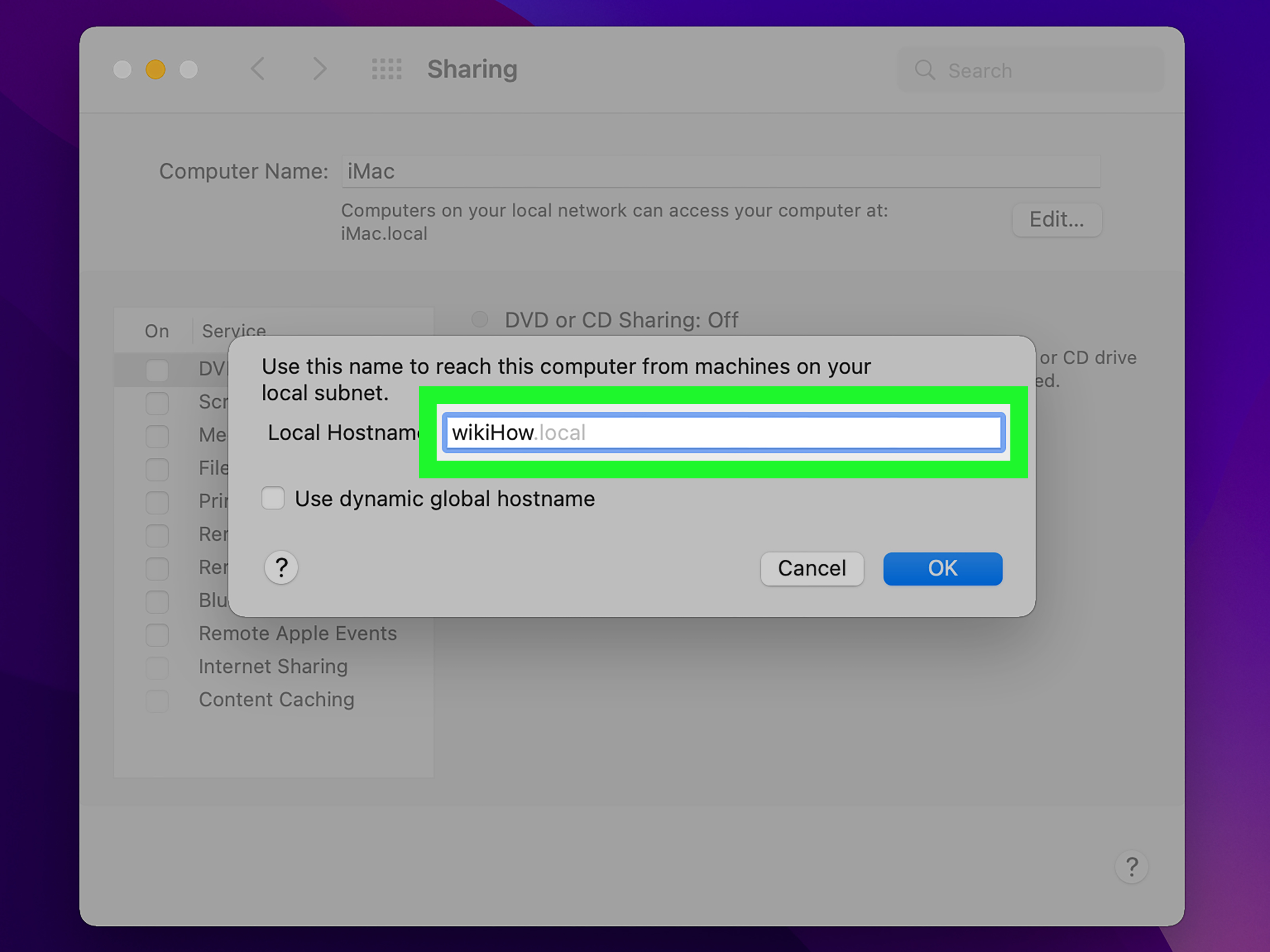
Optional but smart: update your “local hostname” for cleaner networks
If you’ve ever seen your Mac appear as Something-Weird.local (or with an extra number tacked on),
that’s your local hostname. Some networks and Bonjour-based services use it to identify machines.
If you want everything tidy, you can also adjust the local hostname in Sharing settings on modern macOS.
Keep it simple and space-free (for example: alex-mbp instead of “Alex’s MacBook Pro, The Third”).
AirDrop settings that affect who can see you (and when)
Renaming your device changes how you appear. AirDrop settings determine whether you appearand to whom.
If you’re changing your AirDrop name because strangers keep popping up in your share sheet, this section is your peace treaty.
On iPhone and iPad: choose who can send to you
- Receiving Off: You’re invisible to AirDrop.
- Contacts Only: Only contacts can see and send to you (best default for privacy).
- Everyone for 10 Minutes: Nearby Apple devices can see you temporarilythen it automatically reverts.
You can typically change this in Settings → General → AirDrop, and on many iPhones/iPads you can also toggle it quickly
from Control Center by pressing and holding the connectivity controls.
On Mac: adjust discoverability in AirDrop
Open Finder, choose AirDrop in the sidebar, and look for the discoverability option (often phrased like
“Allow me to be discovered by”). You can set it to contacts-only, everyone, or off depending on macOS version.
Troubleshooting: “I changed my name, but AirDrop still shows the old one”
This is more common than you’d thinkAirDrop uses a mix of Bluetooth, Wi-Fi, and local discovery. Sometimes the name change
updates instantly; sometimes devices cling to the past like it’s a high school yearbook.
Fixes that usually work (in order)
-
Toggle AirDrop off and back on.
Switch to “Receiving Off,” wait a few seconds, then return to “Contacts Only” or “Everyone for 10 Minutes.” -
Toggle Bluetooth and Wi-Fi.
AirDrop relies on both, so refreshing the radios can force a rediscovery. -
Restart both devices.
Classic advice, annoyingly effective. -
Check discoverability.
If you’re on “Contacts Only,” confirm the sender/receiver actually has the right Apple Account email or phone number saved in Contacts. -
Update your software.
AirDrop behavior can change with OS updates, especially around privacy and discoverability defaults.
If your Mac name is still “sticky”
- Confirm the Mac’s computer name (not just the user account name) was changed.
- Check Sharing settings if you’re on older macOS and you changed only a “Name” field elsewhere.
- Change the local hostname if multiple Macs on the same network keep colliding and auto-numbering.
FAQ: quick clarity on common AirDrop naming confusion
Does changing my AirDrop name change my Apple Account name?
Usually, no. Changing your device name changes the label your iPhone/iPad/Mac broadcasts. Your Apple Account name is a separate profile detail.
(But if you’re trying to look consistent to friends and coworkers, it can be worth aligning them.)
Will renaming affect my files, photos, or apps?
No. Renaming the device doesn’t delete anything or “reset” your content. It’s closer to changing a display label than moving houses.
Why do I sometimes see someone else’s name on their AirDrop icon?
Because your device might be showing the name you saved in Contacts, not the name they typed into their phone. That’s normalyour Contacts app is basically
your personal “cast list” of the people you know.
What’s a good AirDrop name format?
Try: [First name] + [Device type] + optional label. Examples:
“Jordan iPhone,” “Jordan iPad (Art),” “Jordan MacBook (Work).”
You’ll recognize it instantly, and you won’t broadcast anything you wouldn’t put on a coffee cup.
Wrap-up: small change, big quality-of-life upgrade
Changing your AirDrop name takes about 30 seconds, but it pays you back every time you share a photo, send a PDF, or AirDrop a file in a meeting without
playing the guessing game. Rename once, and the next time AirDrop asks “Which device?” you’ll actually know. Revolutionary.
Real-world experiences that make you want to rename your AirDrop device (500-word add-on)
If you’ve never thought about your AirDrop name, it’s probably because everything worked… until it didn’t. A lot of people run into the naming issue the
first time they try to share something in a crowded placean office, a classroom, a coworking space, a café, or an airport gate where it feels like every
third person owns an iPhone. Suddenly your share sheet fills up with a parade of mystery rectangles: “iPhone,” “iPhone,” “iPhone,” and one suspicious
“iPhone (2)” that looks like it’s trying to sneak past security.
One of the most common “aha” moments happens in families. Someone buys a new iPad for the kitchen, and it becomes the household command center for recipes,
grocery lists, and streaming. Then a kid tries to AirDrop a homework PDF and asks, “Which iPad is ours?” Great questionbecause “iPad” is not a personality,
it’s a species. Renaming it to “Kitchen iPad” instantly ends the daily confusion and prevents accidental AirDrops to the wrong person sitting three feet away.
Work situations bring their own flavor of chaos. Picture a meeting where everyone is trying to AirDrop a slide deck or a contract revision. If three people
have Macs named “MacBook Pro,” you will waste time doing the professional equivalent of calling for a cat in the dark: “Here, MacBook Pro… pspspsps.”
A simple rename like “Taylor MBP (Design)” or “Taylor MacBook (Ops)” can make the transfer feel as smooth as AirDrop was always meant to be.
Another very real experience: privacy panic. People often rename their device right after they notice their full legal name popping up on someone else’s
screenespecially if they’re using “Everyone for 10 Minutes” to exchange files quickly. It’s not that AirDrop is inherently unsafe; it’s that your device
name is basically a tiny digital name tag. Using a friendlier, less specific name (“Chris iPhone” instead of “Christopher Jonathan Smith, Esq.”) keeps
your sharing convenient without oversharing.
And then there’s the “why won’t it update?” moment. You rename your iPhone, feel accomplished, and then your Mac still shows the old name like it missed the memo.
This is when people discover the joy of toggling Bluetooth and Wi-Fi, restarting devices, and watching AirDrop finally refresh like it’s waking up from a nap.
It’s mildly annoyingbut once it sticks, you’re done. The next time you AirDrop vacation photos, your device shows up exactly as intended, and you get to
enjoy the rarest modern pleasure: technology behaving itself.