
Copying a WhatsApp message sounds like the kind of task that should take exactly three seconds. And most of the time, it does. But then reality walks in wearing mismatched socks: the Copy button hides behind a three-dot menu, your iPhone selects the whole message when you only wanted the tracking number, or WhatsApp Web refuses to behave because your browser woke up dramatic.
The good news is that copying WhatsApp messages is easy once you know where the controls live. Whether you are using WhatsApp on iPhone, Android, WhatsApp Web, or the desktop app for Windows and Mac, this guide walks you through the simple steps, useful workarounds, privacy tips, and common troubleshooting fixes. You will also learn how to copy part of a message, paste it somewhere useful, and avoid accidentally sending your boss a grocery list titled “urgent.”
What Does “Copy a WhatsApp Message” Mean?
When you copy a WhatsApp message, the message text is saved temporarily to your device’s clipboard. From there, you can paste it into another WhatsApp chat, an email, a note, a browser search box, a document, or almost any app that accepts text.
This is different from forwarding a message. Forwarding sends the original message directly to another WhatsApp chat. Copying gives you more control because you can edit the text before sending, remove unnecessary details, or save it outside WhatsApp.
Copying vs. Forwarding: Quick Difference
Copying is best when you want to reuse text, edit a message, save instructions, copy an address, or paste a confirmation code somewhere else. Forwarding is better when you want to share a message quickly inside WhatsApp without changing it.
How to Copy a WhatsApp Message on iPhone
Copying WhatsApp messages on iPhone is usually simple. The exact menu can look slightly different depending on your WhatsApp version and iOS version, but the general process is consistent.
Steps to Copy a Full WhatsApp Message on iPhone
- Open WhatsApp on your iPhone.
- Go to the chat that contains the message you want to copy.
- Press and hold the message bubble.
- Tap Copy from the menu that appears.
- Open the app or chat where you want to paste the message.
- Tap and hold in the text field, then tap Paste.
That is the standard iPhone method. If you copied a dinner address, paste it into Maps. If you copied a sweet message, save it in Notes. If you copied a passive-aggressive “as per my last message,” maybe take a breath before pasting.
How to Copy Part of a WhatsApp Message on iPhone
On newer versions of WhatsApp for iPhone, some users can select and copy only part of a message. This is especially helpful when a message contains a long paragraph, but you only need the phone number, address, coupon code, or one suspiciously important sentence.
- Open the WhatsApp chat.
- Press and hold the message bubble.
- If partial selection is available, press and hold on the specific text inside the message.
- Drag the selection handles to highlight the exact words you want.
- Tap Copy.
- Paste the selected text wherever you need it.
If this does not work on your iPhone, update WhatsApp from the App Store. If it still does not appear, the feature may not be available for your version, region, or device yet. In that case, copy the full message, paste it into Notes, and delete the extra text there.
How to Copy a WhatsApp Message on Android
Android users have a slightly different WhatsApp menu. Instead of always showing Copy immediately, WhatsApp often places the option under the three-dot menu after you select a message.
Steps to Copy a Full WhatsApp Message on Android
- Open WhatsApp on your Android phone.
- Go to the conversation with the message you want to copy.
- Tap and hold the message until it is selected.
- Tap the three-dot menu in the top-right corner.
- Select Copy.
- Open the app, chat, note, email, or document where you want the text.
- Tap and hold the text field, then tap Paste.
Once copied, the message text is stored on your Android clipboard. Depending on your keyboard app, such as Gboard or Samsung Keyboard, you may also be able to view recent clipboard items and paste them again later.
Can You Copy Only Part of a WhatsApp Message on Android?
For many Android users, WhatsApp’s regular copy function copies the entire selected message, not just a few words. Partial message selection has appeared in testing and may be available to some users depending on their WhatsApp version. If your app does not support it yet, use this workaround:
- Copy the full WhatsApp message.
- Paste it into a note-taking app, email draft, or the WhatsApp typing box.
- Manually select and delete the text you do not need.
- Copy the cleaned-up version again if necessary.
It is not glamorous, but it works. Think of it as trimming a hedge, except the hedge is your cousin’s 11-line message about airport parking.
How to Copy Multiple WhatsApp Messages
Sometimes one message is not enough. Maybe someone sent directions in three separate bubbles, or you are collecting meeting notes from a group chat. WhatsApp lets you select multiple messages, but copying them depends on your platform.
On Android
- Tap and hold the first message.
- Tap other messages to select them as well.
- Tap the three-dot menu.
- Choose Copy if the option appears.
On iPhone
On iPhone, copying multiple messages may be less direct depending on your current WhatsApp version. If you do not see a copy option after selecting several messages, copy them one by one or use WhatsApp’s export chat feature for longer records.
Helpful Tip
When copying multiple messages, paste them into Notes or Google Docs first. This gives you a safe editing area where you can remove timestamps, fix spacing, and make the text readable before sharing it elsewhere.
How to Copy a WhatsApp Message on a Computer
WhatsApp works on computers through WhatsApp Web in a browser and through the WhatsApp Desktop app for Windows and Mac. Both options are useful when you need to copy longer messages, paste text into documents, or avoid typing on a tiny phone keyboard like you are defusing a bomb.
How to Copy a Message on WhatsApp Web
- Open WhatsApp Web in your desktop browser.
- Link your phone if needed by following the on-screen QR code instructions.
- Open the chat that contains the message.
- Move your cursor over the message.
- Click and drag to highlight the text, if selectable.
- Press Ctrl + C on Windows or Command + C on Mac.
- Paste it with Ctrl + V or Command + V.
You can also use the message menu if available. Hover over the message, click the small down arrow or menu option, and look for Copy. The exact interface may vary between browsers and updates.
How to Copy a Message on WhatsApp Desktop
- Open the WhatsApp Desktop app on Windows or Mac.
- Go to the chat with the message you need.
- Select the text with your mouse, if the app allows text selection.
- Press Ctrl + C on Windows or Command + C on Mac.
- Paste the message into another app using Ctrl + V or Command + V.
If selecting text does not work, try using WhatsApp Web in a browser instead. Browser text selection can sometimes be more flexible than the desktop app.
How to Paste a Copied WhatsApp Message
Copying is only half the job. Pasting is where your copied message gets a second life.
Paste on iPhone
Tap the text field where you want the copied message to appear. Tap again or press and hold until the editing menu appears, then choose Paste.
Paste on Android
Tap and hold in a text field, then tap Paste. If you use Gboard, you may also see clipboard suggestions above the keyboard.
Paste on Windows or Mac
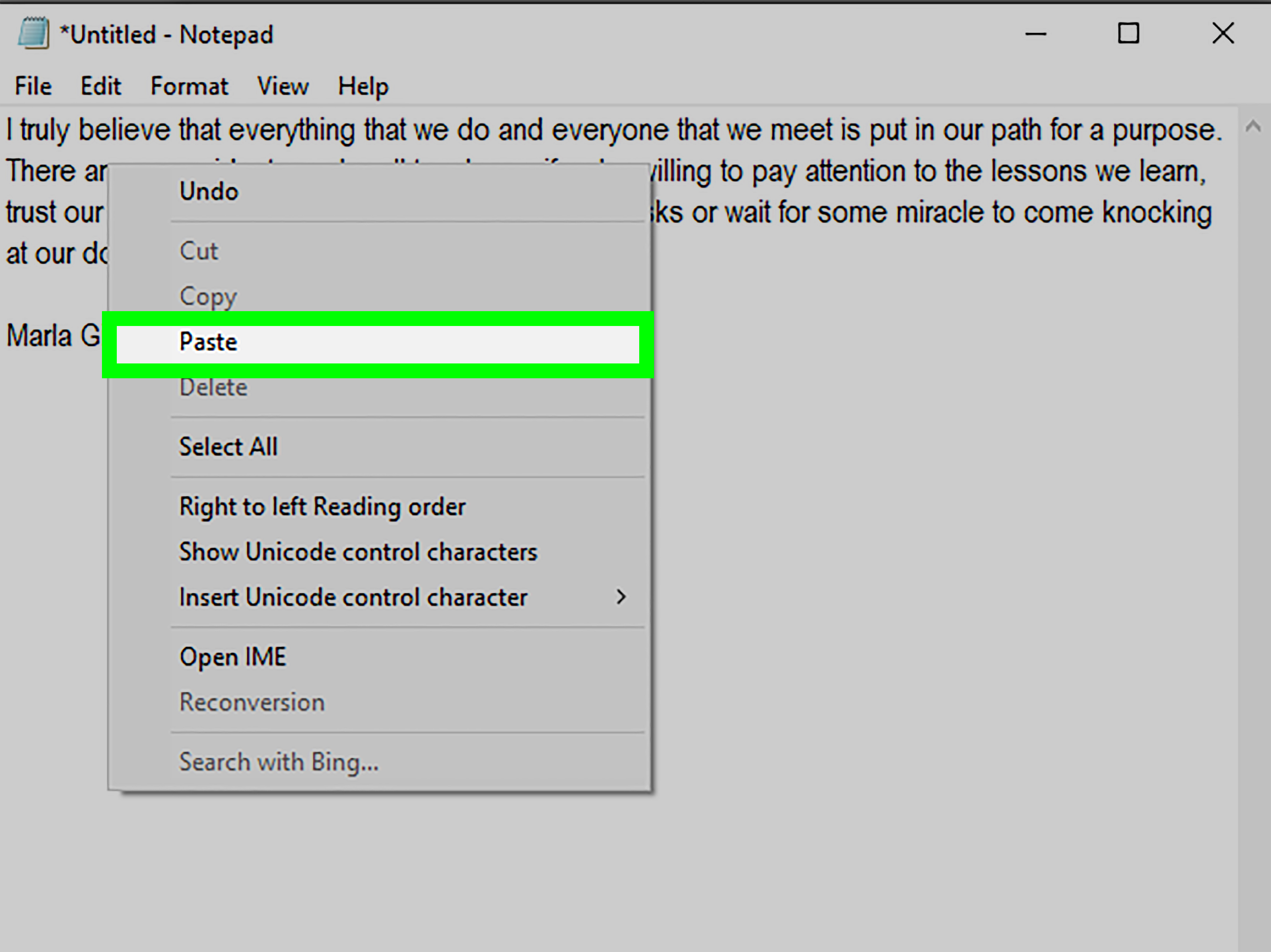
Use Ctrl + V on Windows or Command + V on Mac. You can paste into email, Word, Google Docs, Notepad, Notes, search engines, or another WhatsApp chat.
How to Copy WhatsApp Messages Without Losing Formatting
WhatsApp messages are mostly plain text. If a message includes bold, italic, links, emojis, or line breaks, some formatting may remain after copying, but it depends on the destination app. Emojis usually copy well. Line breaks usually survive. Bold and italic styling may not always transfer as visible formatting.
If formatting matters, paste into a rich-text app such as Google Docs, Microsoft Word, Apple Notes, or an email draft. If you only need clean text, paste into a plain-text editor first, then copy it again. This removes extra formatting and keeps things tidy.
Can You Copy Photos, Videos, Voice Messages, or Stickers?
You cannot copy a voice message as text just by tapping Copy. Voice messages, images, videos, GIFs, and stickers are media items, not regular text messages. However, you still have options.
For Photos and Videos
You can save, share, or forward the media. On some devices, you may also be able to copy an image to the clipboard, but WhatsApp’s standard message-copy feature is designed mainly for text.
For Voice Messages
If WhatsApp voice message transcription is available on your device, you may be able to read a transcript and copy the text from there, depending on your app version and language support. If not, you can manually transcribe the message or use a separate transcription tool.
For Text Inside Images
If someone sends a screenshot containing text, use your phone’s text recognition tools. On iPhone, Live Text can detect text in images. On many Android phones, Google Lens can extract text from screenshots or photos. After extraction, copy the recognized text and paste it where needed.
Privacy and Safety Tips Before Copying WhatsApp Messages
Copying a message may feel harmless, but WhatsApp chats often contain personal details: addresses, phone numbers, medical appointments, payment information, passwords, private jokes, and messages that should absolutely not appear in a family group chat.
Check What You Copied
Before pasting, glance at the message. Make sure you copied the right text and did not include extra personal information. This is especially important when copying long messages with names, addresses, or account details.
Be Careful With Clipboard History
Some devices and keyboards save clipboard history. Windows, Gboard, and certain Android keyboards can show recently copied text. That is convenient, but it also means copied sensitive information may remain available for a while. Clear your clipboard history if you copied passwords, private codes, or financial details.
Ask Permission When Sharing Private Messages
Just because you can copy a message does not always mean you should share it. If the message is personal, confidential, or work-related, ask before sending it to someone else. The internet has a long memory, and screenshots have Olympic-level endurance.
Why Can’t I Copy a WhatsApp Message?
If the Copy option is missing, frozen, or not working, the problem is usually temporary. Try these fixes before blaming your phone, WhatsApp, Mercury retrograde, or all three.
1. Update WhatsApp
Open the App Store or Google Play Store and check for updates. Newer features, including improved text selection, often require the latest version of WhatsApp.
2. Restart the App
Close WhatsApp completely and reopen it. This can fix small interface glitches where menus fail to appear.
3. Restart Your Phone or Computer
A quick restart can refresh the clipboard, keyboard, browser, and app processes. It is basic advice because it works annoyingly often.
4. Try Another Platform
If copying does not work on your phone, open WhatsApp Web or WhatsApp Desktop and copy the message there. If desktop selection fails, try your phone.
5. Check Browser Permissions or Extensions
On WhatsApp Web, browser extensions can interfere with copying and pasting. Try another browser, disable extensions temporarily, or clear the browser cache.
6. Use a Note App as a Middle Step
When partial copying is difficult, copy the full message, paste it into Notes, Keep, Word, or Google Docs, edit it there, and copy the final version.
Best Uses for Copying WhatsApp Messages
Copying a WhatsApp message is not just a convenience trick. It can save time in daily life, work, travel, shopping, and planning.
Save Addresses and Directions
Copy an address from WhatsApp and paste it directly into Apple Maps, Google Maps, or a rideshare app. This reduces typing errors and saves you from arriving confidently at the wrong bakery.
Store Confirmation Codes
Copy booking numbers, tracking IDs, appointment details, and reference codes into a note or spreadsheet. This is especially helpful for travel and online shopping.
Turn Chat Notes Into Work Documents
If your team discusses tasks in WhatsApp, copy key points into a project management tool or document. A chat thread is not a filing system, no matter how bravely we pretend it is.
Translate Messages
Copy text from WhatsApp and paste it into a translation app. WhatsApp also has built-in translation features on supported devices and languages, but copying remains useful when you want more control.
Experience Notes: Real-Life Tips for Copying WhatsApp Messages Smoothly
After using WhatsApp across iPhone, Android, and computer setups, one thing becomes clear: the easiest method depends less on WhatsApp itself and more on what you plan to do with the message afterward. Copying one sentence into another chat is simple on any device. Copying ten scattered messages into a polished email? That is when your workflow matters.
On iPhone, the smoothest experience usually comes from copying a message and pasting it into Apple Notes first. Notes keeps line breaks clean, lets you trim unnecessary parts quickly, and gives you a safe place to review the text before sending it elsewhere. This is helpful when a friend sends a long recommendation list like “restaurant, address, best dish, parking tip, secret menu item, emotional backstory.” Instead of pasting that entire novel into a group chat, you can clean it up in Notes and share only what matters.
On Android, Gboard can be a quiet productivity hero. If clipboard suggestions are enabled, recently copied WhatsApp text may appear above the keyboard. This makes it easy to paste the same address, phone number, or code more than once. For example, if you are coordinating an event, you might copy the venue address from WhatsApp and paste it into a calendar invite, a rideshare app, and a message to a friend. That saves time and reduces typos.
On a computer, WhatsApp Web is often the best option for longer copying jobs. A mouse and keyboard make it easier to select, copy, edit, and organize text. If you are collecting client instructions, recipe steps, classroom notes, or travel plans, open WhatsApp Web and paste the messages into Google Docs or Microsoft Word. You can then add headings, bullets, and links without fighting your phone screen.
One practical habit is to paste copied messages into a temporary “scratchpad” before sending them onward. This prevents accidental oversharing. For example, a WhatsApp message may include a delivery address, phone number, and payment note, but you may only need the tracking number. Reviewing it first helps avoid sharing private details with the wrong person.
Another useful habit is clearing your clipboard after copying sensitive information. If you copied a one-time password, bank detail, private address, or personal message, copy a harmless word afterward or clear the clipboard through your device settings. It sounds small, but it is a smart privacy move.
The biggest lesson is simple: copying WhatsApp messages is easy, but copying them thoughtfully is better. Use the phone for quick one-message tasks. Use the computer for longer editing jobs. Use notes as a middle step when accuracy matters. And when in doubt, read before you pastebecause nothing humbles a person faster than sending “bring toilet paper” to a professional group chat.
Conclusion
Learning how to copy a WhatsApp message on iPhone, Android, and computer can make everyday communication faster and cleaner. On iPhone, press and hold the message and tap Copy. On Android, tap and hold the message, open the three-dot menu, and choose Copy. On WhatsApp Web or Desktop, use your mouse and keyboard shortcuts when text selection is available.
For partial copying, iPhone users may have more flexible text selection depending on their WhatsApp version, while many Android users may still need to copy the full message and edit it elsewhere. For long messages, work notes, addresses, tracking numbers, or private details, paste the text into a note app first so you can review and clean it up before sharing.
In the end, copying WhatsApp messages is a tiny skill with surprisingly big benefits. It saves typing, prevents mistakes, helps organize information, and gives you more control over what you share. Your clipboard may be invisible, but treat it like a tiny digital assistanthelpful, fast, and occasionally holding something you should probably delete.
SEO Tags
Note: This article is based on current WhatsApp message-copy behavior, WhatsApp Web and Desktop usage, and standard clipboard features on iPhone, Android, Windows, and Mac. Interface names may vary slightly depending on device model, app version, operating system, and regional feature rollout.