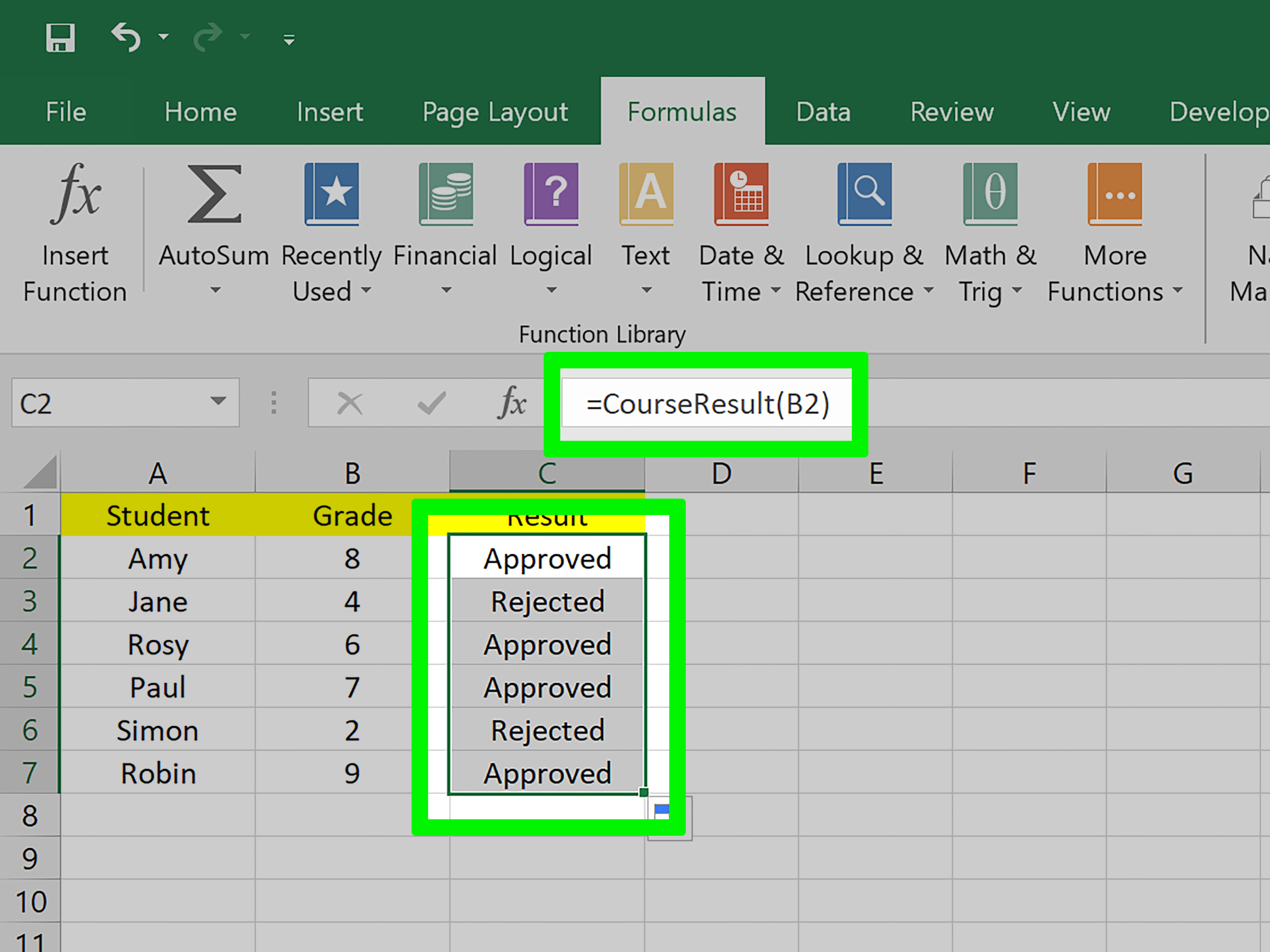

Excel has two moods: “I can do that with a formula” and “Fine… open the VBA editor.” A User Defined Function (UDF) is what happens when you want Excel to act like it shipped with =MYMAGIC() built inbecause your workflow is unique, your math is weird, or your team keeps copy-pasting the same monster formula like it’s a family heirloom.
Here’s the good news: modern Excel gives you two great ways to create custom functions:
- LAMBDA (no VBA): Build custom functions using regular Excel formulas, then name them.
- VBA UDFs (classic): Write a
Functionin Visual Basic for Applications and call it from a worksheet like any other Excel function.
This guide walks you through both methods, with practical examples, common mistakes, and a few sanity-saving tips you’ll wish you’d learned sooner.
What exactly is a “User Defined Function” in Excel?
A UDF is a custom function that you create and then use in worksheet formulasjust like SUM, XLOOKUP, or TEXTAFTER. It takes inputs (arguments), does some work, and returns a result.
The two most common types of Excel UDFs
-
LAMBDA-based UDFs (new-school): You write a normal Excel formula, wrap it in
LAMBDA, give it a name, and then use that name like a function. -
VBA-based UDFs (old-school, still powerful): You write a function in the VBA editor, save the workbook as macro-enabled, and call it from cells.
Quick decision rule: If you can do it with formulas, prefer LAMBDA. If you need loops, custom parsing, heavy logic, or integration with other VBA procedures, use VBA.
Option 1: Create a UDF with LAMBDA (no VBA, no macros)
LAMBDA lets you create custom, reusable functions using Excel’s formula language. This is huge because it keeps everything inside the workbook without macro security warnings, and it works nicely in many modern Excel environments.
When LAMBDA is the best choice
- You want a custom function without enabling macros.
- You’re already comfortable with Excel formulas.
- You want to share a workbook without triggering “Enable Content” warnings.
- Your logic can be expressed with worksheet functions (even complex ones).
Step-by-step: Create a LAMBDA function and name it
-
Start with a working formula (test it in a cell first). Example: total price after discount:
-
Wrap it in LAMBDA by replacing cell references with parameters:
-
Name it so you can call it like a real function:
- Go to Formulas > Name Manager > New
- Name:
DISCOUNTEDPRICE - Refers to:
=LAMBDA(price,discount, price*(1-discount))
-
Use it like any other function:
Example: A “clean phone number” custom function (LAMBDA)
Let’s say your data includes phone numbers like (555) 123-4567, 555.123.4567, or 555 123 4567. You want digits only.
1) Test a formula approach (one possible strategy): remove common separators, then keep digits. In modern Excel, you can build robust cleaners with functions like SUBSTITUTE, TEXTJOIN, and dynamic arrays. For example, a simple cleaner for common punctuation might look like:
2) Turn it into a named LAMBDA:
Name it CLEANPHONE in Name Manager, then call:
Tip: LAMBDA shines when paired with LET. It makes your logic readable enough that a coworker won’t hunt you down in the parking lot later.
How to “debug” LAMBDA without losing your mind
- Build from inside out: test the formula before wrapping in LAMBDA.
- Use LET variables: name intermediate results so you can see where it breaks.
- Return a temporary value: swap the final output with a variable to inspect it.
Option 2: Create a VBA User Defined Function (classic Excel UDF)
VBA UDFs are the traditional way to create custom functions. They’re incredibly flexible, but they come with two realities:
- You must save the workbook as a macro-enabled file (
.xlsmor similar). - Macro security settings can block your code, especially for files downloaded from the internet.
Before you start: Enable the Developer tab
If you don’t see the Developer tab, enable it:
- Go to File > Options > Customize Ribbon
- Check Developer
- Click OK
Step-by-step: Write your first VBA UDF
-
Open the VBA Editor
- Press Alt + F11 (Windows), or
- Developer tab > Visual Basic
-
Insert a module
- In the VBA editor: Insert > Module
-
Write a Function (not a Sub)
Paste this into the module:
-
Save the workbook as macro-enabled
Go to File > Save As and choose:
- Excel Macro-Enabled Workbook (*.xlsm)
-
Use your UDF in a cell
Example: A “Fiscal Year” UDF (VBA)
If your company fiscal year starts in July, you might want a function that returns fiscal year for any date.
Usage:
Why this is a good example: it demonstrates optional arguments, input validation, and returning a real Excel error value when needed.
Important limitations of VBA UDFs (read this before you go wild)
- UDFs should return a value, not “do stuff.” A worksheet UDF shouldn’t format cells, pop message boxes, or write to other cells. Keep it pure: inputs → output.
- Excel for the web won’t run VBA macros. Your workbook can open, but the UDF won’t calculate there.
- Security prompts are normal. If your file is downloaded, macros may be blocked until you explicitly trust the file/location.
Make your UDF feel “professional” inside Excel
1) Add descriptions so users understand your function
You can register descriptions so the function wizard shows helpful text. Here’s a basic pattern:
Run RegisterUDFHelp once (as a macro). After that, users can find your function under a custom category and see argument descriptions.
2) Handle errors gracefully
If your function can fail (bad input, missing data), return Excel-style errors using CVErr:
CVErr(xlErrValue)→#VALUE!CVErr(xlErrNA)→#N/A
That way your spreadsheet behaves like Excel, not like a mysterious black box.
3) Keep performance in mind
UDFs recalculate. If your UDF loops over large ranges or is used thousands of times, you can accidentally create a spreadsheet that sounds like a jet engine.
- Prefer vectorized formulas/LAMBDA when possible.
- Minimize calls to worksheet functions inside loops.
- Avoid volatile behavior unless absolutely needed.
How to share a UDF with your team
Share method A: Keep it in the workbook
This is simplest. Your VBA UDF lives in the workbook’s module. Anyone using it must open that workbook (and enable macros).
Share method B: Turn it into an Excel add-in (VBA route)
If you want your UDF available in all workbooks, you can package it as an add-in (.xlam) and install it via Excel add-in settings. This is great for internal teams who need a consistent toolbox of functions.
Note: Organizations often have IT policies around add-ins and macros. If you’re in a managed environment, check with your admin so your “helpful function” doesn’t become your “helpful ticket in the security queue.”
Share method C: Share LAMBDA functions
LAMBDA functions are stored in the workbook (via Name Manager). Sharing the workbook shares the function. No macro warnings, no VBA editor, and far fewer suspicious looks from your IT department.
FAQ: Common questions about Excel UDFs
Why doesn’t my custom VBA function show up when I type “=”?
Most often: the workbook isn’t saved as .xlsm, macros are disabled/blocked, or the function is declared Private. Make it Public Function and save as macro-enabled.
Can a UDF change other cells?
Worksheet UDFs should not “reach out” and modify the sheet. Excel expects them to be calculation functions, not tiny robots rearranging your workbook.
Will VBA UDFs work in Excel for the web?
NoExcel for the web doesn’t run VBA. If web compatibility matters, strongly consider LAMBDA-based solutions instead.
Conclusion
Creating a user-defined function in Excel is one of the fastest ways to level up from “spreadsheet user” to “spreadsheet wizard with a reusable toolbelt.” If you want clean, shareable custom functions without macro headaches, start with LAMBDA. If you need richer logic, loops, or specialized text/data handling, go with a VBA UDFand be mindful of security settings and file formats.
Either way, the goal is the same: stop repeating work, reduce formula chaos, and make Excel do what you actually neednot what it guessed you might need back in 2007.
Real-World Experiences: What It’s Like to Build UDFs in Excel (and what you learn the hard way)
Once you start creating UDFs, you quickly realize the technical part is only half the story. The other half is the real-world chaos: messy data, unpredictable coworkers, and spreadsheets that evolve the way kitchen junk drawers evolvegradually, then suddenly.
A common early experience is building a UDF to replace an “ugly but working” formula. At first it feels like you’ve cleaned your entire house. Instead of a 200-character formula with nested IFs and enough parentheses to qualify as modern art, you now have something like =DISCOUNTEDPRICE(A2,B2). It’s readable, consistent, and less error-prone. Then you share the workbook and someone replies, “It’s not calculating on my computer.” That’s usually your first lesson in environment differences: macro settings, file trust, Excel versions, and whether they’re opening it in Excel for the web.
Another classic moment: you write a VBA UDF that works perfectly for one cell, then you drag it down 20,000 rows and Excel starts acting like it needs a snack and a nap. Performance becomes very real, very fast. That’s when you learn to keep UDFs lean, avoid unnecessary loops over ranges, and prefer formula-based approaches (especially LAMBDA) when possible. It’s not that VBA is “bad”it’s that recalculation economics are ruthless.
Teams also discover the “support burden” side of UDFs. The function may be brilliant, but if nobody knows what arguments it expects, you’ll spend your week answering questions like, “What does the second parameter do?” Adding descriptions (for VBA UDFs) or making parameter names clear (for LAMBDA) suddenly becomes less of a nice-to-have and more of a survival strategy. A well-documented UDF is the difference between “tool” and “mystery artifact.”
There’s also the emotional journey of learning to validate inputs. Real data is rarely polite. Dates show up as text. Percentages show up as “10” instead of “0.10.” Someone copies in a column where half the cells are blank and the other half are the word “N/A” typed by hand. If your UDF doesn’t handle these gracefully, you get a forest of errors. Over time, many Excel builders adopt a simple philosophy: fail like Excel fails. Return #VALUE! or #N/A when appropriate, and make the output predictable.
Finally, a lot of people end up using both approaches: LAMBDA for reusable worksheet logic and VBA for the heavier lifting or for automations outside cell formulas. That hybrid approach tends to age well, because it keeps workbooks maintainable and reduces friction when files are shared. In practice, the “best” UDF isn’t always the cleverest oneit’s the one your team can use confidently six months from now, without needing you on speed dial.