
Switching browsers is a lot like moving houses: the new place might be nicer, but you still want your stuff.
And in Browser World, your “stuff” is bookmarksaka the carefully curated list of “I’ll read this later” links
you absolutely, totally, definitely plan to read later (no judgment).
The good news: importing bookmarks into Microsoft Edge Favorites is straightforward, and you’ve got
multiple ways to do it depending on where your bookmarks live (Chrome, Firefox, Safari, an exported HTML file, or
another computer). This guide walks you through the simplest methods, plus a few “why is nothing showing up?!”
fixes when Edge decides to be dramatic.
What Edge Calls Bookmarks (and Why It Matters)
In Microsoft Edge, bookmarks are called Favorites. Functionally, they’re the same: saved links you can
organize into folders, pin to a bar, and sync across devices. The naming difference matters mostly because menus and
buttons will say “Favorites,” not “Bookmarks.”
Before You Import: Quick Checklist
- Decide your import method: import directly from another installed browser, or import from an HTML file.
- Know your Edge profile: if you use multiple Edge profiles (work/school vs personal), import into the right one.
- Optional but smart: turn on sync in Edge so you don’t have to repeat this on every device.
Method 1: Import Bookmarks Directly From Chrome or Firefox (Fastest)
If the browser you’re moving from is installed on the same computer (like Chrome or Firefox), Edge can usually pull
bookmarks directlyno exporting required.
Steps (Windows or Mac)
- Open Microsoft Edge.
- Click the three-dot menu (Settings and more) in the upper-right corner.
- Go to Settings → Profiles.
- Select Import browser data (sometimes shown as “Import browser data now”).
- Choose the browser you want to import from (for example, Google Chrome or Mozilla Firefox).
- Check Favorites / Bookmarks (and any other items you want).
- Click Import.
Pro tip: Edge also supports a shortcut address for this screen. Type
edge://settings/importData in the address bar to jump straight to the import page.
After the import finishes, your links typically appear as a new folder in Favorites (often labeled something like
“Imported” or the browser’s name). That’s normalEdge is basically saying, “I unpacked your boxes and put them in one room.”
Method 2: Import Bookmarks From an HTML File (Most Universal)
If you’re moving bookmarks from a browser that isn’t installed on your computer, or you’re transferring bookmarks
from an old device, the most reliable approach is exporting bookmarks as an HTML file and importing that file into Edge.
Part A: Export Bookmarks From Your Old Browser
Export from Google Chrome
- Open Chrome.
- Click the three-dot menu → Bookmarks and lists → Bookmark manager.
- In Bookmark Manager, click the three-dot menu.
- Select Export bookmarks.
- Save the file somewhere you can find it (Desktop, Downloads, or a folder named “Bookmarks Backup”).
Export from Mozilla Firefox
- Open Firefox.
- Open the bookmarks library (often via the bookmarks menu or Library).
- Select Import and Backup → Export Bookmarks to HTML.
- Save the HTML file.
Export from Safari (Mac)
- Open Safari.
- Click File → Export Bookmarks.
- Save the file (Safari typically names it something like Safari Bookmarks.html).
Reality check: If you’re exporting from Safari on iPhone/iPad, you typically don’t export a simple HTML file from the mobile app
the same way you do on a Mac. In most cases, the easiest route is to use iCloud syncing on a Mac first, then export from Safari on Mac.
Part B: Import the HTML File Into Edge Favorites
- Open Microsoft Edge.
- Click Settings and more (three dots) → Settings.
- Go to Profiles → Import browser data.
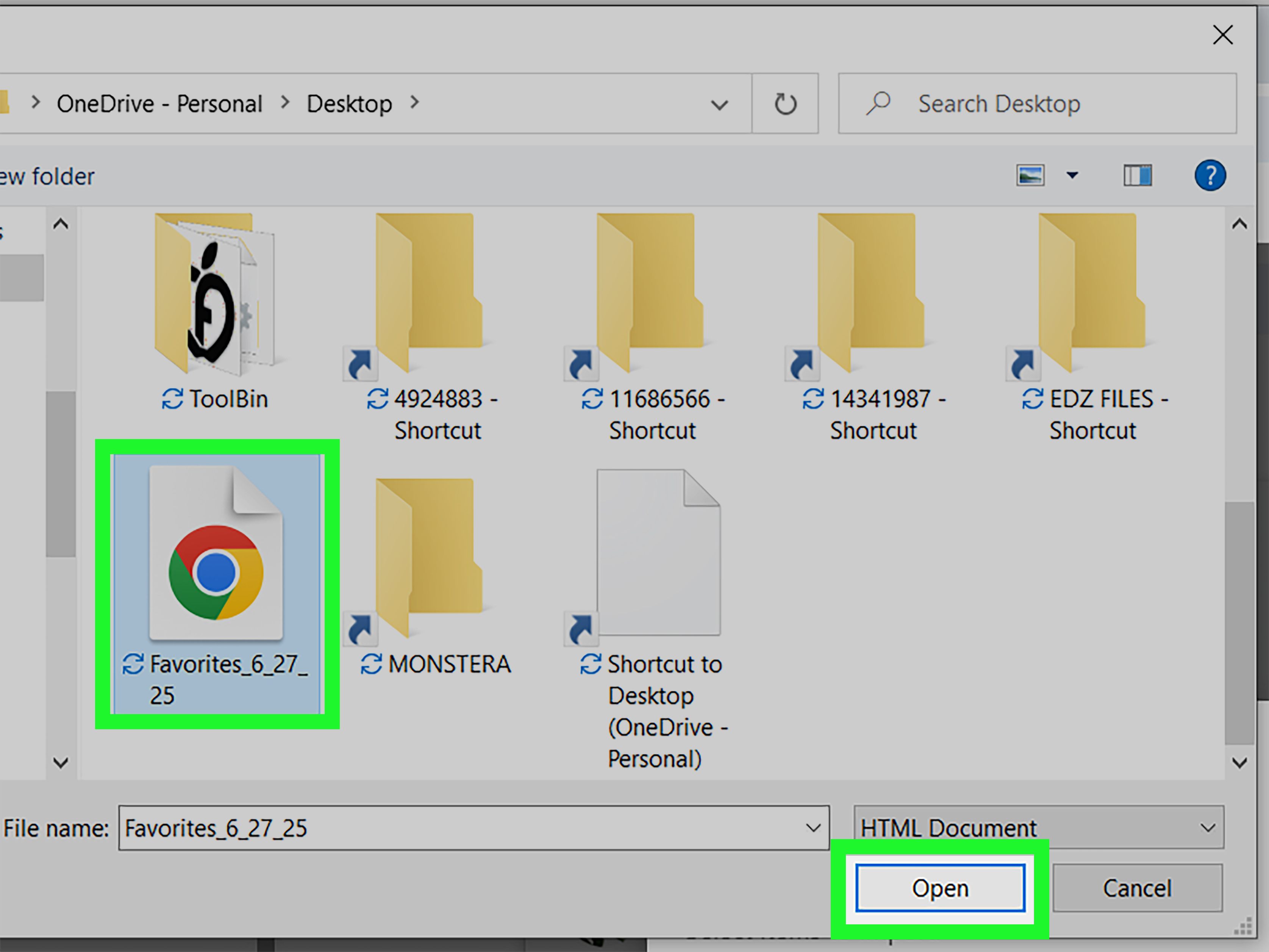
- Under import options, choose Favorites or bookmarks HTML file.
- Click Choose file and select the bookmarks HTML file you exported.
- Finish the import and check your Favorites list.
If you import and don’t immediately see anything, open the Favorites manager and look for an “Imported” folder near
the bottom. Edge often puts HTML imports there so it doesn’t mix everything into your existing folders without permission.
Method 3: Use Edge Sync Instead of Importing (Best for Multiple Devices)
If your goal is “I want my Favorites on my laptop, desktop, and phone,” importing is only step one. The long-term win is
enabling sync in Edge so your Favorites follow you automatically.
How to turn on Favorites sync
- Open Edge and sign in with your Microsoft account (or your work/school account, if that’s what you use).
- Go to Settings → Profiles → Sync.
- Turn on sync and make sure Favorites is enabled.
Once sync is on, importing on one device can populate Favorites across your other devices that use the same signed-in
Edge profile. It’s like having a moving truck instead of carrying boxes one at a time.
Where Did My Bookmarks Go? Common “It Imported… But I Don’t See Anything” Fixes
1) Look for an “Imported” folder in Favorites
Edge often creates a folder for imported items to keep things tidy. Open your Favorites list and scrollespecially if you already had folders.
If you want a cleaner setup, drag folders out of “Imported” and into your preferred structure.
2) Make sure you imported into the right Edge profile
If you have multiple profiles (work and personal), Favorites don’t automatically merge between them. Switch profiles in Edge and check again.
The easiest clue: the profile icon at the top right.
3) Check whether your device is managed by your organization
On work or school computers, importing can be restricted by admin policies. If the import options are missing or greyed out,
it may be intentional. In that case, you may need to ask IT or use an approved method.
4) You imported, but the Favorites Bar is hidden
Your bookmarks might be there, but not visible where you expect. Try opening the Favorites menu first, then enable the Favorites Bar
(Edge has settings for showing it always, only on new tabs, or never).
5) Too many duplicates after multiple imports
If you imported more than once, you may have duplicate folders. A quick cleanup strategy:
- Compare the “Imported” folders side by side.
- Keep the most complete folder set.
- Delete the duplicates once you’re sure everything you need is preserved.
Organizing Favorites After Import (So Your Brain Doesn’t Melt)
Importing is step one. Step two is turning “1,247 bookmarks” into something that doesn’t look like a browser version of a junk drawer.
Here are some simple organization wins:
Create a “Top 10” folder for daily-use links
Put your most-used sites (email, calendar, banking, school/work portals) in one folder. Pin them to the Favorites Bar if you want quick access.
Use folders that match how you actually search
Instead of overly specific categories, use real-life buckets like Work, Shopping, Recipes, Health, DIY, Read Later.
If you can’t decide where something goes in three seconds, the folder system is too complicated.
Do a “bookmark diet” (but the fun kind)
Once a year (or whenever your browser starts wheezing), delete dead links and merge folders that mean the same thing.
If you haven’t clicked a bookmark since the last Olympics, it might be time to let it go.
Specific Example Scenarios
Example 1: Moving from Chrome to Edge on the same PC
Install Edge (if it’s not already there), open the import page, select Chrome, and import Favorites. Then enable sync so your Favorites carry over to your laptop.
This is the fastest “I just want my stuff” approach.
Example 2: Old laptop is dying, new laptop is shiny
On the old laptop, export bookmarks from your current browser to an HTML file. Copy that file to a USB drive or cloud storage.
On the new laptop, import the HTML file into Edge. Then enable sync so you never have to do the USB-drive shuffle again.
Example 3: Safari bookmarks to Edge (Mac)
Export from Safari using File → Export Bookmarks. Then in Edge, import from the bookmarks HTML file. After import, create a folder called “Safari Imports”
so you remember what came from whereand so you can reorganize at your own pace.
Security and Privacy Notes (Quick, Not Scary)
- Importing bookmarks doesn’t usually delete anything from your original browser. It copies data into Edge.
- HTML bookmark files contain links and folder structure, not your passwords. (Passwords usually use separate export/import methods.)
- If you’re on a shared computer, consider using a separate Edge profile so your Favorites don’t mix with someone else’s browsing life.
Real-World Experiences and Lessons People Commonly Run Into (Extra Notes)
People rarely import bookmarks in a calm, peaceful moment like “Ah yes, I shall now perform routine browser maintenance.”
It’s usually happening during a mini-crisis: a new laptop arrives, a work account changes, or a browser update makes everything feel unfamiliar.
Here are some real-world situations that come up a lotand what tends to work best.
Experience #1: “I imported… and now I have three ‘Imported’ folders.”
This is extremely common when you run the import more than once (especially if you try a direct import, then later try an HTML file “just to be safe”).
The best fix is simple: open each Imported folder, pick the most complete one, and then merge or delete the extras.
A quick trick is to check for your most niche folderwhatever you know is hard to recreate (maybe “House Projects 2021” or “Grad School Sources”).
Keep the folder set that contains the weirdly specific stuff. That’s usually the “real” one.
Experience #2: “My bookmarks are there, but I can’t find them on the toolbar.”
Many people expect imported bookmarks to appear instantly on the Favorites Bar. Edge doesn’t always do that.
Often, your bookmarks import correctly, but the bar is hidden or set to show only on new tabs.
Once you enable the Favorites Bar, you can pin your most-used folder there and get that “everything is normal again” feeling in about 10 seconds.
Experience #3: “I used the right steps… but I imported into the wrong profile.”
Edge profiles are a blessing and a curse. If you have a work profile and a personal profile, it’s easy to import into one and then check the other.
People usually realize this when they sign into Edge on another device and the Favorites “don’t sync.”
The fix is checking the profile icon (top right), switching to the profile you actually use day-to-day, and importing again (or moving favorites between profiles manually).
Experience #4: “My work laptop won’t let me import.”
On managed devices, IT can control what’s allowed. If Import options are missing or disabled, it’s not youit’s policy.
In those cases, exporting to HTML on a personal device and importing on a managed work device might still be blocked.
The most realistic approach is asking IT what’s permitted (sometimes they’ll allow syncing, sometimes they’ll provide an approved migration method).
Experience #5: “I just want my bookmarks on my phone too.”
This is where sync is the hero. Importing is a one-time move; sync is the long-term solution.
People often import bookmarks successfully on a desktop and then wonder why mobile Edge is empty.
Once you sign in to Edge on mobile with the same account and enable Favorites syncing, your bookmarks typically appear without additional importing.
After that, your “new device setup” becomes much easier: install Edge, sign in, turn on sync, done.
Bottom line: importing bookmarks is usually easy; the hiccups are almost always about where Edge put them (Imported folder),
which profile you used, or whether sync is enabled. Solve those three, and your Favorites will behave like they’ve lived in Edge forever.
Conclusion
Importing bookmarks to Edge Favorites doesn’t have to be a tech-support epic. If the other browser is installed, you can often import directly in a few clicks.
If you’re transferring from another device (or Safari), exporting an HTML bookmarks file and importing it into Edge is the universal “works almost everywhere” option.
And if you want your Favorites to follow you across devices, turning on sync is the upgrade that saves you from doing this again.