
Your Facebook account is basically your digital living room: friends drop in, photos hang on the wall, and sometimes a weird stranger
tries the doorknob just to see if it’s locked. The good news? Facebook gives you a surprisingly solid set of security controlsif you
know where they’re hiding (spoiler: a lot of them live in Accounts Center now).
This guide walks you through how to edit Facebook security settings on both desktop and mobile, step-by-step, with
real-world tips (and a little humor) so you can protect your account without turning it into a part-time job.
Before You Start: A 2-Minute Prep
Before you start flipping security switches, do these quick checks so you don’t get stuck mid-change (like changing your locks while
your keys are still inside the house):
- Update the Facebook app (mobile). Menus move around more than a toddler in a candy aisle.
- Know your current password (or be ready to reset it).
- Have access to your phone number and/or email tied to Facebook.
- Set aside 10 minutes so you can do this in one sitting and store backup codes safely.
Your Security Home Base: Accounts Center
Facebook now routes many security controls through Accounts Center, a hub that can manage settings across connected
Meta apps (like Facebook and Instagram). Inside Accounts Center, look for a section commonly called
Password and security. That’s where you’ll typically find:
- Password changes
- Two-factor authentication (2FA)
- Login alerts
- Login activity / recent sessions
- Where you’re logged in (active devices)
- Passkeys (if available on your account)
Translation: if you can find Accounts Center, you’re already halfway to winning the “not getting hacked” Olympics.
Desktop: How to Edit Your Facebook Security Settings
Step 1: Open Facebook Settings (Desktop)
- Log in on a desktop browser.
- Click your profile picture (top right).
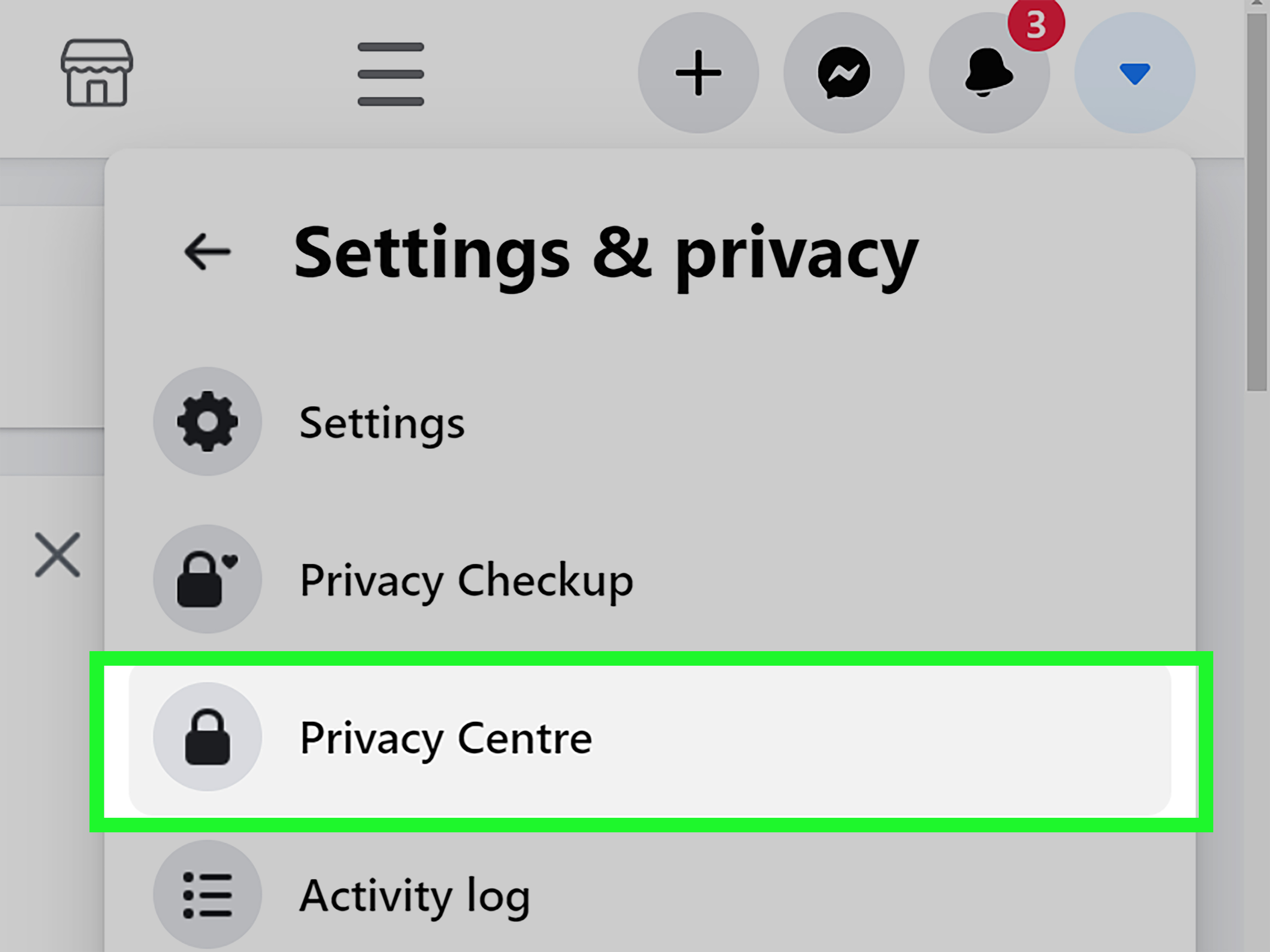
- Select Settings & privacy → Settings.
- Find Accounts Center (often in the left menu or near the top of Settings).
- Click Password and security.
If your menu looks a little different, don’t panic. Facebook tests layouts. The goal is still the same: get to
Accounts Center → Password and security.
Step 2: Change Your Password (Desktop)
If you’ve reused your Facebook password anywhere else (or if your password is “Password123!”), it’s time.
Use a long passphrase you won’t forget, or a password manager-generated password.
- In Password and security, select Change password.
- Enter your current password, then create a new one.
- Save changes and log in again if prompted.
Practical tip: a passphrase like “coffee-rain-jazz-umbrella” is easier to remember than “X%9!bQ2#…”
and can be very strong when it’s long.
Step 3: Turn On Two-Factor Authentication (2FA)
Two-factor authentication adds a second proof step after your password. Even if someone gets your password,
they’re missing the second key. Think of it like a bouncer checking IDs at the door.
- In Password and security, choose Two-factor authentication.
- Select your Facebook account (if you manage more than one Meta account).
- Pick a method:
- Authentication app (recommended)
- Security key (strongest, if you have one)
- SMS text messages (better than nothing, but not the top choice)
- Follow prompts to finish setup.
After enabling 2FA, immediately generate recovery codes (backup codes) and store them somewhere safelike a password
manager secure note or a printed copy in a locked drawer. Not as glamorous as a spy movie, but way more useful.
Step 4: Review “Where You’re Logged In” (Active Sessions)
This is where you catch suspicious sessionslike a login from a device you’ve never owned, in a place you’ve never been, at a time you
were asleep and definitely not practicing teleportation.
- In Password and security, find Where you’re logged in (or similar wording).
- Review devices and locations.
- If anything looks wrong, log out of that session (or log out of all sessions).
Note: location can be approximate, based on IP addresses, so don’t treat it like GPS evidence. Use it as a clue, not a courtroom exhibit.
Step 5: Turn On Login Alerts
Login alerts notify you when Facebook sees a login it doesn’t recognize. This is your early-warning systemlike smoke alarms, but for
your social life.
- In Password and security, look for Login alerts or Get alerts about unrecognized logins.
- Choose how you want alerts delivered (notifications, email, etc.).
- Confirm your contact info is accurate.
Step 6: Consider Passkeys (If Available)
Passkeys are a newer sign-in option that can use your device’s biometric or PIN (like Face ID, fingerprint, or device lock) instead of a
password. If your account has passkey support, you may see it in Password and security.
If you enable a passkey, keep your password and 2FA as fallback options unless Facebook specifically guides you otherwise. The goal is
easier sign-in and stronger protectionnot accidentally locking yourself out.
Mobile: How to Edit Facebook Security Settings (iPhone & Android)
Step 1: Open Settings on the Facebook App
- Open the Facebook app.
- Tap the Menu icon (often bottom right on iPhone, top right on Androiddepending on version).
- Tap Settings & privacy → Settings.
- Tap Accounts Center.
- Tap Password and security.
Pro tip: if you can’t find Accounts Center, use the Settings search bar (if available) and type
“Accounts Center” or “Password and security.”
Step 2: Change Your Password (Mobile)
- Go to Password and security.
- Tap Change password.
- Enter current password and create a new one.
If you’re doing this because something feels off, change your password after you log out suspicious sessions (so the
intruder doesn’t keep hanging out while you redecorate).
Step 3: Enable Two-Factor Authentication (Mobile)
- In Password and security, tap Two-factor authentication.
- Select your Facebook account.
- Choose the method:
- Authenticator app (recommended for most people)
- Security key (great if you have one)
- SMS (use if the other two aren’t realistic right now)
- Follow on-screen steps to verify.
Immediately after: get recovery codes. These matter most when you lose access to your phone or switch devices.
Step 4: Check “Where You’re Logged In” (Mobile)
- In Password and security, tap Where you’re logged in.
- Review sessions and log out anything unfamiliar.
- If you see multiple weird sessions, log out of all devices and sign in again.
Step 5: Turn On Login Alerts (Mobile)
- In Password and security, find Login alerts or Unrecognized login alerts.
- Choose notifications/email, and confirm your email/phone is correct.
Step 6: Create a Passkey (Mobile, If Available)
If passkeys are available on your account, mobile is often where you’ll set them up because it can use Face ID/Touch ID or Android
biometrics.
- Go to Accounts Center → Password and security.
- Look for Passkey and follow prompts.
- Confirm with biometrics/device lock.
Keep your recovery options updated. A passkey is convenient, but you still want a plan for “I dropped my phone in the ocean” day.
Recommended Facebook Security Settings (The “Good Enough” Checklist)
If you want a strong setup without turning into a full-time cybersecurity wizard, aim for this:
- Password: long and unique (ideally a passphrase or password manager-generated).
- 2FA: on, preferably via an authenticator app (or security key if you have one).
- Recovery codes: generated and stored somewhere safe (not in your photo gallery).
- Where you’re logged in: reviewed today, and again after any “weird login” alert.
- Login alerts: enabled for unrecognized logins.
- Contact info: email and phone current (so you can recover your account).
- Passkey: enabled if available and you’re comfortable using device-based sign-in.
Bonus: if your account is public-facing (creator, business, community admin), consider adding a security key and being extra picky about
devices you stay logged in on.
If Something Feels Off: What to Do Immediately
If you get a login alert you don’t recognize, or you see a session you can’t explain, do this sequence (in order):
- Log out suspicious sessions in Where you’re logged in (or log out of all).
- Change your password to something long and unique.
- Turn on (or re-check) 2FA and confirm it’s pointed at the right device/app.
- Check your email address and phone number for changes you didn’t make.
- Review recent activity for posts/messages you didn’t create, and remove anything suspicious.
If you’re locked out or suspect a takeover, look for Meta’s account recovery support hub and follow official recovery prompts. Avoid
“I can get your account back” strangers in comments sections. They’re not digital heroes; they’re usually scams.
Troubleshooting Common Facebook Security Problems
“I turned on 2FA and now I can’t log in.”
This often happens after switching phones, reinstalling an authenticator app, or changing numbers. Try these safer options:
- Use your recovery codes (this is why you saved them).
- Try logging in from a device you previously used successfully.
- Check if you have an alternate 2FA method set (like another authenticator app or security key).
- Use official account recovery steps if you’re locked out.
“Login alerts keep showing the same device.”
Your device and browser recognition can get confusedespecially if you clear cookies, use privacy modes, or switch networks often.
If alerts are too frequent, verify you’re receiving them in a reliable channel (notifications + email can be a good combo).
“The menu doesn’t match what you described.”
Facebook rolls out changes gradually. The key landmarks are still consistent:
Settings → Accounts Center → Password and security.
If your version doesn’t show Accounts Center, look for a direct Security and login section in Settings.
“I manage a Page or business accountdoes this change anything?”
Your personal Facebook account security still matters because it’s often the gateway to Pages, ad accounts, and connected tools.
Secure the personal account first (password + 2FA + alerts), then review admin roles and access for any Pages you manage.
Real-World Experiences After You Lock Things Down (What It’s Like in Practice)
You don’t really notice “good security” the way you notice a new phone case or a haircut. It’s more like good brakes: you’re thankful when
something goes wrong, but otherwise you forget they exist. Still, once you update your Facebook security settings on desktop and mobile,
a few practical experiences tend to show upand they’re worth knowing so you don’t undo your progress out of mild annoyance.
First, you’ll probably experience a tiny burst of “Wait… is this normal?” the next time you log in. With two-factor authentication enabled,
Facebook may ask for a code when you sign in from a new browser, a different device, or even the same device after a big app update.
That’s not Facebook being dramaticthat’s it doing its job. The trick is to set 2FA in a way that fits your life. If you chose an
authenticator app, you’ll open it, grab a code, and move on. It’s usually a 10-second speed bump, not a traffic jam.
Another common experience: you start noticing how many places you were logged in without realizing it. People often find an old tablet,
a work laptop they no longer use, or a browser session from a hotel Wi-Fi adventure they forgot about. Cleaning up “Where you’re logged in”
feels weirdly satisfyinglike deleting 2,000 unread emails, except it actually improves your safety. After you log out everywhere and sign
back in on only your trusted devices, your account usually feels calmer. Fewer surprises. Fewer “Wait, why did Facebook just refresh?” moments.
Login alerts can be the most emotionally confusing upgrade. The first time you get an alert, your brain may go straight to:
“Someone is hacking me right now.” Sometimes it’s real. Often it’s just youlogging in from a different browser, using a VPN, or bouncing
between cellular and Wi-Fi. The best experience here is learning to treat alerts like a doorbell camera notification: you check it, you verify,
and you act only if it’s actually suspicious. Over time, you’ll develop a “normal pattern” for your logins. Anything outside that pattern becomes
obvious faster.
If you enable passkeys (when available), the experience can feel almost too easy. Instead of typing a password, you use Face ID, fingerprint,
or a device PIN. The first week, you might double-check that you didn’t accidentally skip security. But passkeys are designed to be both simpler
and harder for attackers to steal via phishing. The key experience shift is that your phone becomes more central to sign-in. That’s convenient,
but it also means you’ll care more about your phone’s own lock screen security and backups. If you ever replace your phone, you’ll want to make
sure you can still access your passkey or use fallback methods (password + 2FA + recovery codes).
The biggest “real life” win usually shows up quietly: you stop worrying as much. When you’ve got a long unique password, 2FA turned on,
sessions cleaned up, and alerts enabled, random phishing messages and sketchy links lose a lot of power. You’re still not invinciblenobody is
but you’ve moved from “easy target” to “annoying target.” And most attackers, like most people looking for free parking, will take the easiest
option available.
Finally, there’s one experience almost everyone has: you wish you’d saved recovery codes somewhere sensible the first time. Don’t be that
person learning the hard way. Save them now. Future-you will be ridiculously grateful.
Wrap-Up
Editing your Facebook security settings isn’t about paranoiait’s about control. The best setup is the one you’ll actually keep:
a strong unique password, two-factor authentication you can use without suffering, login alerts that help you spot problems early, and a quick
habit of checking where you’re logged in once in a while.
Do the basics today, and Facebook stops feeling like a house with a flimsy screen door. It starts feeling like a place you actually own.